Chaos Corona is a high-performance photorealistic rendering engine developed by Chaos for Autodesk 3ds Max and Maxon Cinema 4D. Built primarily for architectural visualization (ArchViz), interior design, and product visualization, Corona is known for predictable physically based lighting, fast interactive feedback, and an artist-friendly workflow that delivers clean renders without complex tuning.
1. In-Depth Review: Why 3D & ArchViz Artists Use Chaos Corona
- Artist-Friendly Photorealism & Predictable Lighting: Produces natural daylight, interior bounce light, and realistic glass/material reflections with sensible defaults so artists can focus on composition rather than tweaking dozens of obscure render parameters.
- Interactive Rendering, LightMix & Fast Denoising: Lets artists adjust light intensities and colors live during rendering with LightMix, combine CPU and AI denoising to cut noise quickly, and iterate on camera angles and mood in real time.
- Integrated Chaos Cosmos Library & 3ds Max / Cinema 4D Workflow: Connects directly with thousands of ready-to-render 3D assets and materials while running seamlessly inside 3ds Max and Cinema 4D.
2. Key Features & Capabilities
- CPU-Based Physically Based Rendering: Delivers unbiased and biased photorealistic rendering across multi-core CPUs with dependable, consistent lighting results.
- Interactive LightMix & Frame Buffer Post-Processing: Adjust light balances on the fly without re-rendering from scratch, and fine-tune exposure, color balance, contrast, and bloom/glare directly in the Corona VFB.
- High-Quality & AI Denoising / Upscaling: Clean up noisy renders rapidly using built-in denoising and optional GPU-accelerated AI denoising or upscaling where supported.
- Chaos Cosmos 3D Assets, Scatter & Procedural Tools: Populate scenes efficiently with ready-made furniture, trees, props, and materials alongside scatter and procedural shading tools.
- Caustics, Volumetric Effects & Physical Materials: Render realistic light refraction/caustics, atmospheric haze/volumes, and physically accurate metals, fabrics, wood, and architectural glass.
- 3ds Max & Cinema 4D Integration: Works directly inside Autodesk 3ds Max and Maxon Cinema 4D (including Windows and macOS support for Cinema 4D).
3. How to Register & Access an Official Trial or License
To stay compliant and avoid unofficial installers, always download and activate Chaos Corona through Chaos's official portals:
- Visit the Official Chaos Corona Page: Go to https://www.chaos.com/corona to explore Corona features, supported host apps (3ds Max and Cinema 4D), and plans.
 Official Source & Interface Preview: www.chaos.com
- Start a 30-Day Free Trial: Visit https://www.chaos.com/corona/trial or https://www.chaos.com/free-trial and sign in or create a Chaos account to start a 30-day free trial.
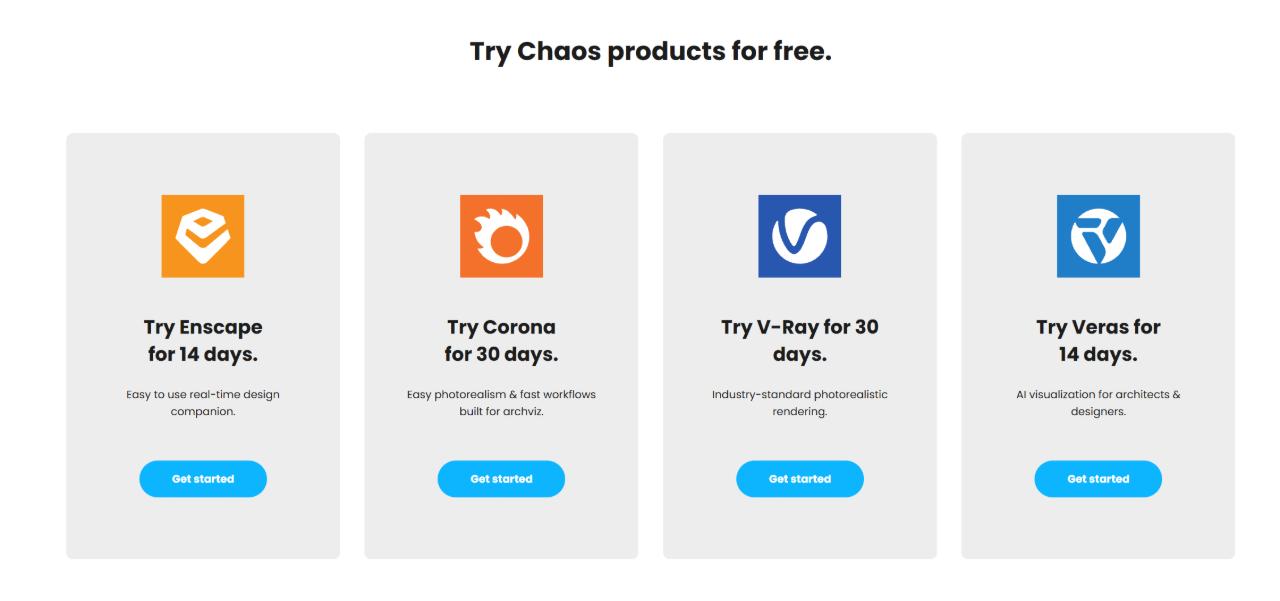
Official Source & Interface Preview: www.chaos.com
- Choose Your Official Licensing Path:
- 30-Day Free Trial: Test Chaos Corona for 30 days through Chaos's official trial portal before any paid subscription billing starts (cancel prior to trial end to avoid charges).
- Commercial & Educational Plans: Review commercial named or floating licenses and educational options directly on https://www.chaos.com/corona.https://www.chaos.com/corona.
4. Step-by-Step Installation Guide
- Verify Host Application & System Requirements: Ensure you have a supported 64-bit operating system (Windows 10/11 or supported macOS for Cinema 4D), a 64-bit CPU supporting SSE4.2, and a compatible version of Autodesk 3ds Max or Maxon Cinema 4D installed first.
- Download the Official Corona Installer: Sign in to your Chaos account via https://www.chaos.com/corona/trial or https://www.chaos.com/free-trial and download the official Chaos Corona installer.
- Run the Setup Wizard with Administrator Rights: Launch the installer (running as administrator), accept the license agreement, select your target host application (3ds Max or Cinema 4D) and components, and complete installation.
- Activate Your Trial or License: Open 3ds Max or Cinema 4D, set Corona as the active renderer, and sign in with your Chaos account to activate your trial or subscription license.
5. How to Use Chaos Corona: Beginner Workflow
- Set Corona as the Active Renderer: Open your 3D scene in 3ds Max or Cinema 4D, open Render Setup / Render Settings, and select Chaos Corona as your rendering engine.
- Add Lighting & Environment Setup: Set up daylight/sky or interior area/point lights in your scene and check exposure and framing in the viewport.
- Assign Corona Materials & Assets: Apply Corona materials and place 3D assets or scatter elements across your architectural or product scene.
- Start Interactive Rendering & Refine LightMix: Launch Interactive Rendering to preview lighting quickly, adjust light intensities/colors with LightMix, and dial in denoising and VFB adjustments.
- Render Final Output & Save Scene: Switch to final production rendering at your desired resolution, save your rendered image (such as EXR, PNG, or JPG), and save your host scene file.
6. Frequently Asked Questions (FAQ)
- Is Chaos Corona CPU-based or GPU-based?Chaos Corona is primarily CPU-based for rendering, meaning multi-core CPU performance drives render speed, while optional GPU features can assist with denoising/upscaling where supported.
- Which 3D software does Chaos Corona work with?Chaos Corona integrates with Autodesk 3ds Max and Maxon Cinema 4D.
- How long is the official Chaos Corona trial?Chaos offers a 30-day free trial for Corona through its official trial pages.