DBeaver Community (developed by DBeaver Corp under the Apache License 2.0) is a free, open-source universal database management and SQL client tool for Windows, macOS, and Linux. Built for developers, database administrators, and data/GIS engineers working with PostgreSQL/PostGIS, MySQL, MariaDB, SQLite, DuckDB, and many other relational and cloud databases, DBeaver combines a fast SQL editor, visual table/data editor, schema diagrams, and data import/export wizards in one clean desktop workspace.
1. In-Depth Review: Why Developers & GIS/Data Teams Use DBeaver
- Universal Database Support from One Workspace: Connects to PostgreSQL, MySQL, MariaDB, SQLite, DuckDB, and many other SQL/database engines using JDBC drivers with a consistent interface.
- Productive SQL Editor, Data Grid & Import/Export: Offers syntax highlighting, autocomplete, query execution plans, inline grid editing, and CSV/JSON/SQL/table data transfer tools.
- Self-Contained Runtime & Free Open-Source Core: Bundles a modern Java runtime in official distributions and gives individuals and teams a free open-source tool under the Apache 2.0 license.
2. Key Features & Capabilities
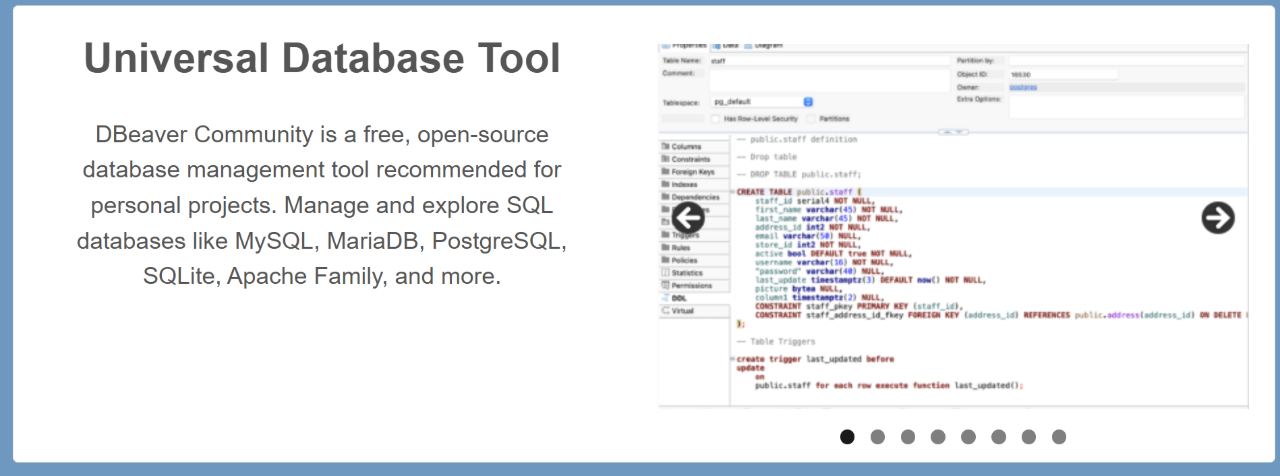
- Multi-Database Connection & Driver Manager: Create connections for PostgreSQL, MySQL, MariaDB, SQLite, and supported engines with automatic or manual JDBC driver management.
- SQL Editor & Query Execution Tools: Write, format, and run SQL scripts, inspect result sets, and analyze query execution plans.
- Visual Data Editor & Schema Browser: Browse schemas, tables, views, indexes, and foreign keys, and edit table rows or export data cleanly.
- Data Transfer & Backup/Maintenance: Import and export data across formats (such as CSV) and run database maintenance utilities.
- ER Diagrams & Object Inspection: View entity-relationship diagrams and inspect object metadata, DDL, and properties.
- Free & Open-Source (Apache 2.0): Free to download and use for personal and commercial database work under the Apache License 2.0.
- Official Links: Free Trial, Free / Education & Pricing
Always download DBeaver Community installers, packages, and release notes directly from official DBeaver portals:
- Official DBeaver Community Website: https://dbeaver.io/
- Official DBeaver Community Download Page: https://dbeaver.io/download/
- Official DBeaver Community Releases: https://dbeaver.io/category/releases/
- Official DBeaver GitHub Repository: https://github.com/dbeaver/dbeaver
4. Step-by-Step Installation Guide
- Check Operating System & Disk Space: Confirm your computer runs 64-bit Windows 10 or newer, macOS 11 or newer, or a supported Linux distribution with enough free disk space for DBeaver and its bundled Java runtime.
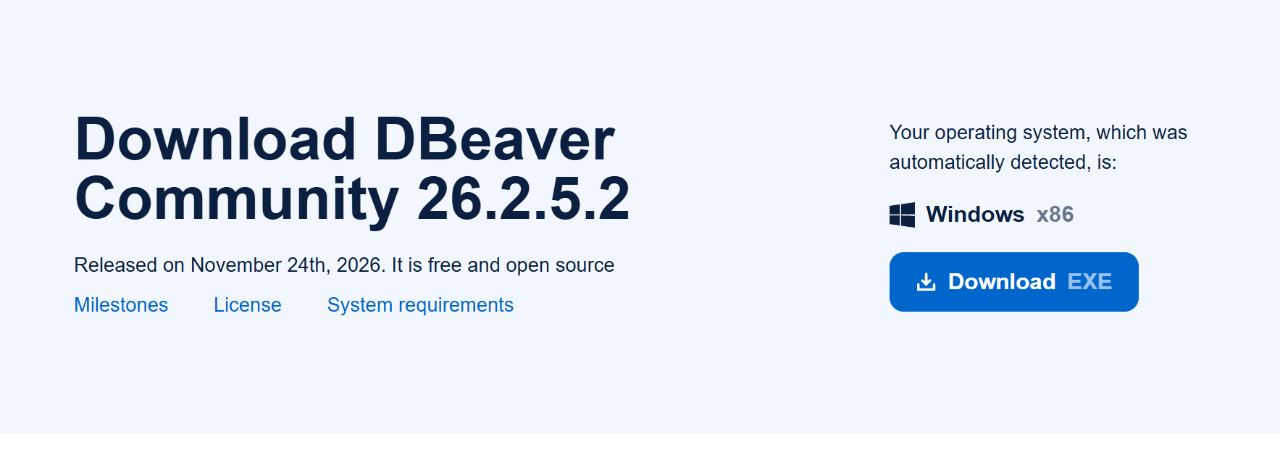
- Download the Official DBeaver Community Installer: Visit https://dbeaver.io/download/ and download the Windows installer, macOS DMG, or Linux `.deb`/`.rpm`/Flatpak/Snap package.
- Run the Installer & Launch DBeaver: Complete the installation wizard on Windows/macOS (or install via package manager on Linux) and launch DBeaver Community from your applications menu.
- Configure Workspace & First Connection: Allow DBeaver to create its workspace (`DBeaverData`) and click `New Database Connection` to test a connection to your database.
5. How to Use DBeaver: Beginner Workflow
- Create a New Database Connection: Click the plug icon (`New Database Connection`), select your database type (such as PostgreSQL, MySQL, or SQLite), and enter host, port, database name, username, and password.
- Download or Verify the JDBC Driver: Click `Download` if prompted to fetch the required driver files, then click `Test Connection` to confirm connectivity.
- Open a SQL Script & Run Queries: Expand your database in the `Database Navigator`, open an SQL editor (`SQL` button or `Ctrl+]`), write your `SELECT` or `UPDATE` query, and execute it (`Ctrl+Enter`).
- Inspect & Edit Table Data Safely: Double-click a table to browse rows on the `Data` tab, apply filters or sorting, and save edits when needed.
- Export Results or Back Up Data: Right-click a table or query result set and choose `Export Data` (for example to CSV) to save a local copy.
6. Frequently Asked Questions (FAQ)
- Is DBeaver Community free to use?Yes. DBeaver Community is free and open-source software licensed under the Apache License 2.0.
- Does DBeaver require installing Java separately?Official DBeaver distributions include a bundled Java runtime (OpenJDK 25 bundle in current releases), so you do not have to install Java manually unless you want to swap in your own local Java build.
- Can DBeaver connect to PostgreSQL and PostGIS databases?Yes. DBeaver connects to PostgreSQL databases and lets you inspect tables, columns, and SQL queries alongside your spatial or tabular workflows.