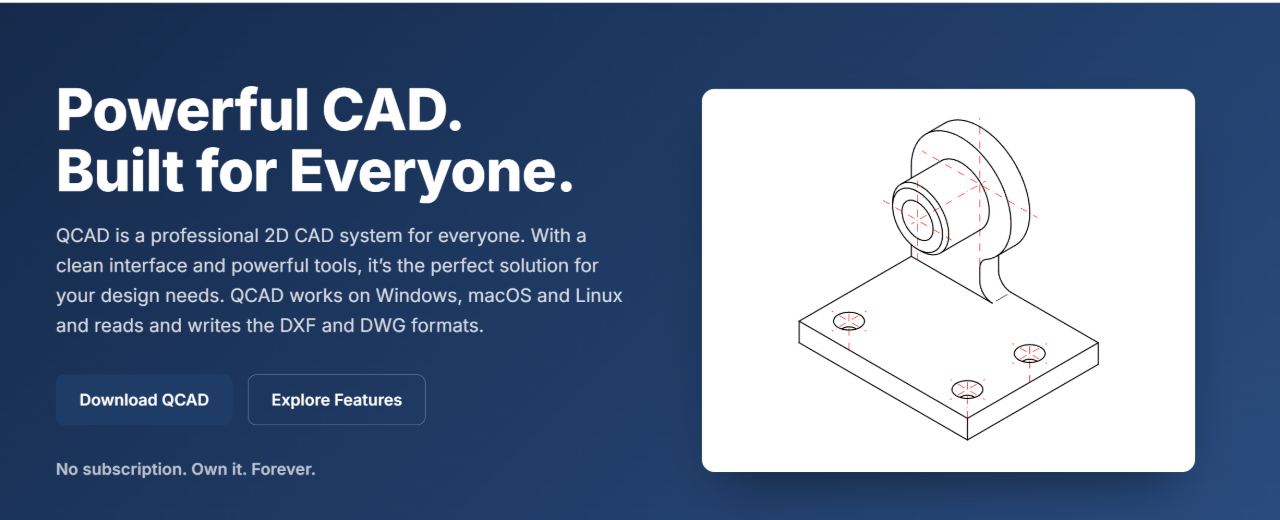
QCAD CAM (developed by RibbonSoft GmbH for Windows, macOS, and Linux, extending QCAD Professional) is a lightweight, cross-platform 2D CAD drafting and Computer-Aided Manufacturing (CAM) application designed for CNC milling, laser cutting, plasma cutting, waterjet profiling, and engraving workflows. Built around native DXF/DWG geometry and configurable JavaScript post-processors, QCAD CAM lets machinists, makers, metal fabricators, and workshop engineers draw or import 2D parts, define tool libraries and cutting passes, simulate toolpaths, and export clean machine-ready G-code (`NC`/`TAP`/`NGC`) without bloated 3D CAM overhead.
1. In-Depth Review: Why CNC Workshops & Fabricators Choose QCAD CAM
- Unified 2D CAD Drafting + CAM Toolpath Workflow in One Fast App: Eliminates switching between separate drawing and CAM programs—edit part geometry, fix open contours, add tabs/bridges, and regenerate CNC toolpaths instantly inside the same workspace.
- Flexible Post-Processor Architecture for Any CNC Controller: Ships with customizable JavaScript post-processors supporting standard `G-Code (MM/Inch)`, `Mach3`, `LinuxCNC`, `GRBL`, `Centroid`, `HPGL`, and custom laser/plasma/router controllers.
- Affordable Cross-Platform Perpetual Licensing (`Windows`, `macOS`, `Linux`): Runs natively on 64-bit Windows, macOS (Apple Silicon & Intel), and Linux with a low one-time perpetual license fee and free trial evaluation mode.
2. Key Features & Capabilities
- Native DXF & DWG 2D CAD Drafting: Create, clean up, and dimension precision 2D mechanical profiles with layers, blocks, hatches, splines, and polylines.
- Profile, Pocket & Drill CAM Toolpaths: Generate inside/outside contour offsets, pocket clearing passes, and drilling cycles with configurable spindle speed, feed rate, plunge rate, and step-down passes.
- Holding Tabs (Bridges) & Lead-In / Lead-Out Controls: Place automatic or manual holding tabs so cut parts stay secure on sheet material, plus smooth arc/line lead-ins to prevent entry marks.
- Interactive Toolpath Simulation & G-Code Preview: Visually simulate cutter movement step-by-step and inspect generated G-code lines before sending files to your CNC machine.
- SVG, PDF & Bitmap Import/Export + Nesting Support: Import vector `SVG`/`PDF` artwork or CAD drawings, arrange parts efficiently, and export `G-code`, `DXF`, `DWG`, or `PDF`.
- Official Free Trial & One-Time Perpetual License: Available via a free downloadable trial edition alongside affordable single-user and site perpetual licenses.
- Official Links: Free Trial, Documentation & Pricing
Always download QCAD CAM installers and consult post-processor documentation directly from RibbonSoft portals:
- Official QCAD CAM Product Page & Overview: https://www.qcad.org/en/qcad-cam
- Official QCAD / QCAD CAM Downloads Portal (Windows, macOS, Linux): https://www.qcad.org/en/download
- Official QCAD CAM Documentation & Tutorials: https://www.qcad.org/en/documentation
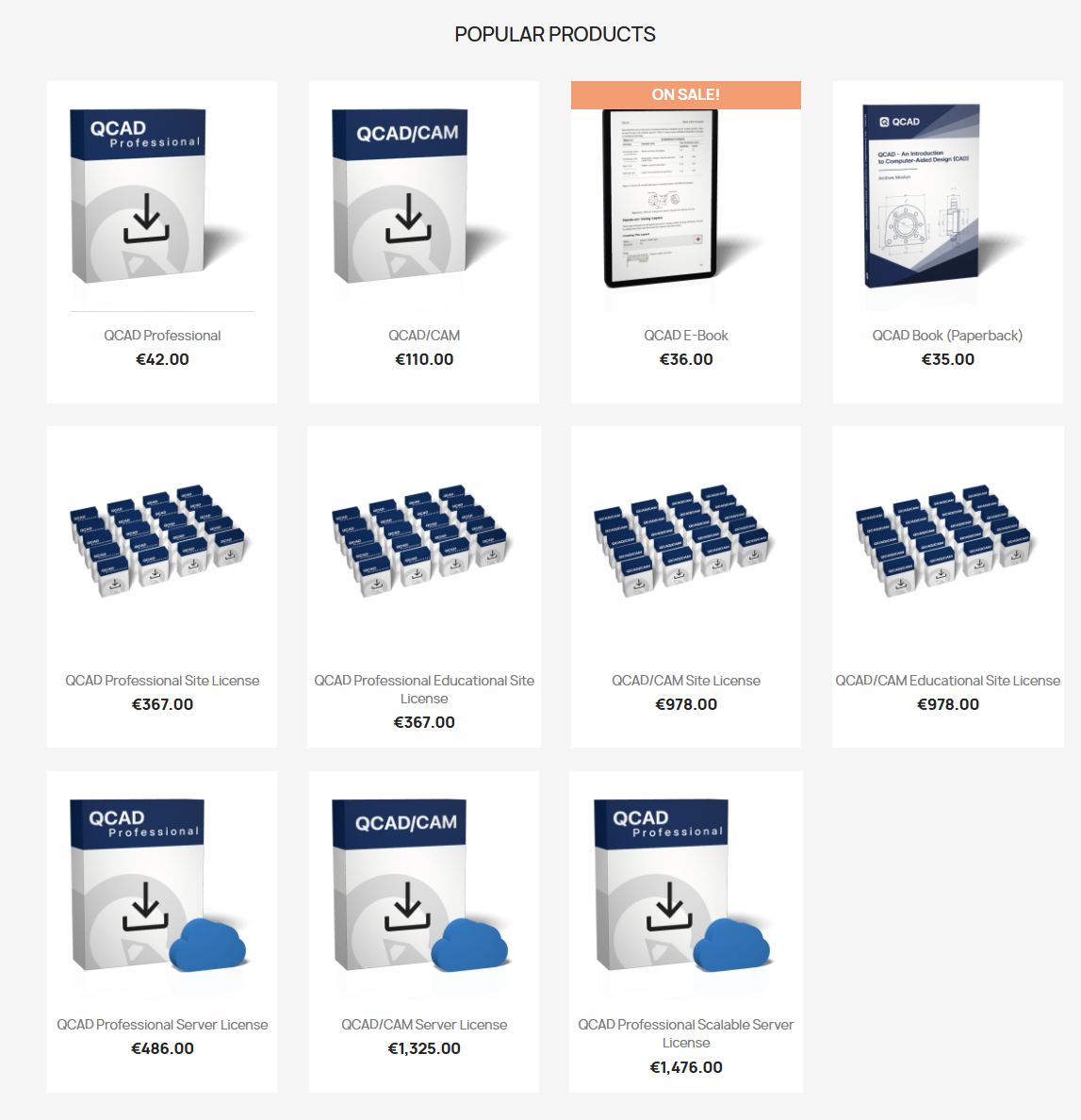
- Official QCAD Online Store & Perpetual Licensing: https://www.qcad.org/en/online-shop
4. Step-by-Step Installation Guide
- Check Operating System & Hardware Requirements: Confirm your workstation runs 64-bit Windows 10/11, macOS (Apple Silicon or Intel), or 64-bit Linux with at least 4 GB RAM and 500 MB free disk space.
- Download the Official QCAD CAM Trial Installer: Visit https://www.qcad.org/en/download, scroll to the `QCAD/CAM Trial` section, and download the installer matching your OS (`Windows 64-bit .msi`, `macOS .dmg`, or `Linux .run`/`.tar.gz`).
- Run the Setup Wizard: Launch the installer (on macOS, drag `QCAD-CAM.app` into `Applications`; on Linux, make the `.run` file executable and run it), accept the license terms, and complete installation.
- Launch & Verify the `CAM` Menu & Toolbars: Open `QCAD/CAM` and confirm the top `CAM` menu (`Add Tool`, `Add Profile Toolpath`, `Export CAM`, `Simulate`) appears alongside standard 2D CAD drafting tools.
5. How to Use QCAD CAM: Beginner Workflow
- Create or Import a Closed 2D Part Profile: Open `QCAD/CAM`, set drawing units (`Edit > Drawing Preferences > General > Drawing Unit` to `Millimeter` or `Inch`), and draw or import a closed polyline/circle profile (`.dxf`/`.dwg`/`.svg`).
- Select Your Post-Processor & Define Cutting Tools: Choose your CNC controller post-processor (such as `G-Code (MM)` or `GRBL`) in the CAM toolbar, then click `CAM > Add Tool` to configure cutter diameter, feed rate, plunge rate, and spindle RPM.
- Create a Contour Profile Toolpath: Select your part geometry, click `CAM > Add Profile Toolpath`, choose `Outside` (for outer contours) or `Inside` (for holes/cutouts), and set `Cutting Depth` and `Passes`.
- Add Holding Tabs & Simulate the Toolpath: Use `CAM > Add Tab` to place retaining bridges along outer edges, then run `CAM > Simulate` to verify cutter order, clearances, and lead-in moves.
- Export Machine-Ready G-Code: Click `CAM > Export CAM` (`CX`) to save your `.nc` / `.tap` / `.gcode` file ready for your CNC router, laser, or plasma controller.
6. Frequently Asked Questions (FAQ)
- How does QCAD CAM differ from standard QCAD Professional?QCAD CAM includes every feature of QCAD Professional (full 2D DXF/DWG drafting, blocks, layers, PDF/SVG import-export) plus integrated CNC toolpath generation, tool libraries, holding tabs, toolpath simulation, and customizable G-code post-processors.
- Is QCAD CAM sold as a perpetual license or an annual subscription?QCAD CAM is sold as a one-time perpetual license with 1 year of free updates included—there is no mandatory recurring subscription.
- Does QCAD CAM support Apple Silicon Macs and Linux?Yes. RibbonSoft provides native builds for macOS (both Apple Silicon M-series and Intel), 64-bit Windows, and 64-bit Linux distributions.