Adobe Dimension (developed by Adobe Inc. as part of Adobe Creative Cloud) is a streamlined 3D mockup, packaging visualization, and photorealistic scene compositing application for Windows and macOS. Designed specifically for graphic designers, brand studios, and packaging specialists who work primarily in Illustrator and Photoshop, Dimension makes it simple to arrange 3D product models, wrap 2D vector or raster graphics onto curved surfaces, match 3D camera perspectives to 2D background photos, and render layered PSD deliverables without complex 3D modeling pipelines.
1. In-Depth Review: Why Graphic & Packaging Designers Use Adobe Dimension
- Built for 2D Designers Transitioning into 3D Mockups: Replaces complex 3D node graphs and rigging menus with familiar Adobe panels, drag-and-drop materials, and interactive gizmos tailored for packaging, bottles, boxes, and brand visuals.
- Seamless Illustrator & Photoshop Layer Integration: Places `.ai`, `.psd`, `.svg`, and `.png` artwork onto 3D surfaces as live decals and exports multi-layer PSD renders with automatic object, material, and depth masks.
- Automated Perspective Matching & Environment Lighting: Analyzes 2D background photographs to align camera perspective, horizon line, and sunlight automatically for realistic product compositing.
2. Key Features & Capabilities
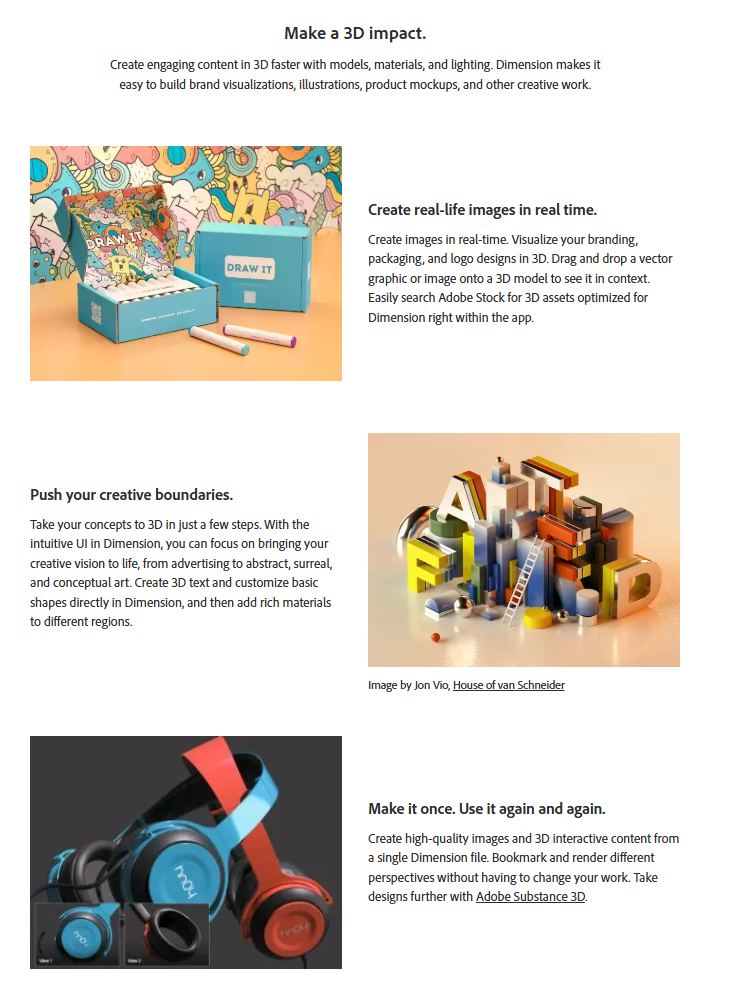
- Drag-and-Drop 3D Models & Starter Assets: Combine built-in packaging shapes (cans, pouches, bottles, boxes) with imported OBJ, FBX, STL, and glTF 3D models.
- Live 2D Artwork Placement & Decals: Wrap logos, labels, and typography from Illustrator and Photoshop cleanly around curved or angled 3D geometry.
- Physically Based Materials & Substance Support: Apply realistic glass, metal, paper, plastic, and fabric materials—including customizable `.sbsar` Substance materials.
- Match Image Perspective & Lighting: Automatically match virtual camera focal length and directional lighting to any 2D background photo in one click.
- Multi-Layer PSD & PNG/EXR Render Output: Render photorealistic stills and export layered PSD files with pre-built selection masks for fast post-production tweaks in Photoshop.
- Included in Creative Cloud Standard & Pro Plans: Available via Creative Cloud Standard and Creative Cloud Pro subscriptions (with official 7-day Creative Cloud free trials and Student/Teacher discounts).
- Official Links: Free Trial, Free / Education & Pricing
Always download Adobe Dimension installers and access official trials directly from Adobe portals:
- Official Adobe Dimension Product Page: https://www.adobe.com/products/dimension.html
- Official Adobe Creative Cloud Plans & Free Trial: https://www.adobe.com/creativecloud/plans.html
- Official Adobe Creative Cloud Desktop App: https://www.adobe.com/creativecloud/desktop-app.html
- Official Adobe Dimension System Requirements & Guide: https://helpx.adobe.com/dimension/desktop/home/system-requirements.html
4. Step-by-Step Installation Guide
- Check Operating System & GPU Requirements: Confirm your Windows 11 (64-bit) or macOS computer has at least 8 GB RAM (16 GB–32 GB+ recommended) and a supported DirectX 12 / Metal GPU.
- Sign In to Adobe & Start a Creative Cloud Plan or Trial: Visit https://www.adobe.com/products/dimension.html or https://www.adobe.com/creativecloud/plans.html and sign in with your Adobe ID.
- Download & Run the Creative Cloud Desktop App: Install the official Creative Cloud desktop manager on Windows or macOS.
- Install & Launch Adobe Dimension: Find `Dimension` inside the Creative Cloud desktop app, click `Install`, wait for installation to complete, and click `Open`.
5. How to Use Adobe Dimension: Beginner Workflow
- Create a New Scene & Add 3D Models: Launch Adobe Dimension, click `Create New`, and drag a 3D packaging model (or imported `.obj`/`.glb` asset) onto the canvas.
- Apply Base Materials: Open the `Starter Assets` panel, select `Materials`, and drag paper, matte plastic, metal, or glass onto your 3D object.
- Place Your Logo or Label Artwork: Drag an `.ai`, `.svg`, or `.png` design directly onto the 3D model surface, then scale and position the decal cleanly using the on-canvas handles.
- Set Lighting & Background Perspective: Choose an `Environment Light` preset or import a 2D background photo and click `Match Image` to align camera perspective and lighting automatically.
- Render & Export Layered PSD: Switch to the `Render` tab, choose output quality (`Medium` or `High`), select `PSD (16-bit)` or `PNG`, and click `Render` to generate your final mockup.
6. Frequently Asked Questions (FAQ)
- Is Adobe Dimension still available in Creative Cloud in 2026?Yes. Adobe Dimension remains available to download and install through Creative Cloud Standard and Creative Cloud Pro subscriptions.
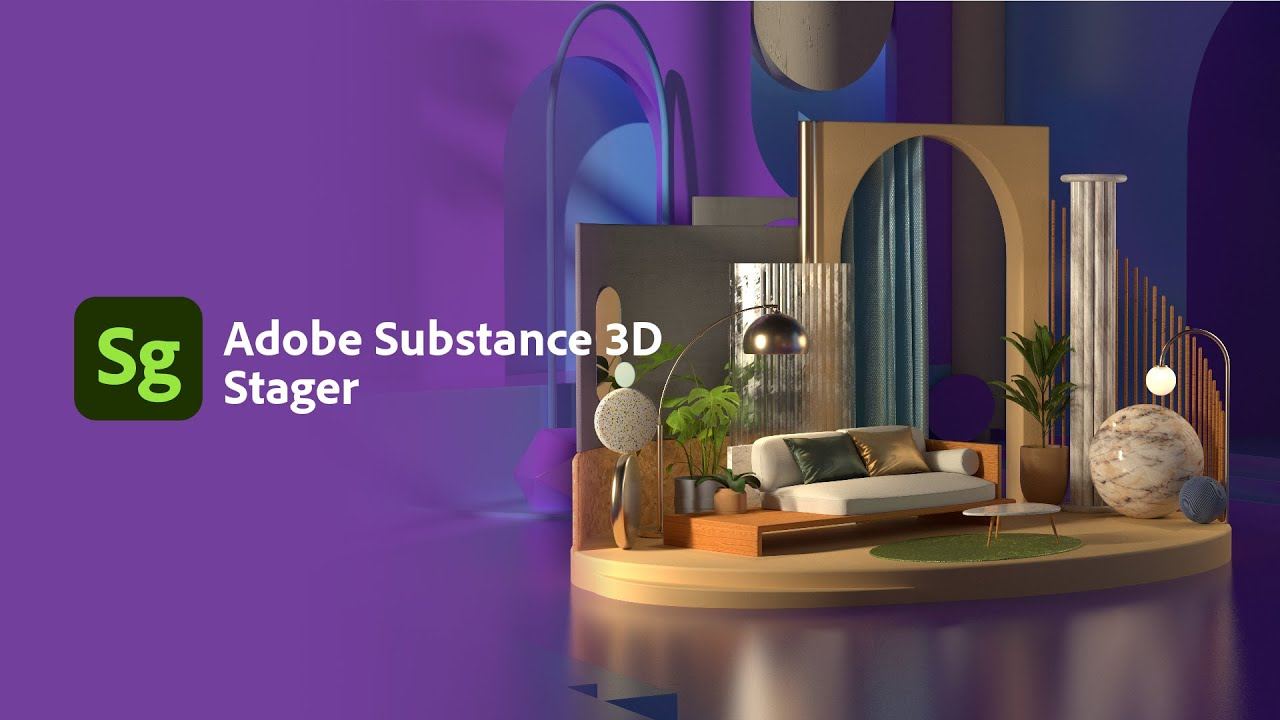
- What is the difference between Adobe Dimension and Adobe Substance 3D Stager?Adobe Dimension is included in standard Creative Cloud All-Apps/Pro plans and focuses on straightforward 2D-to-3D brand and packaging mockups, whereas Substance 3D Stager is part of the specialized Substance 3D Collection with deeper 3D scene staging, physics snapping, and studio rendering tools.
- Can I edit Adobe Dimension renders afterward in Photoshop?Yes. When you export your render as a `PSD` file, Dimension automatically includes background, shadow, and color-coded selection mask layers for fast adjustments in Adobe Photoshop.