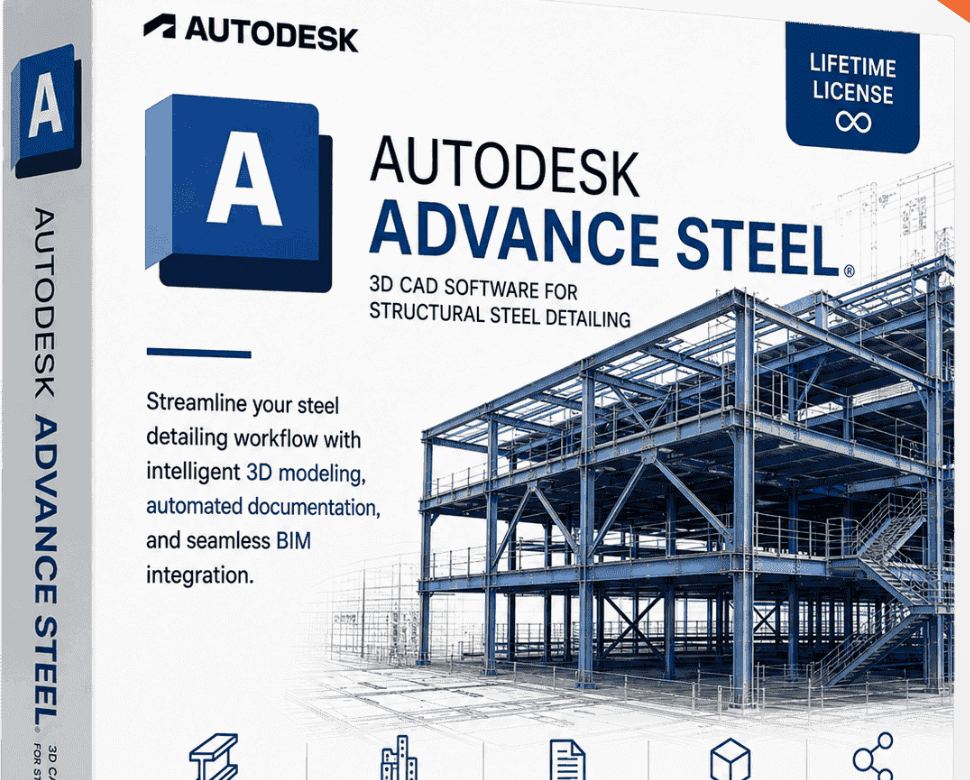
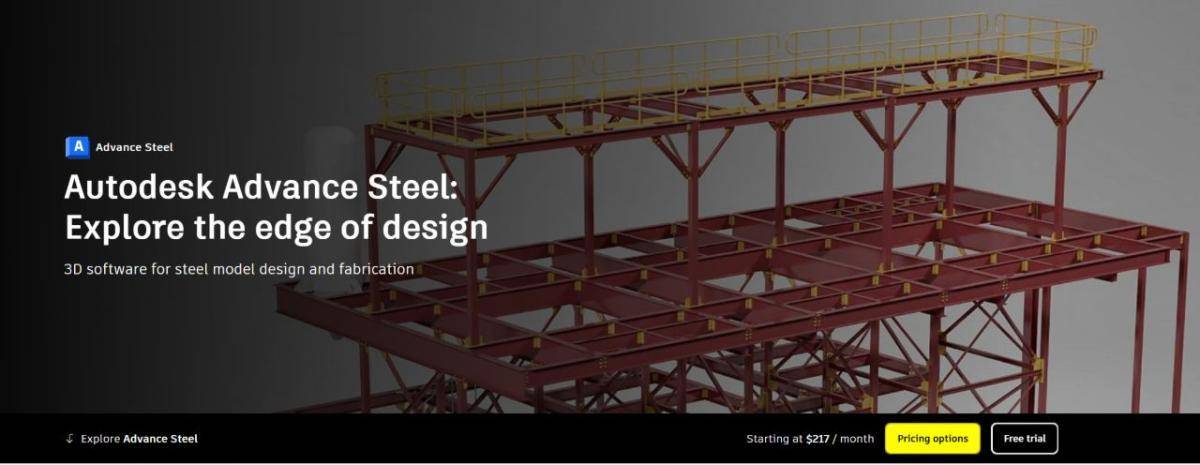
Autodesk Advance Steel (developed by Autodesk, Inc. for 64-bit Windows, built on the AutoCAD DWG engine and included in the Autodesk AEC Collection) is a 3D structural steel modeling, detailing, and fabrication documentation application. Designed for structural steel detailers, fabricators, structural engineers, and industrial plant teams, Advance Steel accelerates steel framing, stairs, railings, cage ladders, and folded-plate design—automatically generating fabrication shop drawings, general arrangement drawings, Bills of Materials (BOMs), and CNC Numerical Control (`NC`/`DSTV`) files directly inside `.dwg`.
1. In-Depth Review: Why Structural Steel Detailers & Fabricators Use Advance Steel
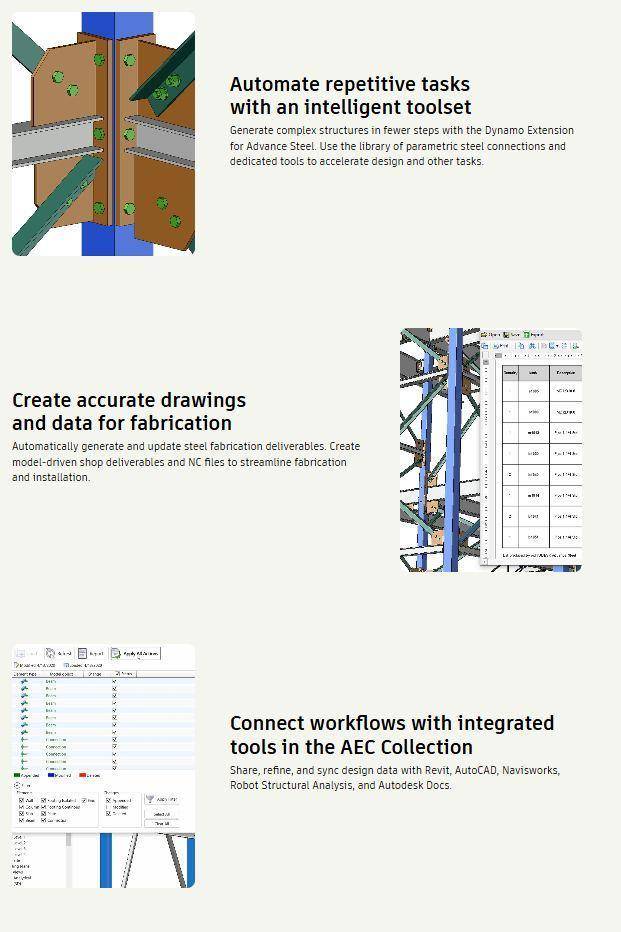
- Parametric Steel Connections & Intelligent Framing Inside Native `.dwg`: Ships with a rich library of parametric steel joints (clip angles, end plates, gusset plates, base plates, purlin splices) that propagate across similar framing intersections and update automatically when member sizes change.
- One-Click Automated Shop Drawings, General Arrangements & CNC (`NC`/`DSTV`) Output: Extracts single-part and assembly fabrication drawings complete with automatic numbering, weld symbols, dimensions, BOM tables, and machine-ready `DSTV` (`NC`) files for beam lines and plate processors.
- Bidirectional Revit & Robot Structural Analysis Interoperability: Synchronizes structural steel models and connection updates seamlessly with Autodesk Revit and Autodesk Robot Structural Analysis to eliminate manual BIM-to-fabrication rework.
2. Key Features & Capabilities
- 3D Structural Steel & Miscellaneous Metal Modeling: Model rolled steel sections, cold-formed purlins, trusses, portal frames, stairs, railings, cage ladders, and folded plates in 3D `.dwg`.
- Parametric Steel Joint Library & Joint Propagation: Apply standard or custom parametric bolted/welded connections and propagate identical joints across an entire structure in one step.
- Automated Part/Assembly Numbering & Shop Drawings: Run intelligent collision-free numbering and generate annotated fabrication shop drawings and general arrangement sheets automatically.
- CNC (`NC`/`DSTV`) & `DXF` Fabrication Export: Generate accurate `NC` (`DSTV`) datasets and `DXF` plate profiles to drive workshop CNC drilling, sawing, and plasma-cutting machines.
- Bidirectional BIM Sync (`Revit`, `Robot Structural Analysis`, `Navisworks`, `IFC`): Exchange structural models, camber/end-reactions, and clash-ready 3D geometry across the Autodesk AEC ecosystem.
- Official Free Trial, Student Access & Subscription Plans: Available via an official Autodesk free trial, free Education access for eligible students/educators, and standalone or AEC Collection subscriptions.
- Official Links: Free Trial, Free / Education & Pricing
Always download Autodesk Advance Steel installers and start your official trial directly from Autodesk portals:
- Official Autodesk Advance Steel Product Page & Overview: https://www.autodesk.com/products/advance-steel/overview
- Official Autodesk Advance Steel Free Trial Download: https://www.autodesk.com/products/advance-steel/free-trial
- Official Autodesk Education Community (Free Student/Educator Access): https://www.autodesk.com/education/edu-software/overview
- Official Autodesk Advance Steel Pricing & AEC Collection Plans: https://www.autodesk.com/products/advance-steel/pricing
4. Step-by-Step Installation Guide
- Check Windows & Hardware Requirements: Confirm your workstation runs 64-bit Windows 11 (or Windows 10 on compatible 2026 builds; x86-64 processor—ARM not supported) with at least 16 GB RAM (32 GB recommended) and 16 GB+ available SSD space.
- Start Your Official Trial or Sign In to Autodesk Account: Visit https://www.autodesk.com/products/advance-steel/free-trial, sign in with your Autodesk ID, and download the 64-bit Windows installer.
- Run the Setup Wizard & Select Country Content Packs: Launch the installer as Administrator, choose your installation path and preferred regional structural section/bolt standards (`AISC`, `Eurocode/EN`, `BS`, `AS/NZS`, `JIS`), and complete installation.
- Launch & Verify Workspace: Open `Autodesk Advance Steel`, sign in with your Autodesk ID to activate your trial or subscription, and confirm the `Objects`, `Extended Modeling`, and `Output` ribbon tabs load cleanly.
5. How to Use Autodesk Advance Steel: Beginner Workflow
- Start a New Steel Model from a Standard Template: Launch `Autodesk Advance Steel` using your regional metric or imperial template (`ASTemplate.dwt`) and lay out your structural column grid (`Building Grid`).
- Place Structural Columns, Beams & Bracing: On the `Objects` ribbon tab, select `Rolled I-Section` or `Hollow Section`, assign profile sizes (`IPE`, `HEA`, `W-Shape`, `RHS`), and snap members between grid intersections.
- Apply Parametric Steel Connections (`Connection Vault`): Open the `Connection Vault`, choose a base plate, shear clip angle, or moment end-plate joint, select the main and secondary members, and tune bolt rows and plate thickness.
- Run Automatic Numbering & Collision Check: Switch to the `Output` tab, run `Clash Check` to verify bolt/plate clearances, and execute `Numbering` to assign unique single-part and assembly marks.
- Generate Shop Drawings, BOMs & CNC (`NC`) Files: Use `Drawing Processes` on the `Output` tab to batch-generate assembly/single-part `.dwg` sheets, export a structured `BOM` list, and output `NC` (`DSTV`) fabrication files.
6. Frequently Asked Questions (FAQ)
- Is Autodesk Advance Steel included in the Autodesk AEC Collection?Yes. Autodesk Advance Steel is included inside the Autodesk Architecture, Engineering & Construction (AEC) Collection alongside Revit, AutoCAD, Civil 3D, and Navisworks Manage, and is also available as a standalone subscription.
- Does Autodesk Advance Steel run on macOS or ARM processors?No. Autodesk Advance Steel is built exclusively for 64-bit x86-64 Windows systems; macOS and Windows ARM processors are not officially supported.
- Can Advance Steel models sync directly with Autodesk Revit?Yes. Autodesk provides the Advance Steel Extension for Revit, enabling bidirectional synchronization of structural steel members, plates, and parametric connections between Revit and Advance Steel.