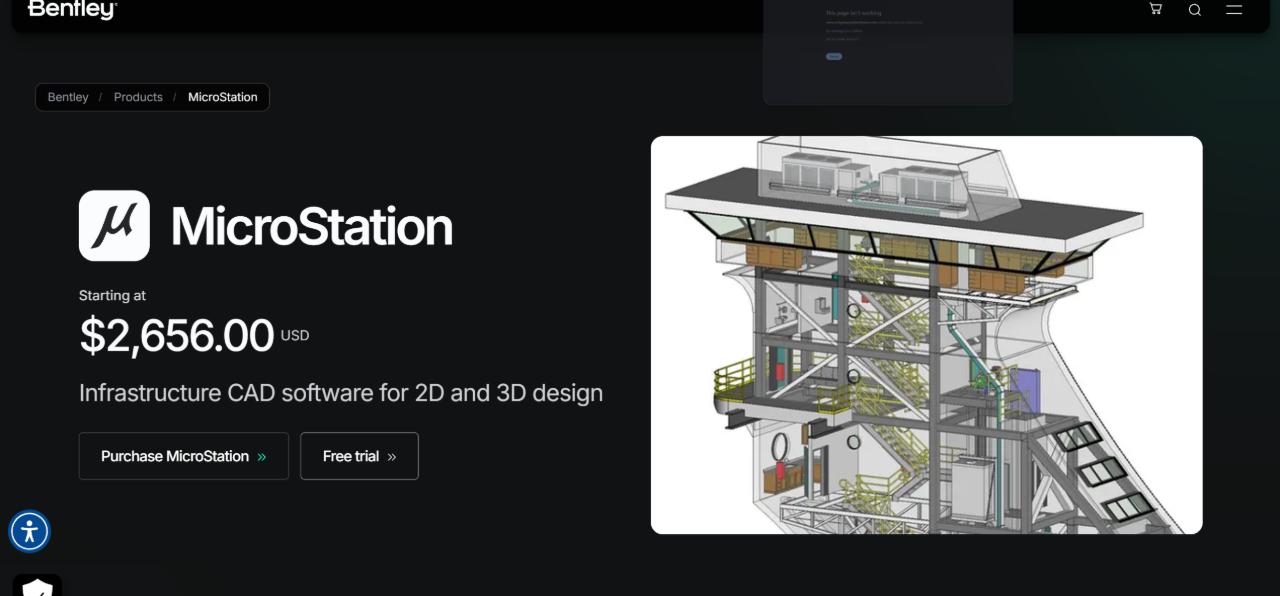
Bentley MicroStation is a computer-aided design (CAD) and 3D infrastructure modeling software platform developed by Bentley Systems. Used extensively by civil engineers, transportation designers, utility planners, surveyors, and architects on large-scale infrastructure projects worldwide, MicroStation supports native DGN and Autodesk DWG/DXF workflows, reality mesh integration, and parametric 3D modeling inside a unified engineering environment.
1. In-Depth Review: Why Infrastructure Engineers Use Bentley MicroStation
- Built for Mega-Scale Civil & Infrastructure Projects: Handles massive multi-discipline engineering models, long linear highway/rail corridors, and heavy reference file (XREF) assemblies with high viewport stability.
- Native DGN & Full Autodesk DWG/DXF Compatibility: Opens, edits, and saves native Bentley `.DGN` files alongside Autodesk `.DWG` and `.DXF` drawings without data translation loss, making it ideal for multi-vendor engineering teams.
- Integrated Reality Modeling, Point Clouds & GIS Geocoordinates: Directly references high-resolution reality meshes (`.3MX`), LiDAR point clouds (`.LAS`/`.LAZ`), raster aerial imagery, and hundreds of global Geographic Coordinate Systems (GCS).
2. Key Features & Capabilities
- Precision 2D Drafting & Parametric 3D Modeling: Combine AccuDraw smart coordinate entry with parametric solids, surfaces, meshes, and constraint-driven 3D components.
- Multi-Discipline Reference & Sheet Composition: Attach dozens of 2D/3D DGN, DWG, IFC, and PDF reference files simultaneously and automate dynamic plan, section, and detail sheet layouts.
- Reality Mesh & LiDAR Point Cloud Integration: Import georeferenced photogrammetry meshes and laser scan point clouds to model new infrastructure accurately within existing site conditions.
- Built-In Geographic Coordinate Systems & GIS Support: Assign real-world map projections (WGS 84, UTM, local grid systems) and import Esri Shapefiles (`.SHP`) and georeferenced rasters directly into CAD models.
- Hypermodeling & On-Screen Sectioning: Overlay 2D construction drawings directly onto 3D models in context so engineers can inspect cross-sections and structural clearances interactively.
- Photorealistic Visualization & Sun Studies: Render infrastructure proposals with physically based materials, solar path animations, and Vue-powered atmospheric environments natively inside MicroStation.
- OpenRoads, OpenBuildings & iTwin Ecosystem Ready: Serves as the core CAD engine underlying Bentley OpenRoads Designer, OpenRail, OpenBuildings, and Bentley iTwin digital twin workflows.
3. How to Register & Access an Official Trial or License
To ensure software authenticity, workstation stability, and full compliance with licensing terms, always download and license MicroStation through Bentley Systems’ official portals:
- Visit the Official Bentley MicroStation Website: Go to https://www.bentley.com/software/microstation/ to review capabilities, infrastructure workflows, and licensing options.

- Create a Bentley IMS Account: Register a free Bentley user account at https://ims.bentley.com using your work or academic email address to manage trials, downloads, and CONNECTION Client licensing.
- Choose Your Official Licensing Path:
- Official 14-Day Free Trial: Start a full-featured 14-day evaluation via https://www.bentley.com/software/microstation/ (click Free Trial) to test MicroStation on your Windows workstation.
- Bentley Education Portal (Students & Educators): Accredited engineering and architecture students and faculty can register for free educational access at https://education.bentley.com.
- Commercial Subscription (Virtuoso Practitioner License): Individual engineers and firms can purchase annual practitioner subscriptions directly through Bentley’s official store at
 https://www.bentley.com/software/microstation/#pricing.
4. Step-by-Step Installation Guide
- Verify System & GPU Requirements: Confirm your workstation runs 64-bit Windows 10 or Windows 11 with at least 16 GB RAM (32 GB+ recommended for large reality meshes and point clouds), a multi-core Intel or AMD processor, a DirectX 11/12 discrete GPU with 4 GB–8 GB+ VRAM, and 15 GB+ free SSD space.
- Download the Official Installer: Sign in to the Bentley Software Downloads portal (https://softwaredownloads.bentley.com) or your trial confirmation link and download the official 64-bit MicroStation installer (`Setup_MicroStationx64_...exe`).
- Run the Installation Wizard: Right-click the installer executable and select Run as administrator, accept the license agreement, select your installation path and optional WorkSpaces/WorkSets, and click Install.
- Sign In via CONNECTION Client: Launch Bentley MicroStation and sign in to the Bentley CONNECTION Client desktop utility with your registered Bentley IMS credentials to activate your 14-day trial or subscription automatically.
5. How to Use Bentley MicroStation: Beginner Workflow
- Select a WorkSpace, WorkSet & Seed File: Launch MicroStation, choose an active WorkSpace and WorkSet on the welcome screen, click New File, and select a 2D or 3D Seed file (`.dgn`) with your desired measurement units.
- Assign a Geographic Coordinate System (Optional): Open the Drawing Aids tab > Geographic > Coordinate System to assign a map projection (such as UTM) so your CAD geometry aligns with survey and GIS data.
- Draft Geometry Using AccuDraw & Snaps: Select Place SmartLine on the Home ribbon, click in the view window to start a line, and use the AccuDraw compass (`X`/`Y` or distance/angle lock) with AccuSnap to draw precise geometry.
- Attach Reference Files & Organize Levels: Open Home > Primary > Attach Tools > References to overlay existing DGN, DWG, or raster site plans, and manage visibility and symbology inside Level Manager.
- Compose Sheets & Export PDF or DWG: Switch to a Sheet model, place your title block and drawing boundaries, and go to File > Print (or Export > DWG) to publish scaled PDF construction sheets.
6. Frequently Asked Questions (FAQ)
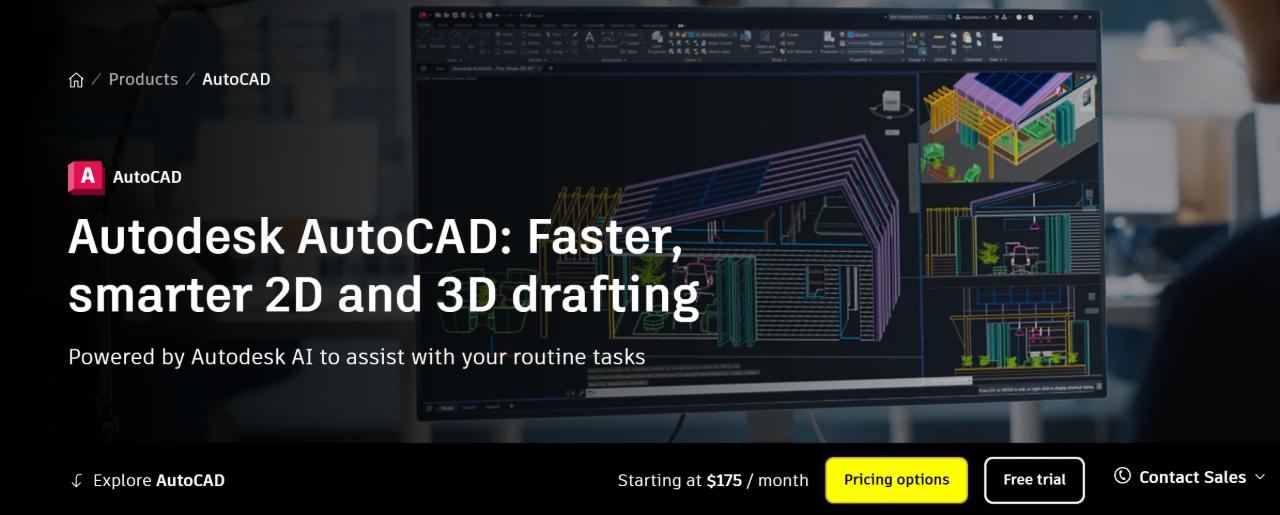
- What is the difference between Bentley MicroStation and Autodesk AutoCAD?Both are professional 2D/3D CAD platforms, but MicroStation is specialized for large-scale civil infrastructure, transportation, and utility engineering using `.DGN` and `.DWG` formats, while AutoCAD is widely used across general architectural, mechanical, and drafting workflows.
- Can Bentley MicroStation open and save AutoCAD DWG files?Yes. MicroStation natively reads and writes Autodesk `.DWG` and `.DXF` files in addition to Bentley `.DGN` files, allowing seamless collaboration across mixed CAD environments.
- Does Bentley MicroStation run natively on macOS?No. Bentley MicroStation is built natively for 64-bit Windows 10 and Windows 11 workstations.