
Chaos Corona (formerly Corona Renderer) is a high-performance photorealistic rendering engine developed by Chaos for Autodesk 3ds Max and Maxon Cinema 4D. Widely favored by architectural visualizers, interior designers, and product artists, Corona delivers physically accurate global illumination, interactive LightMix relighting, and an intuitive shader workflow without complex technical render settings.
1. In-Depth Review: Why Interior & Architectural Visualizers Use Chaos Corona
- Effortless Photorealism Without Complex Settings: Eliminates confusing sampling multipliers and irradiance cache tweaks by using physically accurate path tracing that produces clean, realistic interior lighting out of the box.
- Real-Time Interactive LightMix Relighting: Allows artists to adjust the intensity and color of individual lamps, sun/sky systems, and window lights interactively during or after rendering—generating daytime, dusk, and night variations from a single render.
- Integrated Chaos Cosmos 3D Asset & Material Library: Includes direct access to thousands of render-ready 3D furniture models, vegetation, people, HDRI skies, and PBR materials via Chaos Cosmos.
2. Key Features & Capabilities
- Interactive LightMix & Post-Processing: Adjust exposure, white balance, bloom/glare, LUTs, tone mapping, and individual light groups live inside the Corona Virtual Frame Buffer (VFB).
- Chaos Cosmos Curated Asset Browser: Drag and drop high-resolution 3D furniture, lighting fixtures, trees, and Corona materials directly into 3ds Max or Cinema 4D scenes.
- Corona Pattern & Chaos Scatter: Tile complex 3D geometric patterns (such as woven fabrics, roof tiles, or brick facades) across surfaces with minimal memory overhead, and scatter dense grass or forests using Chaos Scatter.
- AI Denoising & Corona Image Editor: Clean up render noise rapidly with Intel Open Image Denoise or NVIDIA AI Denoiser, and edit `.CXR` renders standalone in the Corona Image Editor.
- Corona Sky, Clouds & Volumetric Atmospherics: Generate physically accurate procedural daylighting with customizable volumetric clouds, altitude haze, and localized fog.
- Virtual Tour & 360° Stereo Panorama Export: Render stereoscopic 360° panoramas and export interactive web-based virtual tours directly via Chaos Cloud Collaboration.
- Distributed Network Rendering: Combine the CPU rendering power of multiple studio workstations seamlessly to accelerate high-resolution final frame and animation rendering.
3. How to Register & Access an Official Trial or License
To ensure software authenticity, studio stability, and full compliance with licensing terms, always download and license Chaos Corona through Chaos’s official portals:
- Visit the Official Chaos Corona Website: Go to https://www.chaos.com/corona to explore features for 3ds Max and Cinema 4D, view gallery renders, and compare plans.
- Create a Chaos Account: Register a free Chaos Account at https://my.chaos.com using your email address to manage trials, cloud licensing, and Chaos Cosmos downloads.
- Choose Your Official Licensing Path:
- Official 30-Day Free Trial: Activate a full-featured 30-day evaluation via https://www.chaos.com/try-corona to test Chaos Corona with 3ds Max or Cinema 4D on your workstation.
- Educational License (Students & Educators): Accredited architecture and design students and faculty can apply for discounted academic licenses at https://www.chaos.com/education.
- Commercial Subscription (Corona Solo / Premium): Freelancers and visualization studios can subscribe monthly or annually directly on https://www.chaos.com/corona/pricing.

4. Step-by-Step Installation Guide
- Verify Host Application & System Requirements: Confirm your workstation has a supported version of Autodesk 3ds Max (Windows) or Maxon Cinema 4D (Windows/macOS) installed, along with a modern multi-core CPU supporting SSE4.1, 16 GB+ RAM (32 GB–64 GB recommended), and 10 GB+ free SSD space.
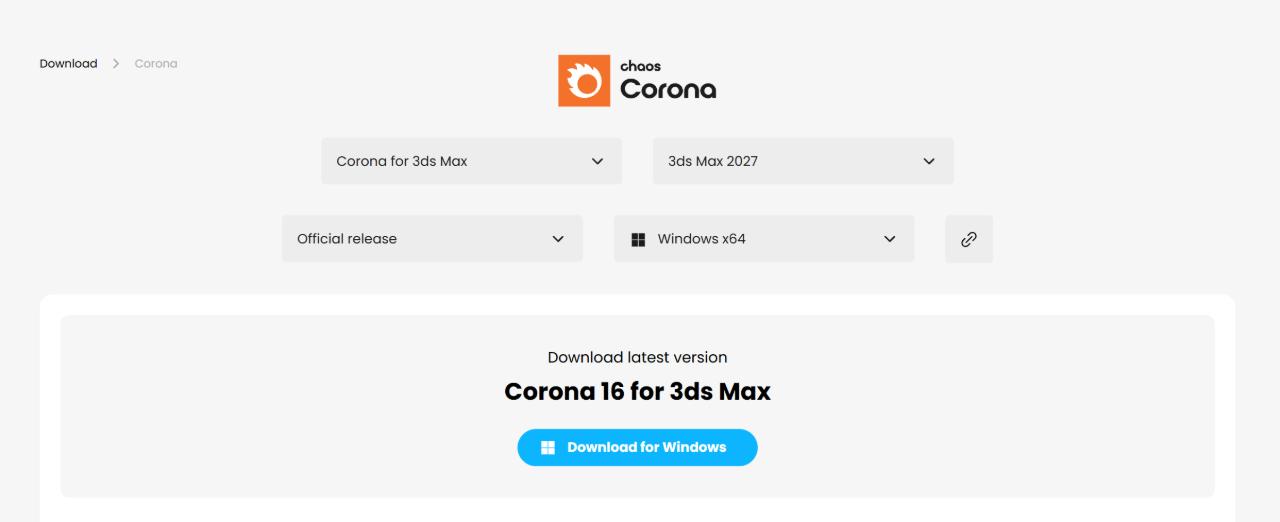
- Download the Official Installer: Sign in to https://download.chaos.com with your Chaos Account and download the official Chaos Corona universal installer for 3ds Max or Cinema 4D.
- Run the Setup Wizard: Double-click the downloaded installer package, accept the license agreement, select Typical installation (which includes Chaos Cosmos Browser, Corona Image Editor, and Distributed Rendering Server), and click Install.
- Sign In & Activate License: Open 3ds Max or Cinema 4D, assign Corona as your active renderer, and sign in via the Chaos License Server browser prompt using your Chaos Account credentials to activate your 30-day trial or subscription.
5. How to Use Chaos Corona: Beginner Workflow
- Set Chaos Corona as the Active Renderer: In Autodesk 3ds Max, press `F10` (Render Setup) and choose Corona as the Production Renderer (in Cinema 4D, open Render Settings `Ctrl+B` and select Corona).
- Add Sun & Sky Lighting: Open the Corona toolbar (or Corona menu in Cinema 4D), click Create Corona Sun, drag in the viewport to place the sun and target, and click Add Corona Sky Environment in the Sun properties panel.
- Apply Corona Physical Materials & Chaos Cosmos Assets: Open the Chaos Cosmos Browser icon on the Corona toolbar to drag ready-made furniture and PBR materials onto your interior geometry, or create a Corona Physical Material in the Material Editor.
- Start Interactive Rendering & LightMix: Click Start Interactive Rendering in the Corona VFB to preview lighting changes live as you orbit the camera, and click Setup Interactive LightMix to adjust individual light brightness and color temperature.
- Render Final Image & Save: Set your desired output resolution (`1920 × 1080` or `3840 × 2160`), set a Noise Limit target (e.g., `3.0%`–`5.0%`), click Render, and save your denoised image as `.PNG`, `.JPG`, or `.CXR`.
6. Frequently Asked Questions (FAQ)
- Is Chaos Corona a CPU or GPU renderer?Chaos Corona is primarily a high-efficiency CPU-based path-tracing renderer (supporting both Intel and AMD CPUs as well as Apple Silicon in Cinema 4D), utilizing AI denoisers to deliver fast, predictable photorealism without GPU VRAM limits.
- How long is the official Chaos Corona free trial?Chaos provides an official 30-day free trial upon creating a Chaos Account, including full access to Chaos Cosmos assets and LightMix.
- Can I use the same Chaos Corona license for both 3ds Max and Cinema 4D?Yes. Chaos Corona subscriptions include unified licensing that works across both Autodesk 3ds Max and Maxon Cinema 4D.