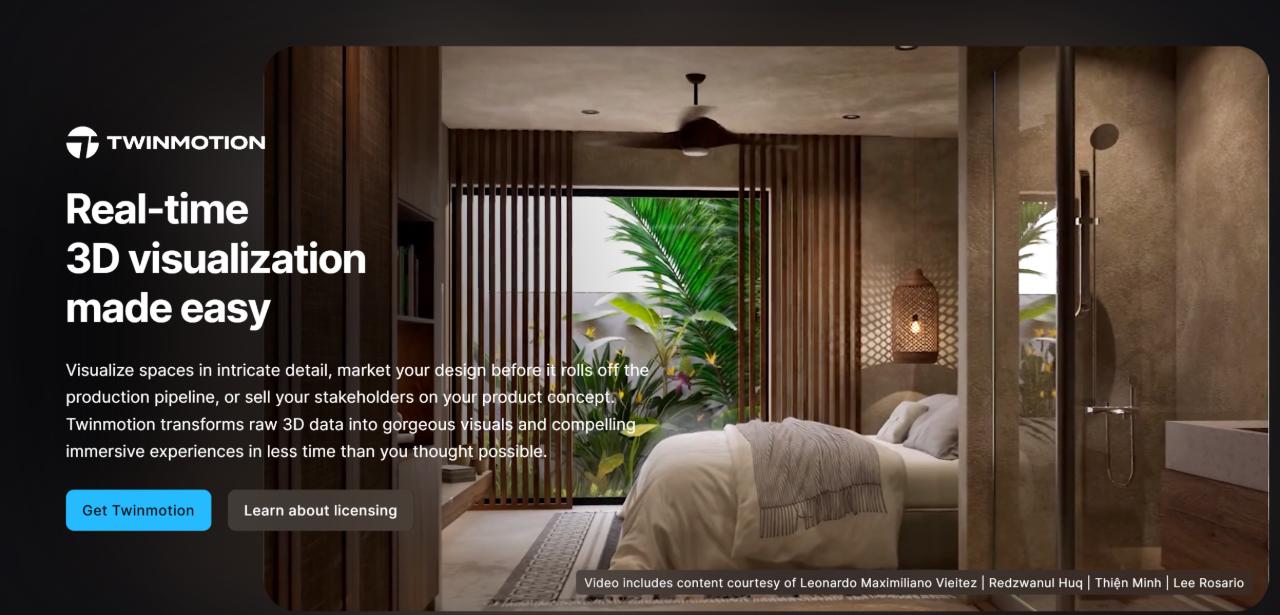
Chaos Enscape is a real-time 3D rendering and virtual reality (VR) visualization plugin developed by Chaos. Designed specifically for architects, interior designers, and landscape planners, Enscape plugs directly into SketchUp, Autodesk Revit, Rhinoceros, Archicad, and Vectorworks—turning 3D CAD and BIM models into interactive real-time walkthroughs, photorealistic stills, and 360° panoramas with a single click.
1. In-Depth Review: Why Architects & Designers Use Chaos Enscape
- Instant Real-Time Synchronization with CAD & BIM: Unlike offline renderers that require lengthy render queues, Enscape updates lighting, shadows, reflections, and geometry live as you edit your model in Revit, SketchUp, or Rhino.
- Easy Learning Curve & Fast Client Presentations: Eliminates complex shader and render-engine settings by automatically reading native BIM/CAD materials, allowing designers to export standalone `.exe` walkthroughs, web panoramas, or VR headsets views in seconds.
- Built-In Asset Library & V-Ray Interoperability: Includes thousands of lightweight, render-ready trees, people, furniture, and vehicles, while supporting V-Ray Scene compatibility so visualization specialists can refine Enscape scenes further in Chaos V-Ray.
2. Key Features & Capabilities
- One-Click Real-Time Ray-Traced Rendering: Leverages hardware-accelerated ray tracing (NVIDIA RTX / AMD / Apple Metal) to render realistic global illumination, soft shadows, glass reflections, and water caustics in real time.
- Live Bi-Directional CAD/BIM Sync: Edit walls, windows, sun angles, or camera views in SketchUp, Revit, or Rhino and see changes reflected immediately inside the Enscape viewport.
- Built-In Enscape Asset & Material Library: Place over 4,000+ low-poly, physically based 3D assets (vegetation, furniture, lighting, accessories, people) and PBR materials without slowing down your host CAD file.
- Virtual Reality (VR) & Standalone Walkthrough Exports: Launch Oculus/Meta Quest, HTC Vive, or Windows Mixed Reality sessions with one click, or export self-contained `.exe` and web-based walkthroughs for clients without CAD software.
- Artificial & Natural Lighting Simulation: Simulate accurate geographic sun paths, volumetric fog, HDRI skyboxes, and IES artificial light fixtures for day and night architectural visualizations.
- Site Context & Elevation Integration: Import real-world OpenStreetMap surrounding buildings and terrain context directly into your scene to visualize projects in their urban environment.
- Enscape Impact & Chaos Cloud Integration: Run early-stage building energy performance analysis and share cloud-hosted visual tours and panoramas with stakeholders online.
3. How to Register & Access an Official Trial or License
To ensure software authenticity, workstation stability, and full compliance with licensing terms, always download and license Enscape through Chaos’s official portals:
- Visit the Official Chaos Enscape Website: Go to https://www.chaos.com/enscape to check supported host applications (Revit, SketchUp, Rhino, Archicad, Vectorworks) and system requirements.
- Create a Chaos Account: Register a free account at https://my.chaos.com using your email address to manage trials, licenses, and cloud uploads.

- Choose Your Official Licensing Path:
- Official 14-Day Free Trial: Start a full-featured 14-day evaluation via https://www.chaos.com/enscape/free-trial to test real-time rendering, the Asset Library, and VR exports on your computer.
- Educational License (Students & Educators): Eligible students and faculty at accredited institutions can apply for discounted academic licenses at https://www.chaos.com/education.
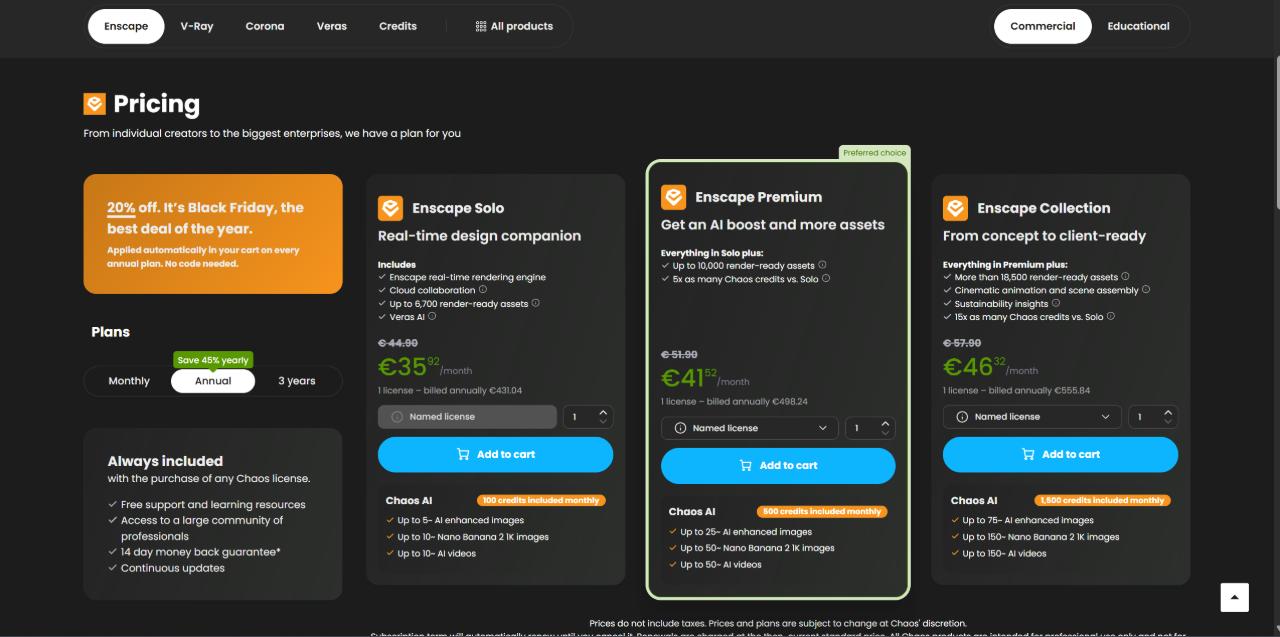
- Commercial Subscription (Solo / Premium / ArchDesign Collection): Architects and design firms can subscribe monthly or annually directly on https://www.chaos.com/pricing/enscape or through an authorized regional reseller.
4. Step-by-Step Installation Guide
- Verify System & GPU Requirements: Confirm your workstation has a supported host CAD/BIM application installed on 64-bit Windows 10/11 (or supported macOS) with at least 16 GB RAM (32 GB+ recommended), a dedicated NVIDIA RTX / AMD GPU with 6 GB–8 GB+ VRAM (or Apple Silicon M1/M2/M3/M4), and 5 GB+ free SSD space.
- Download the Official Enscape Installer: Sign in to https://my.chaos.com/downloads and download the official Enscape installer (`Enscape-4.x.x.exe` on Windows or `.dmg` on macOS).
- Run the Setup Wizard: Double-click the downloaded installer file, accept the end-user license agreement, choose the host applications you want Enscape to integrate with (e.g., SketchUp, Revit, Rhino), and click Install.
- Sign In & Activate License: Open your host CAD/BIM program, click the Start Enscape button on the Enscape toolbar, and sign in with your Chaos Account credentials in the browser window to activate your 14-day trial or subscription.
5. How to Use Chaos Enscape: Beginner Workflow
- Launch Enscape from Your Host Software: Open your 3D model in SketchUp, Revit, or Rhino, locate the Enscape tab/toolbar, and click Start Enscape to open the real-time rendering window.
- Navigate the 3D Walkthrough: Use `W, A, S, D` keys to walk forward/backward/left/right, `Q` and `E` to move down and up, hold Left Mouse Button to look around, and hold `Shift + Right Mouse Button` to adjust the sun time of day interactively.
- Place Assets & Refine Materials: Click the Asset Library icon to place trees, furniture, and people into your scene, and open the Enscape Material Editor to adjust roughness, bump maps, emissive self-illumination, or water ripples.
- Configure Visual Settings & Saved Views: Open Visual Settings to fine-tune Exposure, Field of View, Depth of Field, and Atmosphere (clouds/fog), then click Create View to save key camera angles.
- Export Stills, Panoramas or Standalone Walkthroughs: Click Screenshot (`Shift+F11`) to save high-resolution PNG/JPG renders, Render Video for animated camera paths, or Export EXE / Web Standalone to share interactive walkthroughs with clients.
6. Frequently Asked Questions (FAQ)
- Which 3D design programs does Chaos Enscape support?Enscape integrates directly with SketchUp, Autodesk Revit, Rhinoceros, Graphisoft Archicad, and Vectorworks on Windows, and supports SketchUp, Rhino, Archicad, and Vectorworks on macOS.
- What is the difference between Chaos Enscape and Chaos V-Ray?Enscape is built for instant real-time rendering, rapid design iteration, and VR walkthroughs with minimal setup, whereas V-Ray focuses on maximum physically based photorealism, complex studio lighting, and granular render control.
- Does Chaos Enscape require a dedicated graphics card?Yes. Because Enscape renders in real time using GPU hardware acceleration, a dedicated NVIDIA RTX or AMD Radeon GPU (or Apple Silicon M-series chip on Mac) is required.