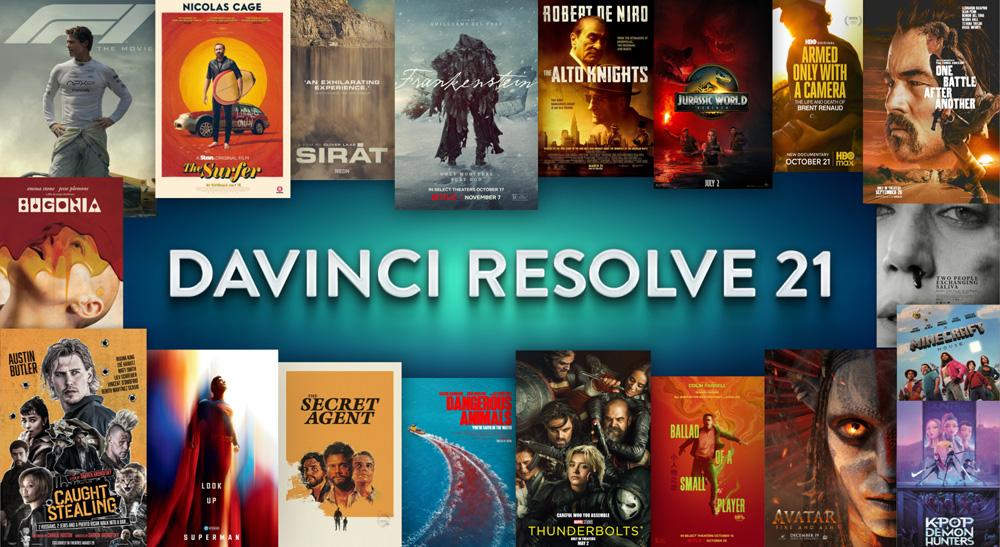
DaVinci Resolve Studio is a professional video editing, color correction, visual effects (VFX), motion graphics, and audio post-production software suite developed by Blackmagic Design. Used by Hollywood film studios, YouTube creators, commercial editors, and colorists worldwide, DaVinci Resolve combines dedicated workspaces (Media, Cut, Edit, Fusion, Color, Fairlight, and Deliver) into a single cross-platform application for Windows, macOS, and Linux.
1. In-Depth Review: Why Editors & Colorists Use DaVinci Resolve Studio
- All-In-One Post-Production Workflow: Eliminates round-tripping between separate apps by uniting dual-timeline editing (Cut & Edit), node-based Fusion VFX, industry-standard DaVinci Color Grading, Fairlight multi-track audio mixing, and fast delivery inside one project file.
- DaVinci Neural Engine AI & GPU Acceleration: Leverages multi-GPU hardware acceleration and AI tools—including Magic Mask subject isolation, Voice Isolation, Dialogue Leveler, Super Scale upscaling, and text-based timeline editing—to speed up complex post-production tasks.
- Generous Free Edition & Perpetual Studio License: Offers a capable free version with no watermarks or time limits, while DaVinci Resolve Studio is sold as a one-time perpetual license (including free major updates) rather than an ongoing monthly subscription.
2. Key Features & Capabilities
- Dual-Timeline Editing (Cut & Edit Pages): Assemble rough cuts rapidly with dual-scroll timelines on the Cut page, or execute precision multi-track trimming, keyframing, and multicam editing on the Edit page.
- Hollywood-Grade Color Grading: Grade HDR and RAW footage using 32-bit float color science, primary/secondary color wheels, Power Windows, HDR grading palettes, and Magic Mask AI tracking.
- Fusion Node-Based VFX & Motion Graphics: Build 2D and 3D visual effects composites, animated titles, camera tracking, and particle systems directly inside the integrated Fusion workspace.
- Fairlight Digital Audio Workstation (DAW): Mix up to 2,000 audio tracks with real-time EQ, dynamics, automated dialogue replacement (ADR), AI Voice Isolation, and Dolby Atmos spatial audio support.
- DaVinci Neural Engine AI Tools: Automatically transcribe audio to edit clips by text, remove background noise, reframe social media aspect ratios, and match colors across cameras.
- Blackmagic Cloud Multi-User Collaboration: Collaborate simultaneously with editors, colorists, and sound designers on the same timeline over Blackmagic Cloud with automated proxy workflows.
- Broad Camera RAW & Codec Support: Natively decode Blackmagic RAW, RED, ARRI, Sony, Canon, Nikon, ProRes, H.264/H.265, and AV1 media without time-consuming transcoding.
3. How to Register & Access the Official Free Version or Studio License
To ensure software authenticity, workstation stability, and full compliance with licensing terms, always download DaVinci Resolve directly from Blackmagic Design’s official portals:
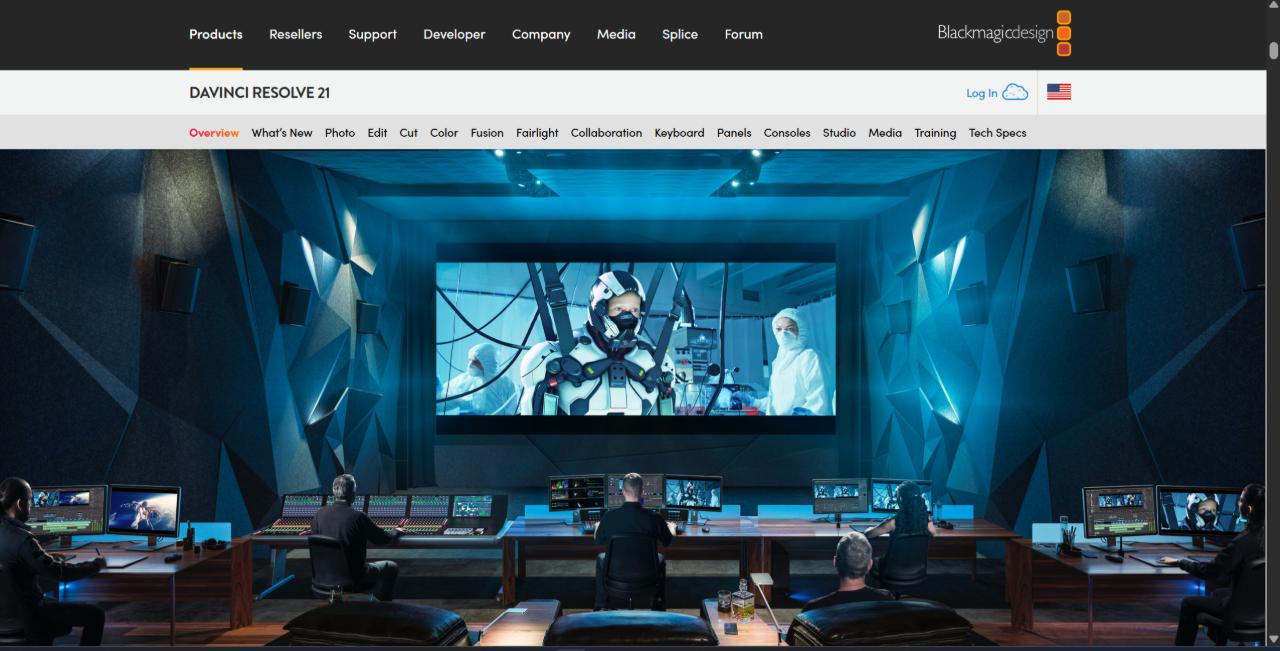
- Visit the Official DaVinci Resolve Website: Go to https://www.blackmagicdesign.com/products/davinciresolve to compare the free DaVinci Resolve edition with DaVinci Resolve Studio.
- Open the Official Download Portal: Click the Free Download Now button on https://www.blackmagicdesign.com/products/davinciresolve or visit https://www.blackmagicdesign.com/support/family/davinci-resolve-and-fusion to select your operating system (Windows, macOS, or Linux).
- Choose Your Official Licensing Path:
- DaVinci Resolve (Free Edition): Register your basic contact details on the official download form to download the full-featured free edition with no watermarks or expiration date.
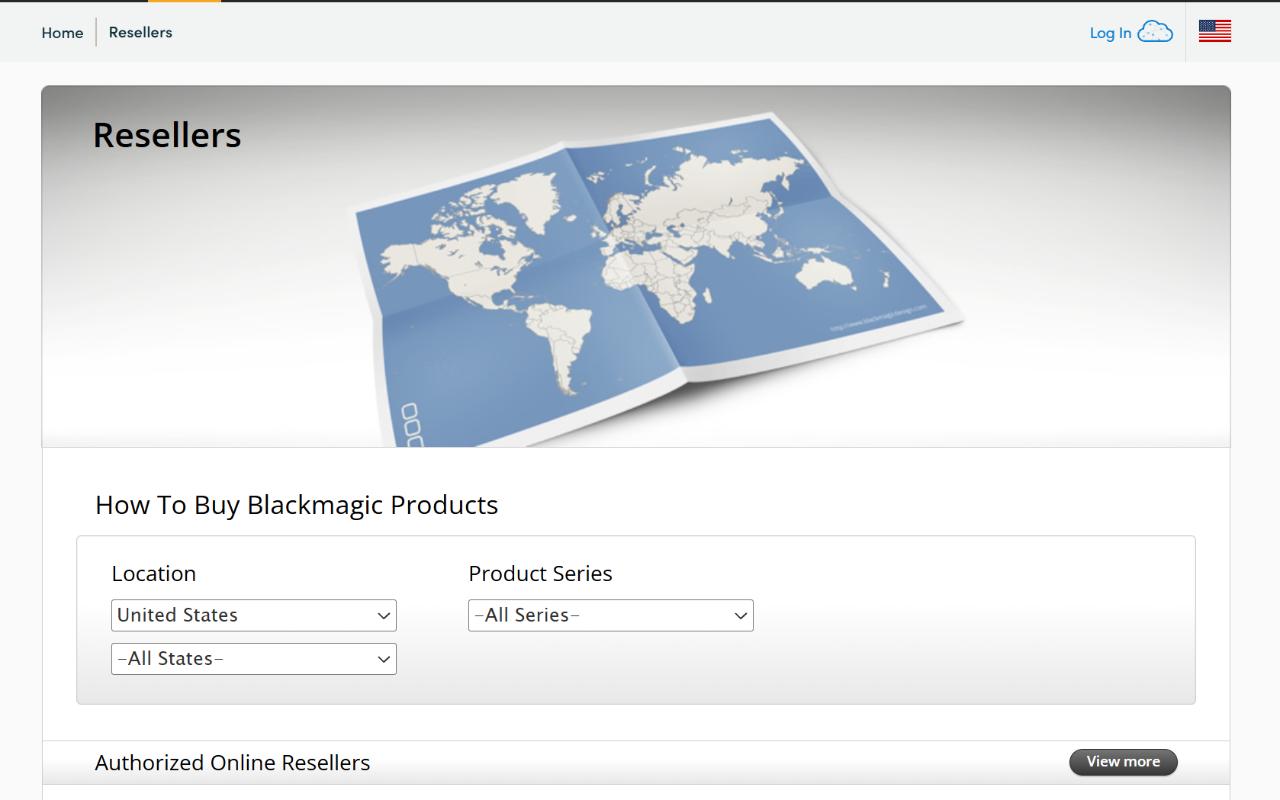
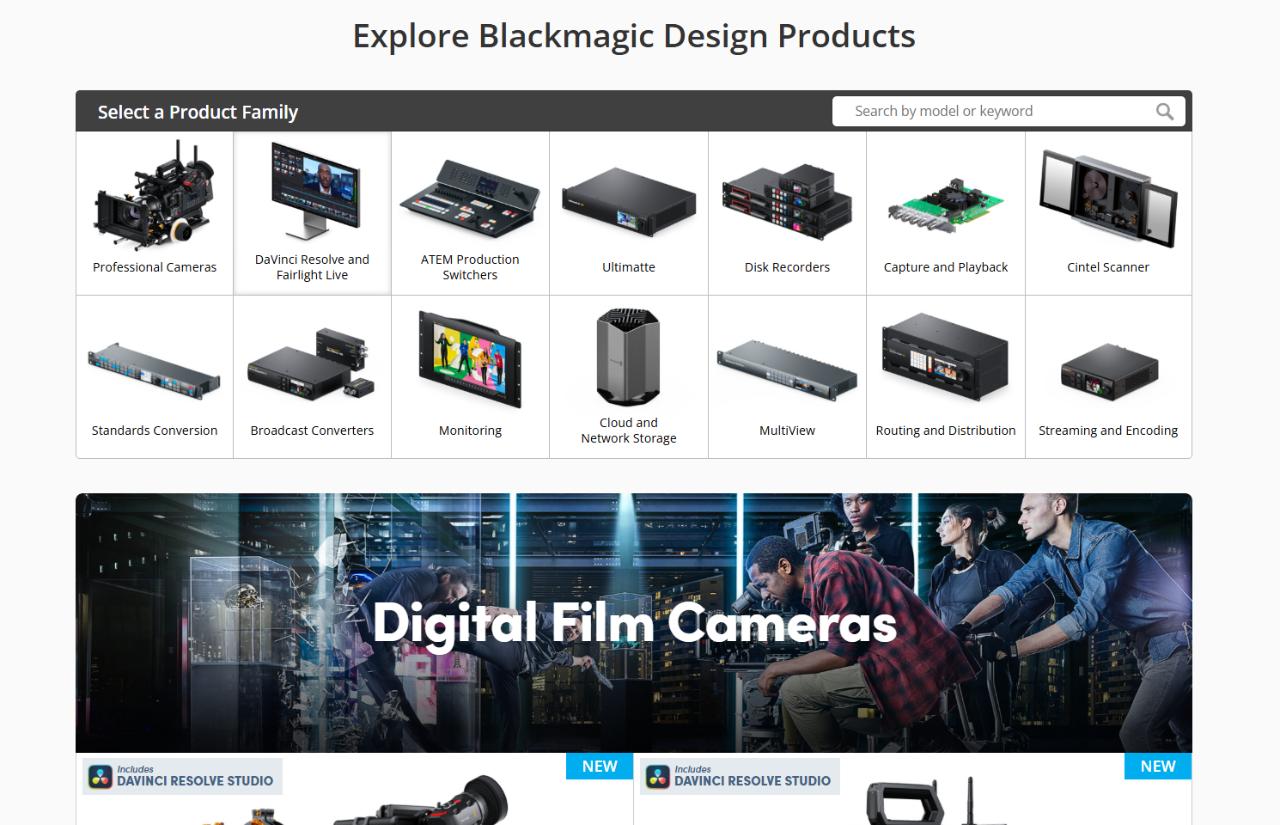
- DaVinci Resolve Studio (Perpetual License): Purchase a one-time Activation Key card or USB Dongle directly from authorized Blackmagic Design resellers via https://www.blackmagicdesign.com/resellers/ (note: Studio is also bundled with select Blackmagic cameras and Speed Editor hardware).
4. Step-by-Step Installation Guide
- Verify System & GPU Requirements: Confirm your workstation runs a 64-bit OS (Windows 10/11, macOS 13+, or Rocky Linux) with at least 16 GB RAM (32 GB+ recommended for 4K/8K Fusion VFX), a multi-core CPU, a discrete GPU with 4 GB–8 GB+ VRAM supporting CUDA/OpenCL/Metal, and 10 GB+ free SSD space.
- Download the Official Installer: Visit https://www.blackmagicdesign.com/products/davinciresolve, select either DaVinci Resolve (Free) or DaVinci Resolve Studio for your OS, and download the official `.zip` archive.
- Extract & Run Setup Wizard: Extract the downloaded `.zip` archive, double-click the installer executable (`Install Resolve xx.x.exe` on Windows or `.dmg` on macOS), select the components to install, and follow the on-screen prompts.
- Launch & Activate License: Open DaVinci Resolve; if you installed the Studio edition, enter your 25-character Blackmagic Design Activation Key (or insert your USB Dongle) when prompted to unlock Studio features.
5. How to Use DaVinci Resolve Studio: Beginner Workflow
- Create a New Project & Check Timeline Settings: Launch DaVinci Resolve, click New Project in the Project Manager, and click the gear icon in the bottom-right corner to verify your Timeline Resolution (e.g., 1920 × 1080 or 3840 × 2160) and Frame Rate (24, 30, or 60 fps).
- Import Video, Audio & Graphics Media: Switch to the Media or Edit page at the bottom navigation bar, right-click inside the Media Pool, and select Import Media (Ctrl+I) to load your video clips, music, and logos.
- Assemble & Trim Clips on the Edit Timeline: Drag video clips from the Media Pool onto the timeline, use the Blade tool (`B`) to split clips, Selection mode (`A`) to trim edges, and drag transitions or titles from the Effects panel.
- Color Correct & Grade Your Footage: Click the Color page tab at the bottom, adjust Lift, Gamma, Gain, Contrast, and Saturation on the color wheels, or apply a film LUT to give your video a polished look.
- Export Your Final Video on the Deliver Page: Click the Deliver (rocket icon) tab, choose a preset such as YouTube or H.264/H.265 Master, set your file name and destination folder, click Add to Render Queue, and press Render All.
6. Frequently Asked Questions (FAQ)
- What is the difference between DaVinci Resolve (Free) and DaVinci Resolve Studio?The free version includes full multi-track editing, color grading, Fusion VFX, and Fairlight audio up to 4K 60fps without watermarks, whereas DaVinci Resolve Studio unlocks 8K/120fps output, multi-GPU acceleration, DaVinci Neural Engine AI tools (Magic Mask, Voice Isolation, Super Scale), HDR grading, and stereoscopic 3D tools.
- Is DaVinci Resolve Studio a subscription or a one-time purchase?DaVinci Resolve Studio is a one-time perpetual license purchase with no monthly subscription fees, and Blackmagic Design provides major version upgrades at no extra cost.
- Does DaVinci Resolve work on Apple Silicon Macs and Windows PCs?Yes. DaVinci Resolve runs natively on Windows (x64), macOS (Apple Silicon M1/M2/M3/M4 and Intel), and Linux workstations.