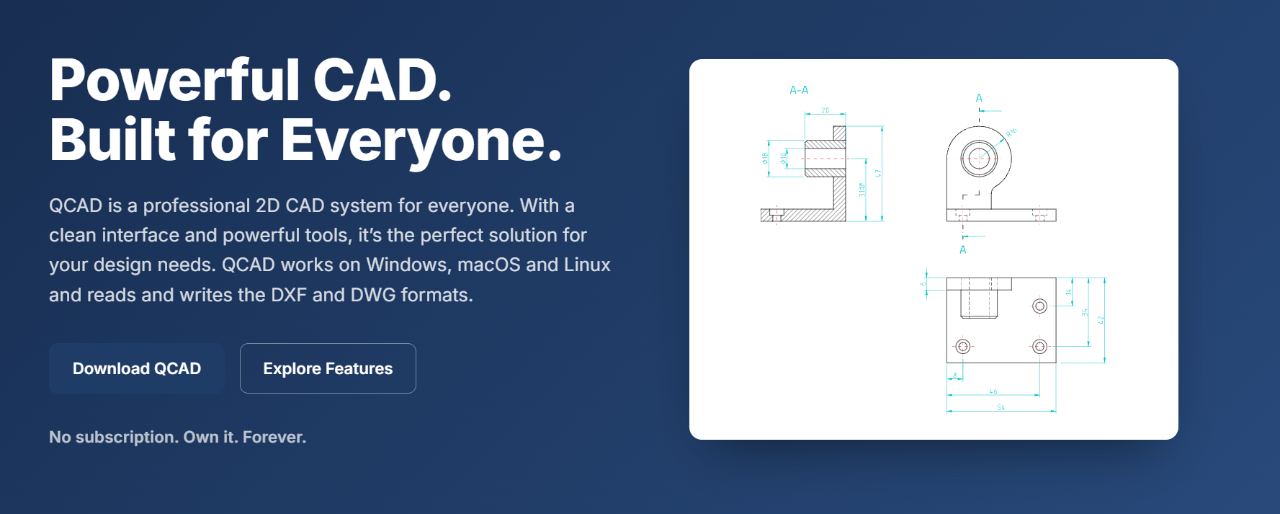
QCAD (created by RibbonSoft and maintained by Andrew Mustun) is a dedicated cross-platform 2D computer-aided design (CAD) application built around the DXF file format for technical drawings, floor plans, schematic diagrams, and mechanical/civil 2D layouts. Designed to be lightweight, responsive, and easy to learn without bloated 3D overhead, QCAD runs natively on Windows, macOS, and Linux and is offered as QCAD Community Edition (free and open-source under GNU GPLv3) alongside QCAD Professional (commercial license with expanded DXF/DWG and productivity tools).
1. In-Depth Review: Why Drafters & Engineers Use QCAD
- Native DXF Focus with Clear Community vs. Professional Path: Gives drafters a clean, fast 2D environment centered on DXF, with QCAD Community Edition available under GPLv3 and QCAD Professional adding extra tools, script/CAM/DWG capabilities, and support.
- Fast Keyboard-Driven & Snapping 2D Drafting: Combines intuitive CAD toolbars, command-line coordinate entry, object snaps, layers, blocks, dimensions, and hatches for high-precision 2D drafting.
- Lightweight Footprint & Cross-Platform Consistency: Launches quickly and runs smoothly on standard laptops and workstations across Windows, macOS, and Linux.
2. Key Features & Capabilities
- Comprehensive 2D Geometry & Editing Tools: Draw lines, arcs, circles, ellipses, splines, polylines, points, and text, and modify geometry with trim, extend, offset, fillet, chamfer, mirror, rotate, and scale.
- Layers, Blocks & Attributes: Organize complex drawings with layers, reusable blocks, layer states, and property editors.
- Technical Dimensioning & Annotations: Add linear, aligned, angular, radial, diametric, and ordinate dimensions, leaders, tolerances, and hatches.
- Command Line & ECMAScript Automation: Enter coordinates/commands directly on the command line and extend workflows with QCAD's scripting engine and command-line utilities.
- DXF & CAD Interoperability: Read and write DXF drawings cleanly (with additional format/productivity options in QCAD Professional).
- Dual Licensing Options: Free and open-source QCAD Community Edition (GNU GPLv3) or commercial QCAD Professional.
- Official Links: Free Trial, Free / Education & Pricing
Always download QCAD installers, source code, and documentation directly from official RibbonSoft / QCAD portals:
- Official QCAD Website: https://qcad.org/
- Official QCAD Downloads & Trial / Editions Page: https://qcad.org/en/download
- Official QCAD Documentation & Tutorials: https://qcad.org/en/documentation
- Official QCAD GitHub Repository (Community Edition): https://github.com/qcad/qcad
4. Step-by-Step Installation Guide
- Verify Operating System & Architecture: Confirm your computer runs a supported 64-bit Windows, macOS, or Linux operating system.
- Download the Official QCAD Installer: Visit https://qcad.org/en/download and choose the QCAD installer/package matching your operating system and edition (QCAD Professional trial/license or QCAD Community Edition).
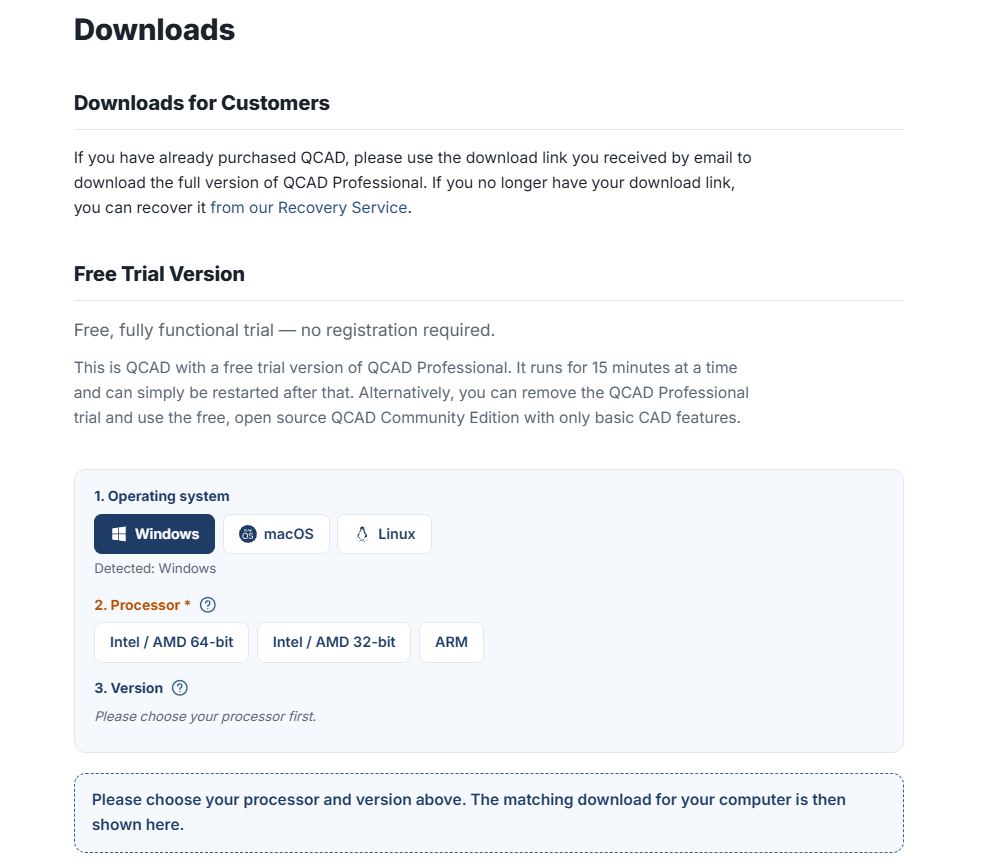
- Run the Installer & Launch QCAD: Run the downloaded installer on Windows/macOS (or install via your package manager / archive on Linux) and open QCAD from your applications menu.
- Set Drawing Units & Grid Preferences: Open `Edit > Application Preferences` (or `QCAD > Preferences` on macOS) to verify default units, snapping behavior, and interface layout.
5. How to Use QCAD: Beginner Workflow
- Create a New Drawing & Configure Units: Click `File > New` and set your drawing units (such as millimeters or meters) and paper/layout scale in `Edit > Drawing Preferences`.
- Set Up Layers for Clean Geometry: Use the `Layer List` panel to create distinct layers (such as `Walls`, `Centerlines`, `Dimensions`, and `Notes`) with appropriate colors and lineweights.
- Draw & Snap 2D Entities: Select line, circle, rectangle, or polyline tools from the CAD toolbar and use object snaps (`Endpoint`, `Midpoint`, `Intersection`, `Grid`) for exact placement.
- Add Dimensions & Text Annotations: Dimension your geometry accurately and insert notes or title-block text using QCAD's dimension and text tools.
- Save & Export Your Drawing: Save your work as a `.dxf` file (or export to supported formats/PDF for printing and sharing) via `File > Save As`.
6. Frequently Asked Questions (FAQ)
- Is QCAD free to use?QCAD offers a free and open-source QCAD Community Edition licensed under GNU GPLv3, while QCAD Professional is a paid commercial edition with additional features and official support.
- What file format does QCAD focus on natively?QCAD is built around the DXF (Drawing Exchange Format) file format for 2D CAD drawings across industries.
- Does QCAD require a heavy workstation or dedicated GPU for 2D plans?No. Because QCAD focuses on 2D CAD rather than heavy 3D rendering, it runs smoothly on modest hardware with standard integrated graphics.