Adobe Lightroom is a photo editing, color grading, and library organization software application developed by Adobe for photographers, content creators, visual storytellers, and designers. Available across desktop (Lightroom and Lightroom Classic), web, and mobile, Lightroom helps users manage large photo libraries, apply non-destructive RAW adjustments, and deliver consistent color across print and digital channels.
1. In-Depth Review: Why Photographers & Creators Use Adobe Lightroom
- Non-Destructive RAW & Color Workflow: Lets photographers adjust exposure, white balance, tone curves, color grading, and lens corrections without altering original image files, keeping edits reversible at any stage.
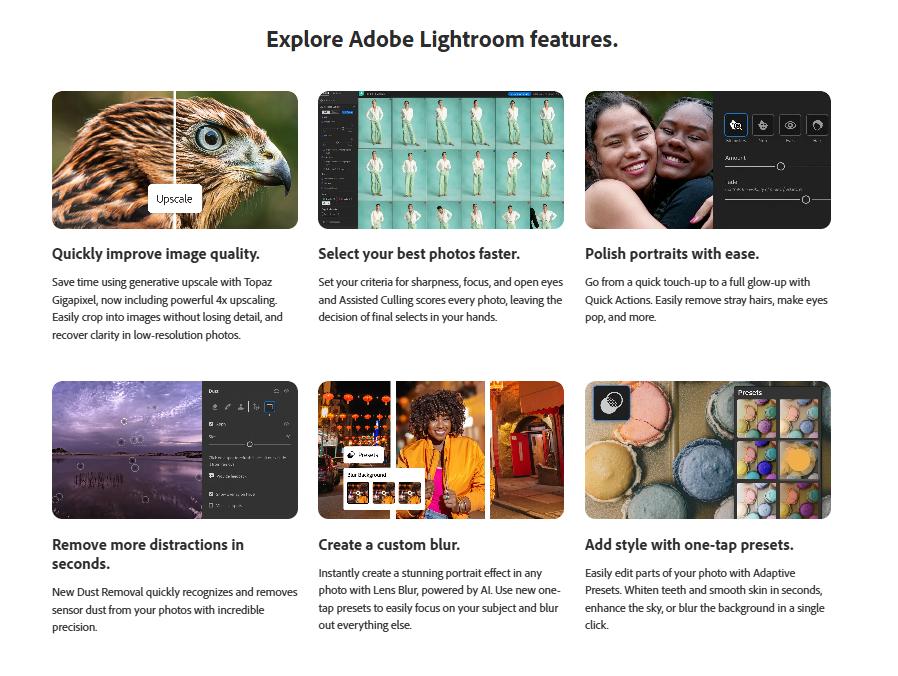
- Fast AI-Assisted Selections & Noise Reduction: Speeds up repetitive editing with AI masking (Select Subject, Sky, Background), Adaptive Presets, Super Resolution, and AI noise reduction on high-ISO shots.
- Cross-Device & Catalog Flexibility: Supports cloud-synced editing across desktop, web, and mobile alongside local folder/catalog management in Lightroom Classic for high-volume shoots.
2. Key Features & Capabilities
- Non-Destructive Exposure, Tone & Color Grading: Fine-tune light, color mixer/grading wheels, HSL, split toning, and calibration on RAW, JPEG, HEIC/AVIF, and HDR files.
- AI Masking, Adaptive Presets & Denoise: Isolate subjects, skies, or backgrounds automatically and apply targeted adjustments or clean up grain and resolution.
- Presets, Profiles & Batch Syncing: Save custom presets or import camera/creative profiles and sync edits across multiple photos in one step.
- Photo Organization, Albums & Metadata: Sort shoots using star ratings, color labels, keywords, collections/albums, and IPTC/EXIF metadata.
- Multi-Format Export & Sharing: Export high-resolution JPEGs, TIFFs, DNGs, or web-ready files with custom sizing, watermarking, and sharpening.
- Desktop, Web & Mobile Continuity: Edit and organize photos on desktop, access web/mobile apps, and sync assets through Creative Cloud.
- Official Links: Free Trial, Free / Education & Pricing
Always download and license Adobe Lightroom through Adobe's official portals:
- Official Product Overview: https://www.adobe.com/products/photoshop-lightroom.html
- Official Free Trial (7-Day Evaluation): https://www.adobe.com/products/photoshop-lightroom.html
- Free / Education (Students & Teachers Plans): https://www.adobe.com/products/photoshop-lightroom/plans.html
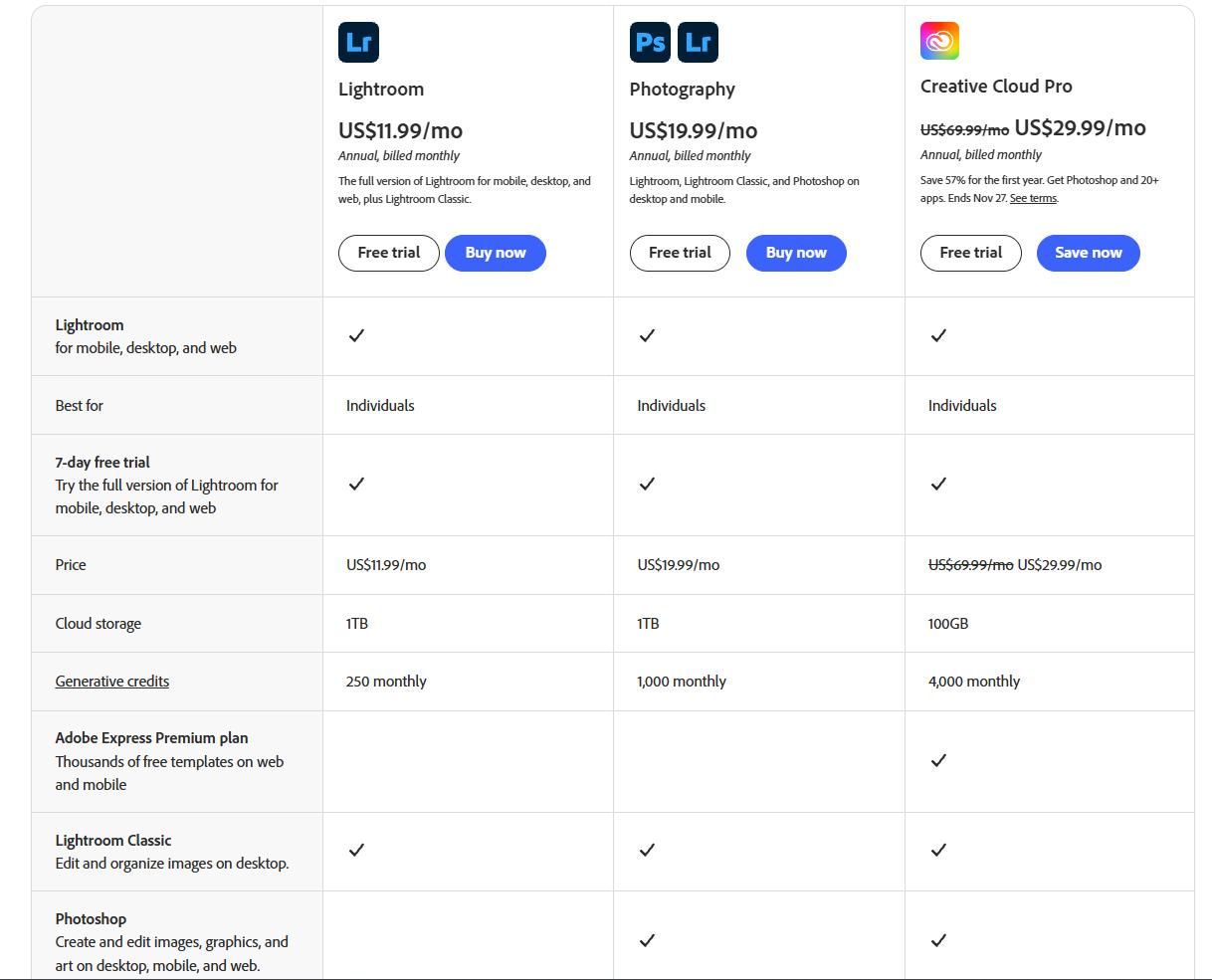
- Pricing & Subscription Plans: https://www.adobe.com/products/photoshop-lightroom/plans.html
4. Step-by-Step Installation Guide
- Verify Operating System & Hardware: Confirm your computer runs a supported 64-bit version of Windows (Windows 10 or Windows 11) or macOS with a multi-core 64-bit processor (or Apple Silicon), at least 8 GB RAM (16 GB+ recommended for AI masking, Denoise, and large RAW catalogs), a supported GPU, and free SSD storage space.
- Start Trial or Sign In to Adobe: Visit https://www.adobe.com/products/photoshop-lightroom.html or https://www.adobe.com/products/photoshop-lightroom/plans.html and sign in with your Adobe ID to start a free trial or plan.
- Install via Creative Cloud Desktop: Download and open the Creative Cloud desktop app, locate Lightroom (and/or Lightroom Classic), and click Install.
- Launch & Sign In: Open Lightroom from your Start menu or Applications folder and sign in with your Adobe account to begin editing.
5. How to Use Adobe Lightroom: Beginner Workflow
- Import Your Photo Shoot: Open Lightroom, select `Add Photos` (or import into your catalog/album), and choose the RAW or high-resolution image files from your camera card or folder.
- Cull & Organize Best Shots: Flag or rate your strongest frames so you spend editing time only on the images you need.
- Adjust Light, White Balance & Color: Open the Edit/Develop controls to fix exposure, highlights, shadows, white balance, and vibrance/saturation.
- Apply AI Masks or Presets: Use AI masking (`Subject`, `Sky`, or `Background`) or a preset to refine focal points and apply a consistent visual look across the set.
- Export Final Images: Export your finished photos in the required resolution, color space, and file format for client delivery, print, or social/web publishing.
6. Frequently Asked Questions (FAQ)
- Does Adobe Lightroom run on both Windows and macOS?Yes. Adobe Lightroom is supported on 64-bit Windows and macOS workstations, with web and mobile companion apps available.
- How long is the official Adobe Lightroom free trial?Adobe offers a 7-day free trial through its official Lightroom portal.
- What is the difference between Lightroom and Lightroom Classic?Lightroom focuses on cloud-synced editing across desktop, web, and mobile, while Lightroom Classic centers on local drive/folder and catalog management for desktop-first photography workflows.