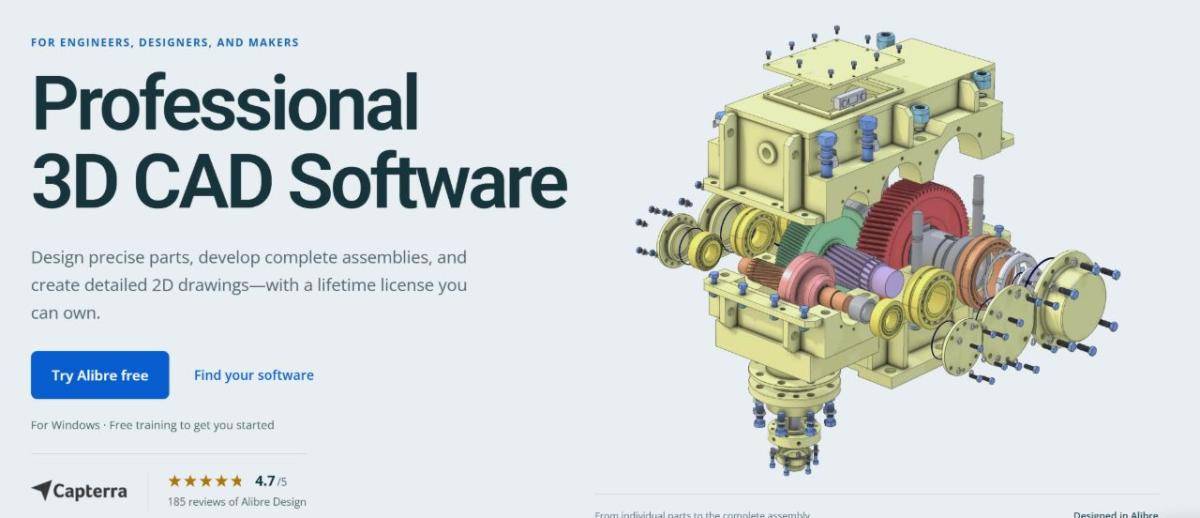
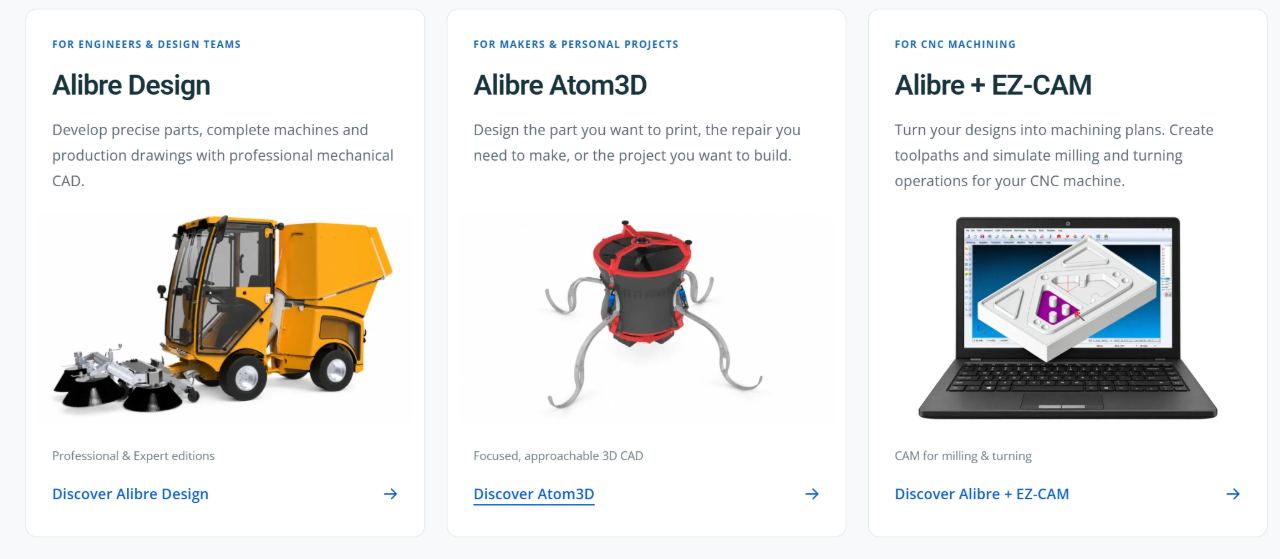
Alibre Design (developed by Alibre, LLC for 64-bit Windows) is a precision parametric 3D mechanical CAD, assembly modeling, sheet metal, and 2D production drawing suite. Built for mechanical engineers, machine designers, product developers, and small-to-midsize manufacturers who prefer owning perpetual software licenses rather than paying recurring cloud CAD subscriptions, Alibre Design offers fast local file storage, history-based feature trees, motion simulation, and an official 30-day free trial with no credit card required.
1. In-Depth Review: Why Mechanical Engineers & Manufacturers Use Alibre Design
- True Perpetual Licensing with Local Data Control: Lets engineering teams purchase permanent desktop licenses with optional annual maintenance—keeping all CAD parts, assemblies, and intellectual property stored locally on your own workstation or network drives.
- Familiar Parametric Workflow Without Bloat: Delivers history-based part modeling, constraint-driven assemblies, sheet metal design, weldments, design configurations, and associative 2D production drawings in a clean, responsive Windows interface.
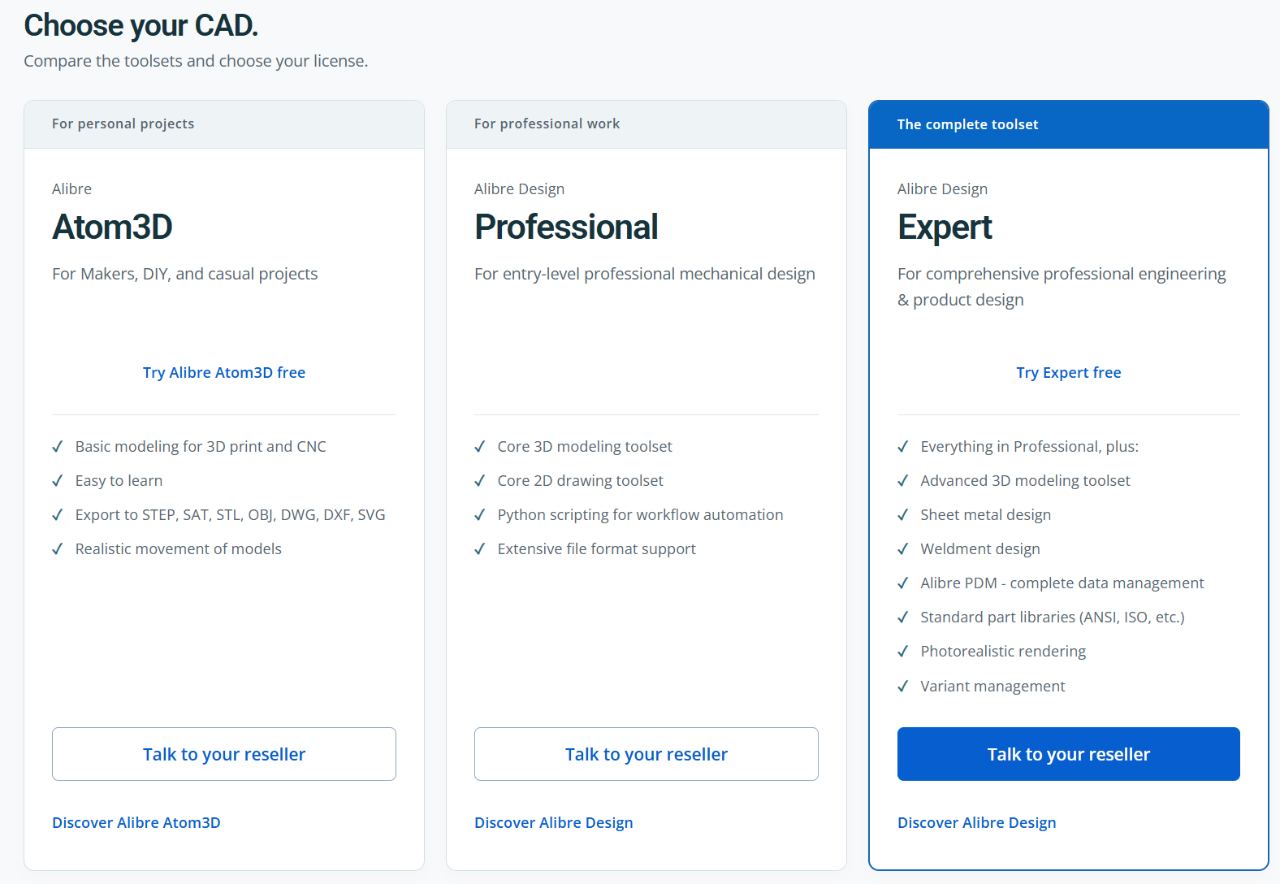
- Full-Featured 30-Day Free Trial (No Credit Card Required): Evaluates Alibre Design Expert or Atom3D free for 30 days on Windows before choosing Atom3D, Alibre Design Professional, or Alibre Design Expert.
2. Key Features & Capabilities
- History-Based Parametric Part & Assembly Modeling: Sketch constrained 2D profiles and build 3D solids with extrudes, revolves, sweeps, lofts, boolean features, and multi-part assembly constraints.
- Sheet Metal, Weldments & Design Configurations: Model bend-calculated sheet metal parts with flat-pattern export, structural weldments, and parametric part/assembly configurations (Expert edition).
- Associative 2D Production Drawings & BOMs: Create dimensioned orthographic, isometric, section, and detail views with automatic Bills of Materials (BOMs) linked to 3D models.
- Motion Simulation & Photorealistic Rendering: Test kinematic gear/screw/pulley motion and generate studio renders inside Alibre Design Expert.
- Broad Industry CAD File Interoperability: Import and export `STEP`, `IGES`, `SAT`, `STL`, `OBJ`, `DXF`, and `DWG` files cleanly for CNC machining, 3D printing, and supplier collaboration.
- 30-Day Free Trial & Flexible Perpetual / Subscription Plans: Available via a 30-day free trial on Windows with perpetual license tiers (`Atom3D`, `Design Pro`, `Design Expert`).
- Official Links: Free Trial, Free / Education & Pricing
Always download Alibre Design installers and request your 30-day free trial directly from official Alibre portals:
- Official Alibre Design Website: https://www.alibre.com/
- Official Alibre Design 30-Day Free Trial: https://www.alibre.com/get-a-trial/
- Official Alibre Design Expert Trial Portal: https://www.alibre.com/get-a-trial-of-alibre-design-expert/
- Official Alibre Design System Requirements: https://www.alibre.com/alibre-design-software-requirements/
4. Step-by-Step Installation Guide
- Check Operating System & Hardware Requirements: Confirm your workstation runs 64-bit Windows 10 or Windows 11 with a high-clock-speed CPU, at least 8 GB RAM (16 GB+ recommended), and a DirectX 11-compatible GPU.
- Start Your Official 30-Day Free Trial: Visit https://www.alibre.com/get-a-trial/ or https://www.alibre.com/get-a-trial-of-alibre-design-expert/ to register for a 30-day Windows trial (no credit card required) and receive your trial license key and installer link.
- Download & Run the Alibre Design Windows Installer: Download the official Windows 64-bit installer onto your SSD and follow the setup prompts (`~1 GB` installed footprint).
- Activate License & Launch Alibre Design: Open Alibre Design over an internet connection, enter your trial or perpetual activation key, and configure your default units and workspace preferences.
5. How to Use Alibre Design: Beginner Workflow
- Create a New Part Workspace: Launch Alibre Design, click `New Part` from the Home window, and select your default measurement units (`Millimeters` or `Inches`).
- Start a 2D Sketch & Apply Geometric Constraints: Select a reference plane (`XY`, `YZ`, or `ZX`), click `Activate 2D Sketch`, draw lines, circles, or rectangles, and apply exact dimensions and constraints until the sketch is fully defined.
- Extrude or Revolve into a 3D Solid: Exit the sketch, select `Extrude Boss` or `Revolve Boss`, enter depth/angle values, and add edge `Fillets`, `Chamfers`, or `Holes`.
- Assemble Multiple Parts with Constraints: Open a `New Assembly` workspace, insert saved `.AD_PRT` part files, and align mating faces and axes using `Quick Constraint` (`Coincident`, `Concentric`, `Offset`).
- Generate 2D Production Drawings or Export CAD/3D Print Files: Click `New Drawing` to create dimensioned engineering sheets with a Bill of Materials, or export `STEP`, `DXF/DWG`, or `STL` files for manufacturing.
6. Frequently Asked Questions (FAQ)
- Does Alibre Design require a monthly subscription?No. Alibre Design is known for offering perpetual desktop licenses (one-time purchase with optional annual maintenance for updates and support), alongside a 30-day free trial.
- Does Alibre Design run natively on macOS?No. Alibre Design is a native 64-bit Windows desktop application built for Windows 10 and Windows 11.
- Can I work offline after activating Alibre Design?Yes. Regular licenses require an internet connection for initial activation and roughly monthly validation checks, allowing daily offline CAD modeling with local files.