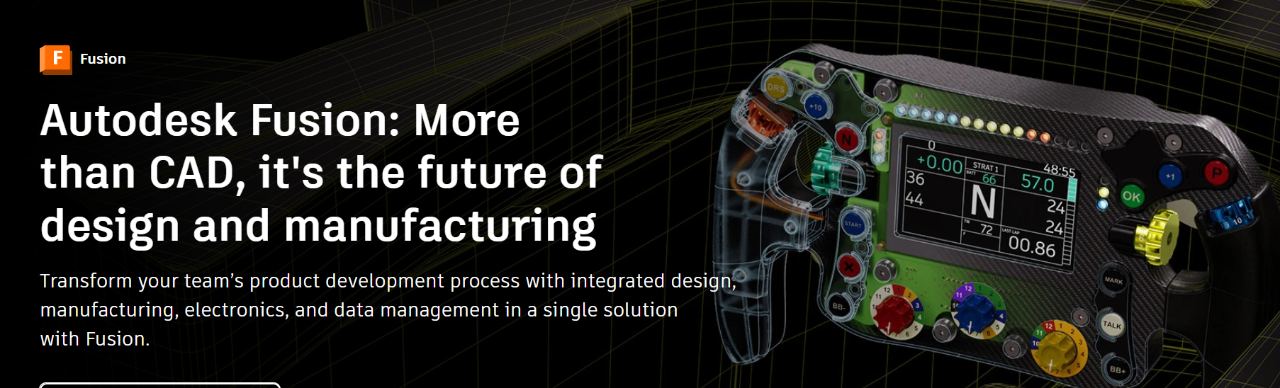
Autodesk Fusion is a cloud-connected 3D computer-aided design (CAD), computer-aided manufacturing (CAM), and computer-aided engineering (CAE) platform developed by Autodesk. Widely used by product designers, mechanical engineers, CNC machinists, fabricators, and educators, Fusion brings parametric and direct 3D modeling, multi-part assemblies, sheet metal, 2D drawings, CAM toolpaths, and structural/thermal simulation into a unified product development workspace.
1. In-Depth Review: Why Product & Manufacturing Teams Use Autodesk Fusion
- Unified CAD, CAM & Simulation in One Platform: Moves seamlessly from 3D concept and parametric part modeling to assembly constraints, manufacturing drawings, 2.5D/3D/5-axis CNC toolpaths, and basic simulation without exporting between disconnected tools.
- Cloud-Connected Collaboration & Version Control: Stores designs and revisions in Autodesk cloud hubs with built-in version history, design sharing, and cross-device access alongside local/offline working support.
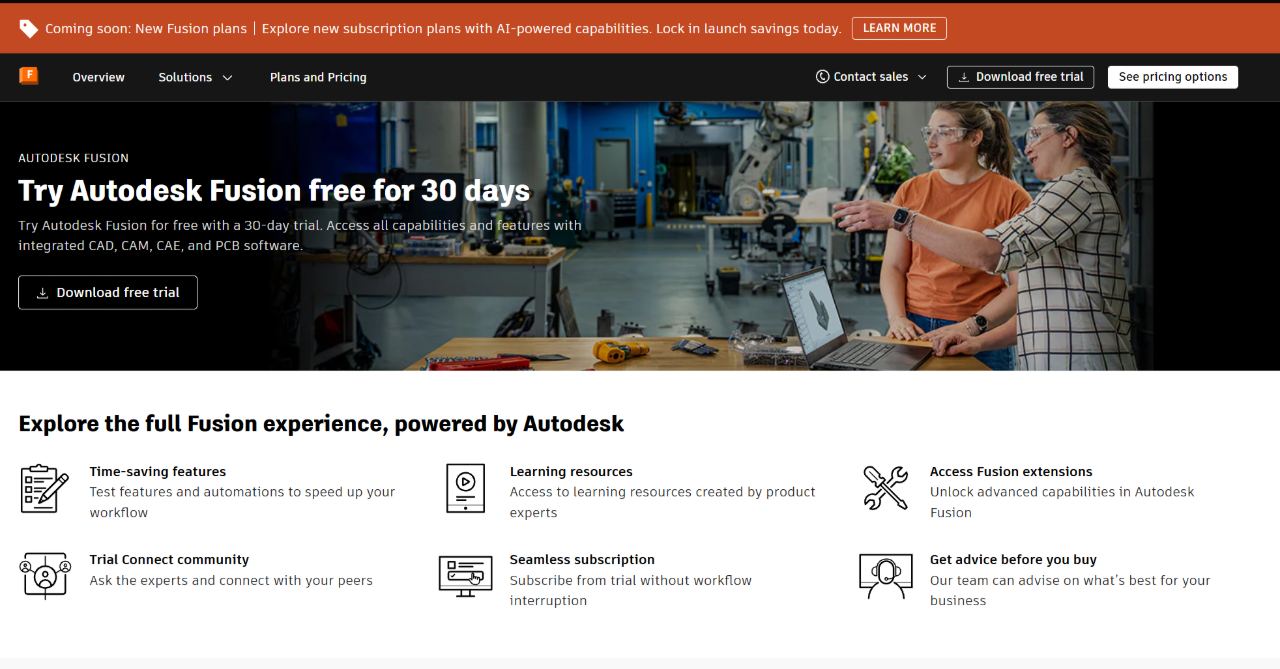
- Accessible Free Trial, Personal & Education Options: Offers a 30-day official trial, commercial subscriptions/extensions, and free licenses for eligible students, educators, and qualifying personal/non-commercial makers.
2. Key Features & Capabilities
- Parametric & Direct 3D Modeling: Build features from constrained 2D sketches (`Extrude`, `Revolve`, `Sweep`, `Loft`, `Fillet`, `Chamfer`) or push/pull direct geometry edits when iterating quickly.
- Multi-Part Assemblies & Motion Studies: Combine components with joints and contact sets to test fit, clearance, and mechanical movement.
- Sheet Metal & Surface Design: Create unfolded flat patterns, bend allowances, and freeform sculpted surfaces for enclosures and consumer products.
- 2D Engineering Drawings: Generate orthographic views, section cuts, detail views, bill of materials (BOM) tables, and dimension annotations.
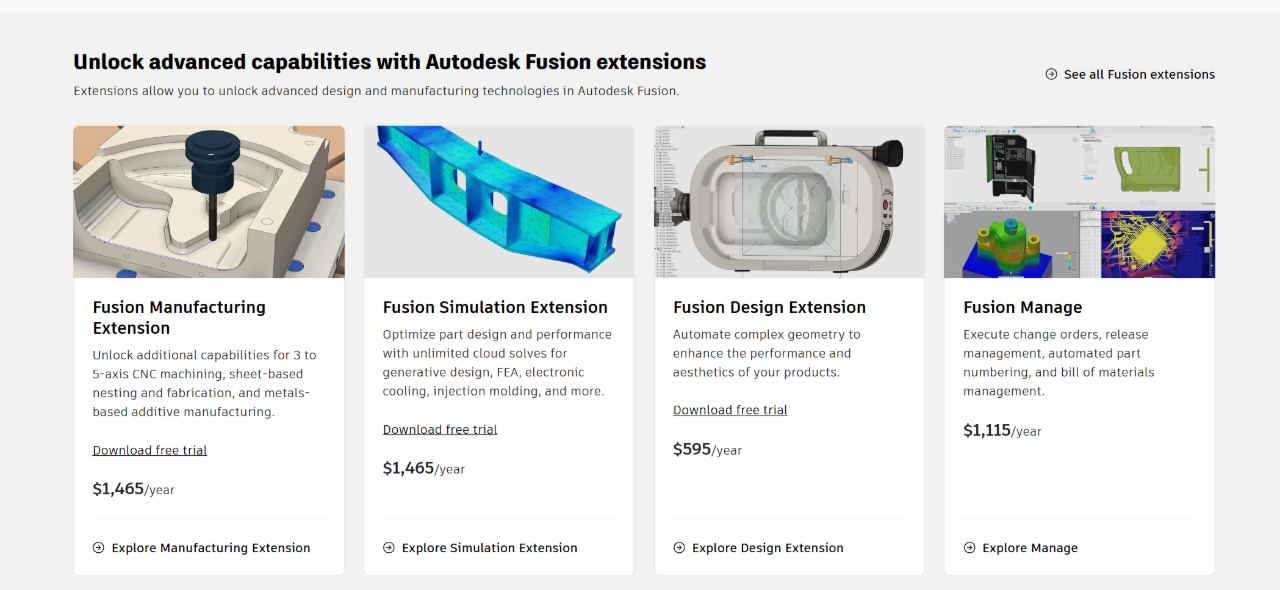
- Integrated CAM & CNC Toolpaths: Program 2D/3D milling, turning, drilling, and cutting toolpaths with simulation and post-processors.
- Simulation & Generative/Design Extensions: Run linear static stress, modal, thermal, and structural analysis, with optional extensions for specialized manufacturing and simulation workflows.
- Official Links: Free Trial, Free / Education & Pricing
Always download Autodesk Fusion and verify licensing eligibility through Autodesk's official portals:
- Official Autodesk Fusion Overview: https://www.autodesk.com/products/fusion-360/overview
- Official Free Trial (30-Day Evaluation): https://www.autodesk.com/products/fusion-360/free-trial
- Free / Education & Personal Licensing: https://www.autodesk.com/education/edu-software/overview
- Pricing & Subscription Plans: https://www.autodesk.com/products/fusion-360/overview
4. Step-by-Step Installation Guide
- Verify Operating System & Hardware: Confirm your workstation runs a supported 64-bit OS (Windows 10/11 64-bit or supported macOS) with a 64-bit x86/ARM processor, at least 4 GB RAM (16 GB–32 GB+ recommended for assemblies, CAM & simulation), a dedicated GPU or supported integrated graphics with 2 GB–4 GB+ VRAM, and free SSD storage space.
- Start Trial or Sign In to Autodesk Account: Visit https://www.autodesk.com/products/fusion-360/free-trial (or https://www.autodesk.com/products/fusion-360/overview) and sign in or create an Autodesk Account to start the 30-day trial or access an assigned/educational/personal license.
- Download & Run the Official Installer: Download the official Autodesk Fusion installer, launch it (as administrator on Windows if needed), and let the setup wizard install the application and required components.
- Launch & Sign In: Open Autodesk Fusion from your Start menu or Applications folder and sign in with your Autodesk Account to activate your workspace.
5. How to Use Autodesk Fusion: Beginner Workflow
- Create a New Design & Save to Hub: Open Fusion, click `New Design`, choose a project folder in your hub, and save the file (`Ctrl+S` / `Cmd+S`) with a clear name.
- Sketch & Extrude a Base Solid: Click `Create Sketch`, select a plane (such as XY), draw and dimension a 2D profile, finish the sketch, and use `Extrude` to create a 3D body.
- Refine Geometry & Add Features: Add fillets, chamfers, holes, shells, or additional sketches/bodies while keeping timeline history organized.
- Create Drawings or Switch to Manufacture: Switch the workspace selector from `Design` to `Drawing` to generate 2D production sheets, or to `Manufacture` to set up setups, tools, and CNC toolpaths.
- Export STEP, STL, DXF or Drawings: Export `.STEP` or `.F3D` files for CAD exchange/backup, `.STL`/`.3MF` for 3D printing, or `.PDF`/`.DWG` for documentation.
6. Frequently Asked Questions (FAQ)
- How long is the official Autodesk Fusion free trial?Autodesk offers a 30-day free trial via https://www.autodesk.com/products/fusion-360/free-trial.
- Does Autodesk Fusion run on both Windows and macOS?Yes. Autodesk Fusion supports 64-bit Windows (Windows 10/11) and supported macOS systems.
- Can Autodesk Fusion export STEP and STL files?Yes. Fusion can export 3D models to `.STEP` for CAD interoperability as well as `.STL` and `.3MF` for 3D printing.