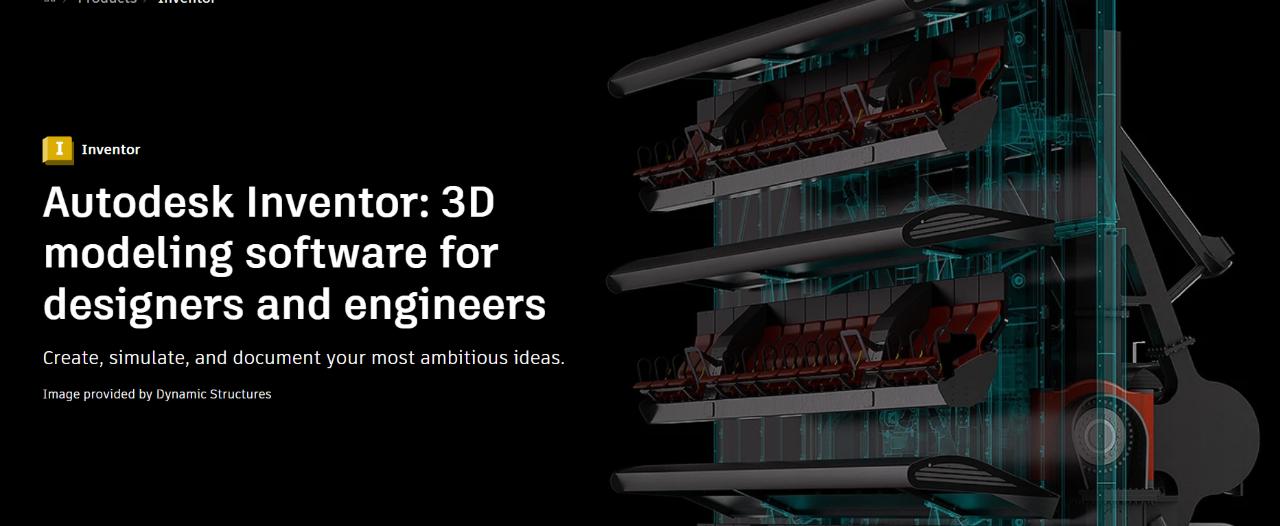
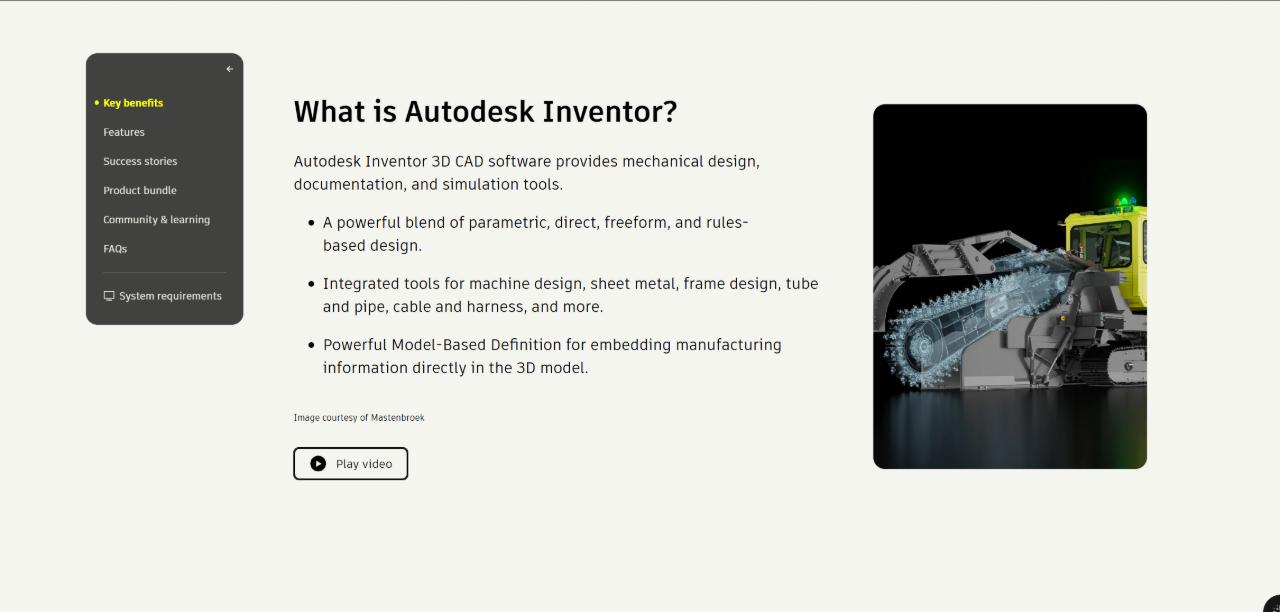
Autodesk Inventor (x64) is a professional 3D mechanical Computer-Aided Design (CAD), simulation, visualization, and documentation software platform developed by Autodesk. Engineered for mechanical engineers, machine designers, and industrial manufacturers, Inventor combines parametric, direct, and freeform 3D modeling with large-assembly management, sheet metal design, iLogic rules-based automation, and native DWG interoperability.
1. In-Depth Review: Why Mechanical & Manufacturing Engineers Use Autodesk Inventor
- Unified Parametric, Direct & Freeform Modeling: Gives engineers the flexibility to build constraint-driven parametric parts, edit imported non-native CAD solids directly without history rebuild errors, and sculpt ergonomic freeform surfaces in one environment.
- Built-In iLogic Rules-Based Design Automation: Allows engineering teams to configure custom product variations, automate dimension/material updates, and standardize manufacturing drawings without complex external programming.
- Deep Integration with AutoCAD, Fusion & Vault PDM: Shares native `.DWG` drawing compatibility with AutoCAD, cloud collaboration with Autodesk Fusion, and enterprise revision management with Autodesk Vault.
2. Key Features & Capabilities
- Parametric 3D Part & Assembly Modeling: Design precision mechanical components and manage complex multi-thousand-part assemblies with dynamic motion simulation and interference detection.
- Sheet Metal, Frame Generator & Tube/Pipe Routing: Create manufacturable sheet-metal enclosures with flat-pattern bend tables, build welded structural frames from standard steel profiles, and route rigid/flexible piping automatically.
- Automated 2D Manufacturing Drawings: Generate associative orthographic, section, detail, and exploded views directly from 3D assemblies with automated Parts Lists, balloons, and GD&T annotations.
- Stress Analysis (FEA) & Dynamic Simulation: Validate part deflection, safety factors, modal frequencies, and kinematic joint forces directly inside the Inventor workspace before prototyping.
- AnyCAD Multi-CAD Interoperability: Reference and maintain associative links to third-party CAD files—including SOLIDWORKS, PTC Creo, Siemens NX, CATIA, and STEP/IGES—without manual file translation.
- Model-Based Definition (MBD) & 3D PDF Export: Embed 3D tolerance annotations directly onto 3D solid parts and publish interactive 3D PDF documentation for shop-floor manufacturing.
- Inventor Studio & Exploded Presentation Views: Produce high-resolution product renders and animated assembly/disassembly instructions for technical manuals.
3. How to Register & Access an Official Trial or License
To ensure software authenticity, workstation stability, and full compliance with licensing terms, always register and download Autodesk Inventor through Autodesk’s official portals:
- Visit the Official Autodesk Inventor Website: Go to https://www.autodesk.com/products/inventor/overview to explore mechanical engineering capabilities, AnyCAD compatibility, and subscription options.
- Create or Sign In to an Autodesk Account: Register a free account at https://accounts.autodesk.com using your email address to manage trials, product downloads, and license entitlements.
- Choose Your Official Licensing Path:
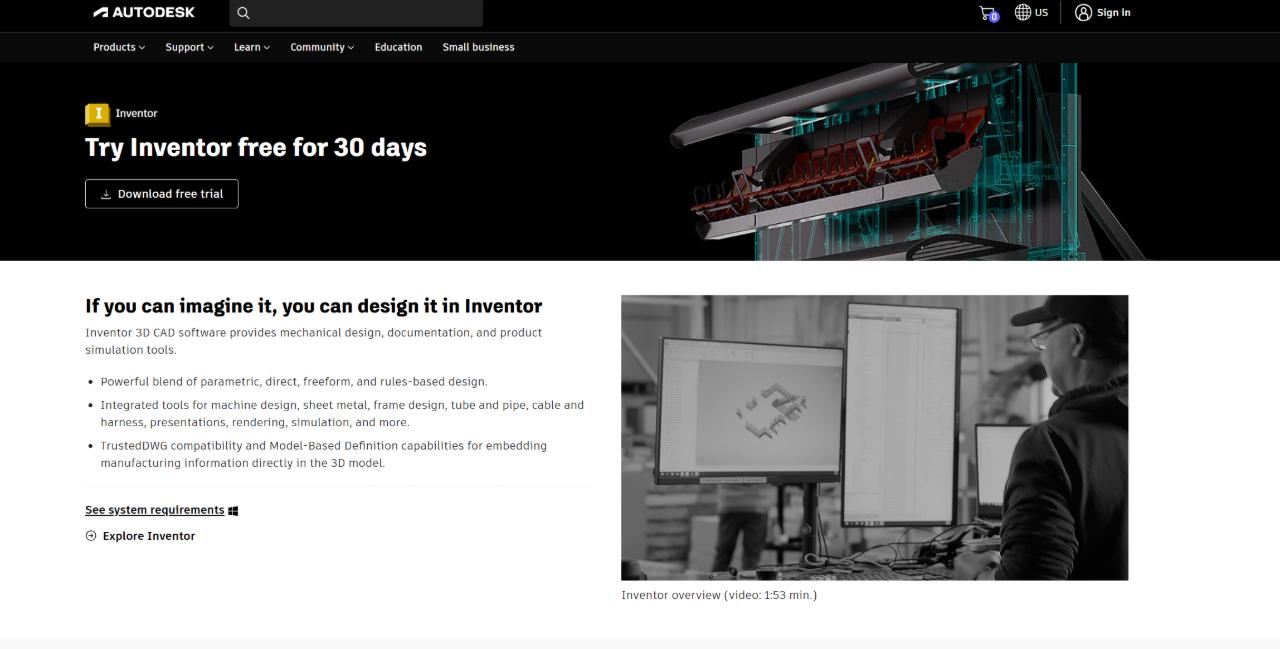
- Official Free Trial: Download the official 64-bit trial installer via https://www.autodesk.com/products/inventor/free-trial to evaluate Autodesk Inventor Professional on your Windows workstation.
- Educational Access (Students & Educators): Accredited engineering students and faculty can verify academic eligibility for free educational access at https://www.autodesk.com/education/edu-software/overview.
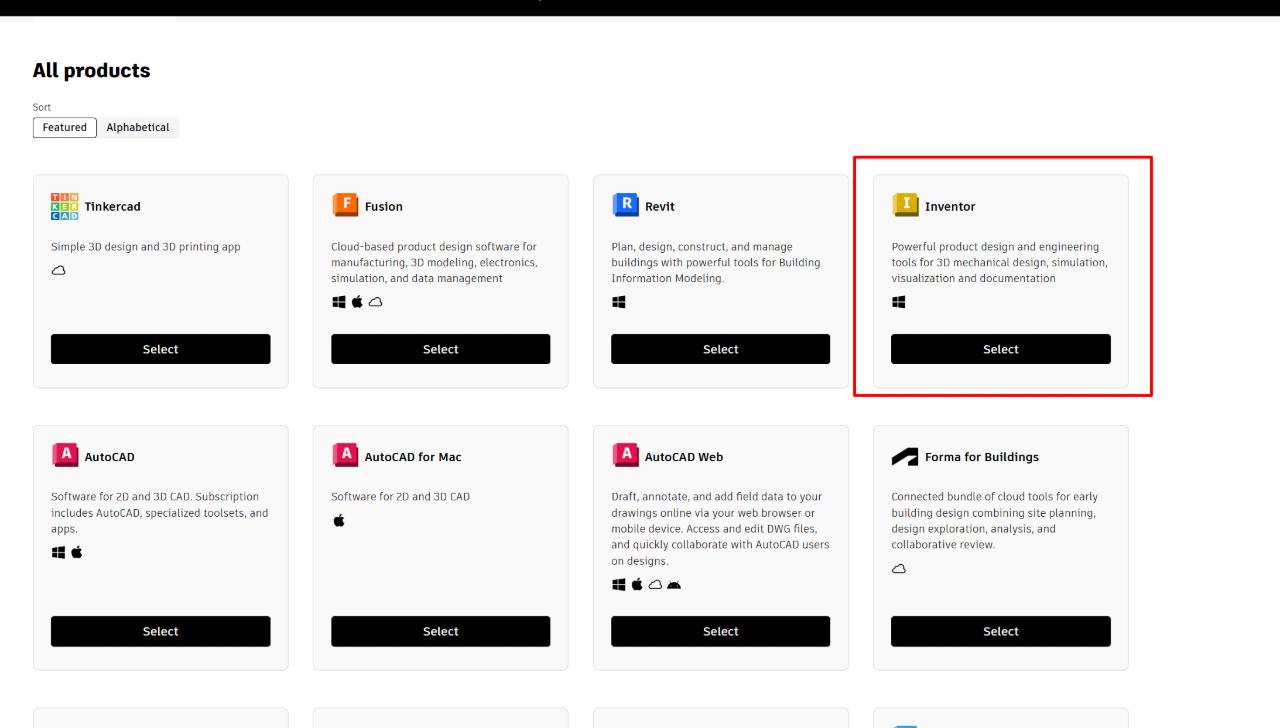
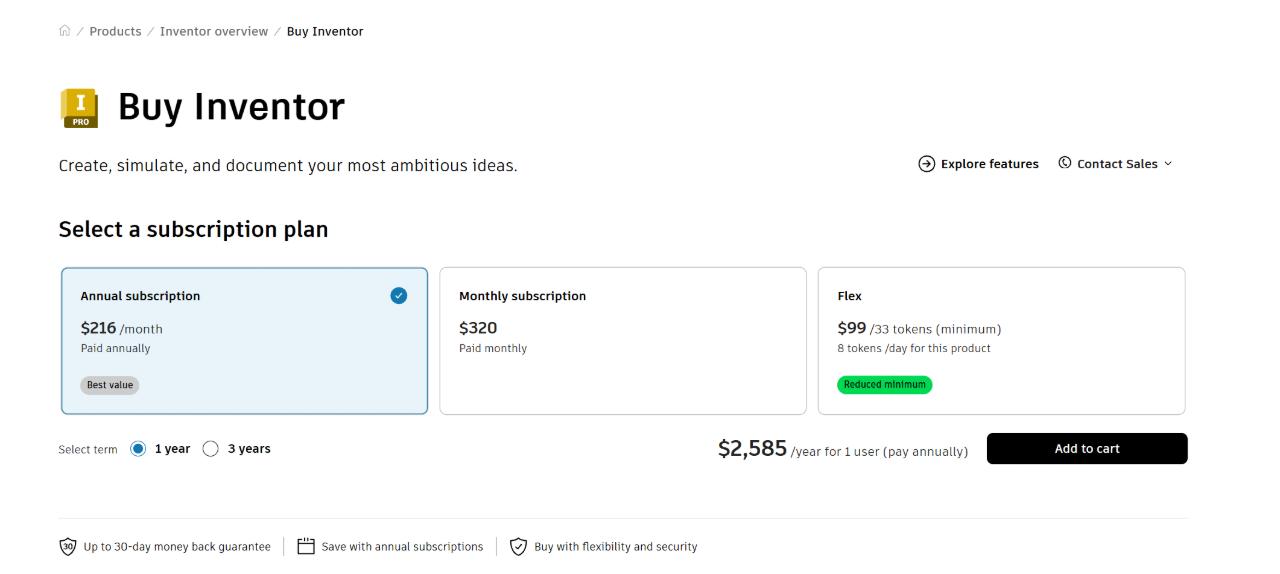
- Commercial Subscription (Standalone or Product Design & Manufacturing Collection): Engineering firms can subscribe to Autodesk Inventor Professional or the full Product Design & Manufacturing Collection via https://www.autodesk.com/products/inventor/overview#pricing.
4. Step-by-Step Installation Guide
- Verify System & GPU Requirements: Confirm your workstation runs 64-bit Windows 10 or Windows 11 with at least 16 GB RAM (32 GB–64 GB recommended for assemblies exceeding 1,000 parts), a multi-core Intel or AMD processor (3.0+ GHz), a DirectX 11 discrete GPU with 4 GB+ VRAM, and 40 GB+ free NVMe SSD space.
- Download the Official Installer: Sign in to your Autodesk Account portal and download the official Autodesk Inventor 64-bit installer package.
- Run the Setup Wizard: Double-click the downloaded installer executable, accept the license agreement, select your installation path and included content libraries (such as Inventor Content Center), and click Install.
- Sign In & Activate License: Launch Autodesk Inventor after installation completes and sign in with your registered Autodesk Account credentials to activate your trial, educational, or commercial license automatically.
5. How to Use Autodesk Inventor: Beginner Workflow
- Create a New Standard Part File: Launch Autodesk Inventor, click New (`Ctrl+N`), select the Metric or English folder, choose `Standard (mm).ipt` (or `Standard (in).ipt`), and click Create.
- Sketch 2D Profile Geometry: Click Start 2D Sketch on the 3D Model ribbon tab, select the XY Plane, draw a Two-Point Center Rectangle, and apply Dimension (`D`) constraints until all lines turn dark blue/purple (Fully Constrained).
- Extrude or Revolve into a 3D Solid: Click Finish Sketch, select Extrude (`E`) on the 3D Model tab, enter the extrusion distance in millimeters or inches, and click OK to create your base 3D solid feature.
- Add Fillets, Chamfers & Threaded Holes: Click Fillet (`F`) or Chamfer to finish part edges, or click Hole (`H`) to place countersunk, counterbored, or tapped fastener holes on any flat face.
- Generate a 2D Engineering Drawing (`.IDW` / `.DWG`): Click File > New > `ANSI (mm).idw` (or `.dwg`), click Base View on the Place Views tab to project Front, Top, Right, and Isometric views of your 3D part, and add dimensions on the Annotate tab.
6. Frequently Asked Questions (FAQ)
- Does Autodesk Inventor run natively on macOS?No. Autodesk Inventor is developed natively for 64-bit Windows 10 and Windows 11 workstations; Mac users require a Windows virtualization or cloud desktop environment.
- What is the difference between Autodesk Inventor and Autodesk Fusion?Autodesk Inventor is a dedicated desktop parametric CAD platform built for complex multi-thousand-part mechanical assemblies, heavy machinery, and on-premise Vault PDM, whereas Autodesk Fusion is a cloud-connected CAD/CAM/CAE platform tailored for agile product design and collaborative workflows.
- Can Autodesk Inventor open SOLIDWORKS and STEP files directly?Yes. Through Autodesk AnyCAD technology, Inventor opens and maintains associative links with SOLIDWORKS (`.SLDPRT`/`.SLDASM`), Creo, NX, CATIA, STEP, and IGES files without manual conversion.