Dassault Systèmes SOLIDWORKS (x64) is a parametric 3D Computer-Aided Design (CAD), Computer-Aided Engineering (CAE), and product development software platform developed by Dassault Systèmes. Used globally by mechanical engineers, industrial designers, robotics teams, and manufacturing firms, SOLIDWORKS integrates feature-based 3D part modeling, large-assembly management, finite element analysis (FEA), and automated 2D manufacturing drawings inside an intuitive Windows environment.
1. In-Depth Review: Why Mechanical & Product Engineers Use SOLIDWORKS
- Intuitive Feature-Based Parametric Modeling: Captures every extrude, revolve, fillet, chamfer, and shell operation inside a transparent FeatureManager Design Tree, allowing engineers to modify dimensions and update entire assemblies automatically.
- Comprehensive Engineering Ecosystem in One Workspace: Combines 3D solid/surface modeling, sheet metal, weldments, routing, SOLIDWORKS Simulation (FEA), SOLIDWORKS Flow Simulation (CFD), and SOLIDWORKS Visualize photorealistic rendering.
- Industry-Standard Manufacturing & PDM Compatibility: Exports clean STEP, IGES, Parasolid, STL, and DWG/DXF files for CNC machining, injection molding, and 3D printing, with built-in revision control via SOLIDWORKS PDM.
2. Key Features & Capabilities
- Parametric 3D Part & Surface Modeling: Create precision mechanical parts using constraint-driven 2D sketches, boss/cut extrusions, sweeps, lofts, and advanced Class-A surfacing tools.
- Large Assembly Design & Interference Detection: Assemble thousands of mated components, test mechanical motion kinematics, and run automated collision and clearance checks before manufacturing.
- Automated 2D Engineering Drawings & BOMs: Generate associative orthographic, isometric, section, and detail views directly from 3D models alongside auto-populated Bills of Materials (BOM) and GD&T tolerances.
- Sheet Metal, Weldments & Mold Tools: Design bent sheet-metal enclosures with automatic flat-pattern K-factor unfolding, structural steel frames with cut lists, and injection mold core/cavity splits.
- SOLIDWORKS Simulation (FEA) & Flow Simulation (CFD): Validate structural stress, factor of safety, thermal distribution, vibration frequencies, and fluid/airflow dynamics early in design.
- SOLIDWORKS Visualize Photorealistic Rendering: Transform CAD assemblies into ray-traced marketing renders and animations using GPU-accelerated physically based materials.
- 3DEXPERIENCE Cloud Collaboration: Connect desktop SOLIDWORKS to the cloud-based 3DEXPERIENCE platform for browser-based design reviews, lifecycle management, and cloud simulation.
3. How to Register & Access an Official Trial or License
To ensure software authenticity, workstation stability, and full compliance with licensing terms, always request trials and licenses through Dassault Systèmes’ official portals:
- Visit the Official SOLIDWORKS Website: Go to https://www.solidworks.com to review editions (Standard, Professional, Premium), cloud roles, and industry workflows.
- Create a 3DEXPERIENCE ID: Register a free 3DEXPERIENCE ID at https://www.solidworks.com (via MySolidWorks / 3DEXPERIENCE login) using your email address to access product trials, certification portals, and customer downloads.

- Choose Your Official Licensing Path:
- Official Online / Desktop Product Trial: Request an official evaluation via https://www.solidworks.com/how-to-buy/request-solidworks-trial to test SOLIDWORKS in your browser or on your Windows workstation through an authorized reseller.
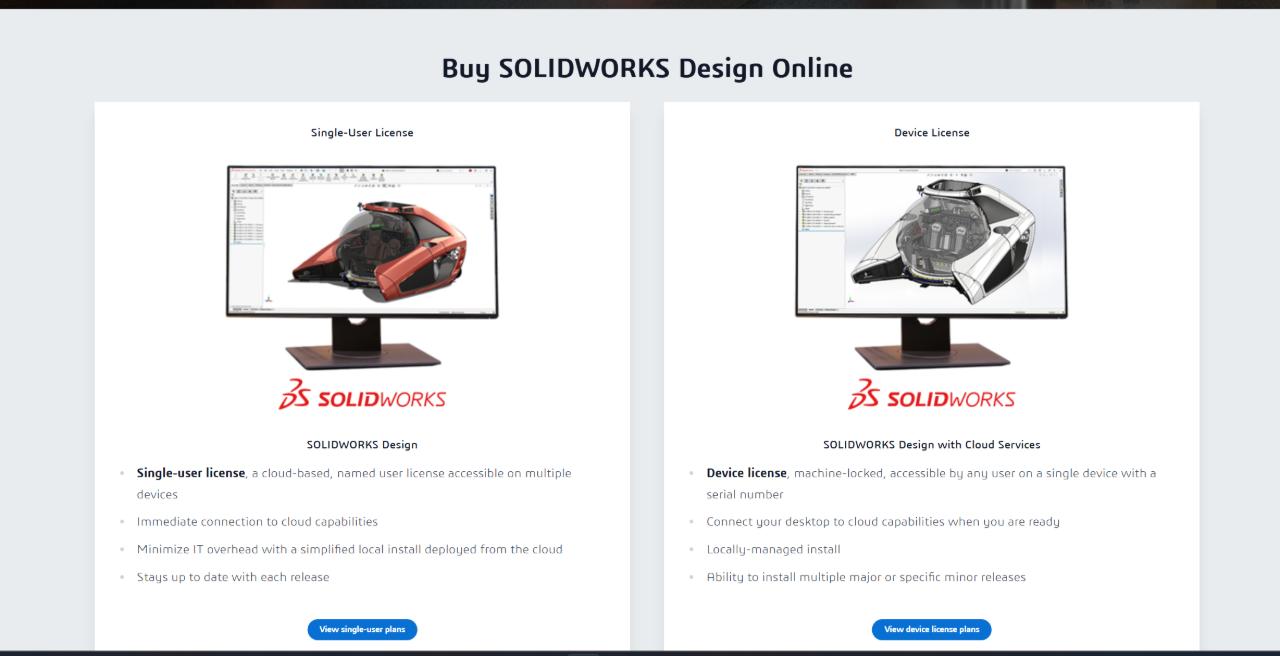
- SOLIDWORKS for Makers & Students: Hobbyists can access 3DEXPERIENCE SOLIDWORKS for Makers at https://www.solidworks.com/solution/3dexperience-solidworks-makers, while accredited students and educators can apply for Student Edition licenses at https://www.solidworks.com/product/students.
- Commercial Licensing (Standard / Professional / Premium): Engineering firms can request commercial term or perpetual licenses with Subscription Service directly via https://www.solidworks.com/how-to-buy.
4. Step-by-Step Installation Guide
- Verify System & Workstation GPU Requirements: Confirm your PC runs 64-bit Windows 10 or Windows 11 with at least 16 GB RAM (32 GB–64 GB recommended for large assemblies and FEA), a multi-core Intel or AMD CPU (3.3+ GHz), a certified workstation GPU (NVIDIA RTX A-series / Quadro or AMD Radeon Pro) with 4 GB–8 GB+ VRAM, and 25 GB+ free NVMe SSD space.
- Download the SOLIDWORKS Installation Manager: Sign in to the SOLIDWORKS Customer Portal (https://customerportal.solidworks.com) or your official trial portal and download the SOLIDWORKS Installation Manager (`SolidWorksSetup.exe`).
- Run the Installation Manager: Right-click `SolidWorksSetup.exe` and select Run as administrator, choose Install on this computer, enter your official SOLIDWORKS Serial Number when prompted, and click Next.
- Select Products & Complete Activation: Confirm your selected modules (SOLIDWORKS CAD, Simulation, Visualize, eDrawings), accept the license terms, click Install Now, and activate your license online upon first launch.
5. How to Use SOLIDWORKS: Beginner Workflow
- Create a New Part Document: Launch SOLIDWORKS, click File > New (`Ctrl+N`), select Part, and click OK to enter the 3D modeling workspace.
- Draw a 2D Sketch on a Reference Plane: Select Front Plane in the FeatureManager Design Tree on the left, click the Sketch tab > Sketch, draw a Center Rectangle from the origin, and use Smart Dimension to define exact millimeter or inch values until the sketch turns black (Fully Defined).
- Extrude 2D Sketch into a 3D Solid: Switch to the Features tab, click Extruded Boss/Base, enter the extrusion depth in the PropertyManager, and click the green checkmark (`OK`) to generate your 3D solid body.
- Add Fillets, Holes & Cuts: Select edges on your 3D part and click Fillet to round corners, or select a flat face, start a new sketch circle, and use Extruded Cut or Hole Wizard to create precision mounting holes.
- Generate a 2D Engineering Drawing: Go to File > Make Drawing from Part, pick a standard sheet format (such as A3 or A4 Landscape), and drag Front, Top, Right, and Isometric views from the View Palette onto the drawing sheet.
6. Frequently Asked Questions (FAQ)
- Does Dassault Systèmes SOLIDWORKS run natively on macOS?Desktop SOLIDWORKS CAD is built natively for 64-bit Windows 10 and Windows 11; however, Mac users can run browser-based 3DEXPERIENCE xDesign/xShape roles or use certified Windows virtualization environments.
- What is the difference between SOLIDWORKS Standard, Professional, and Premium?SOLIDWORKS Standard includes core 3D part, assembly, sheet metal, and 2D drawing tools; Professional adds Toolbox hardware libraries, Visualize Standard, PDM Standard, and automated cost estimation; Premium adds linear static FEA simulation, piping/electrical routing, and advanced surface flattening.
- Which workstation graphics cards are certified for SOLIDWORKS?Dassault Systèmes certifies professional workstation GPUs—including NVIDIA RTX Ada / Ampere workstation cards (A2000, A4000, 4000 Ada) and AMD Radeon Pro series—for RealView graphics and hardware-accelerated stability.