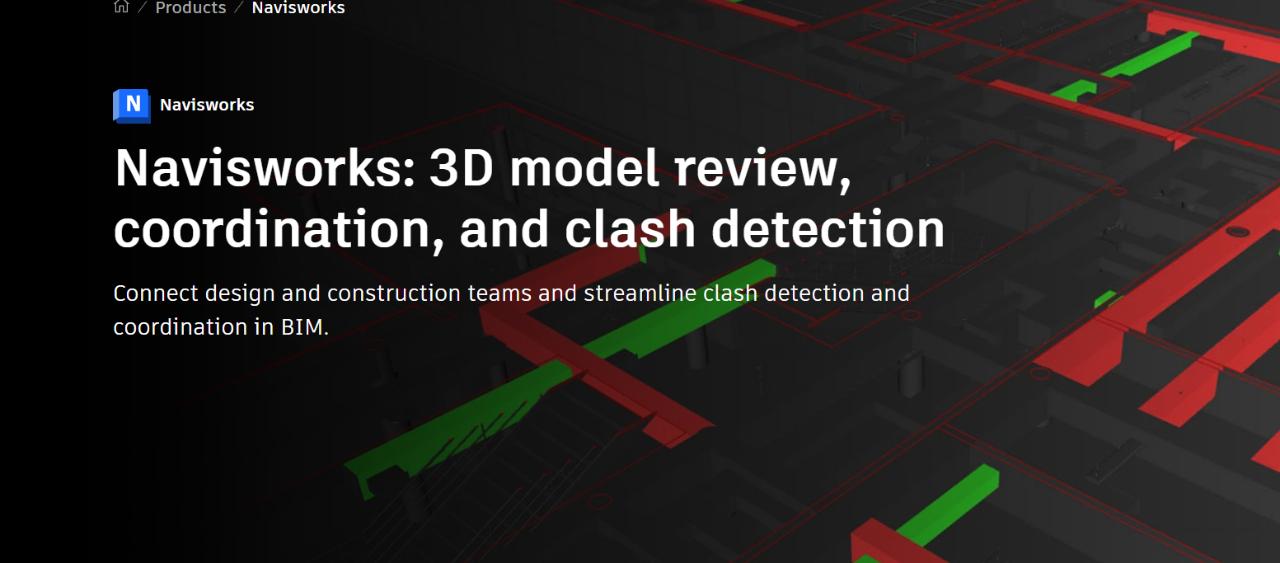
Autodesk Navisworks Manage (x64) is a comprehensive Building Information Modeling (BIM) project review, coordination, clash detection, and 4D construction simulation software developed by Autodesk. Used globally by BIM managers, general contractors, structural engineers, and MEP coordinators, Navisworks Manage aggregates massive multi-disciplinary 3D models from Revit, AutoCAD, Civil 3D, Tekla, and IFC into a single lightweight `.NWD`/`.NWF` environment to identify spatial conflicts before construction begins.
1. In-Depth Review: Why BIM Managers & Contractors Use Navisworks Manage
- Multi-Disciplinary 3D Model Aggregation Without Hardware Bottlenecks: Combines architectural, structural, MEP, and civil infrastructure models across 60+ file formats into compressed `.NWD` files that navigate smoothly even on massive airport, hospital, or high-rise projects.
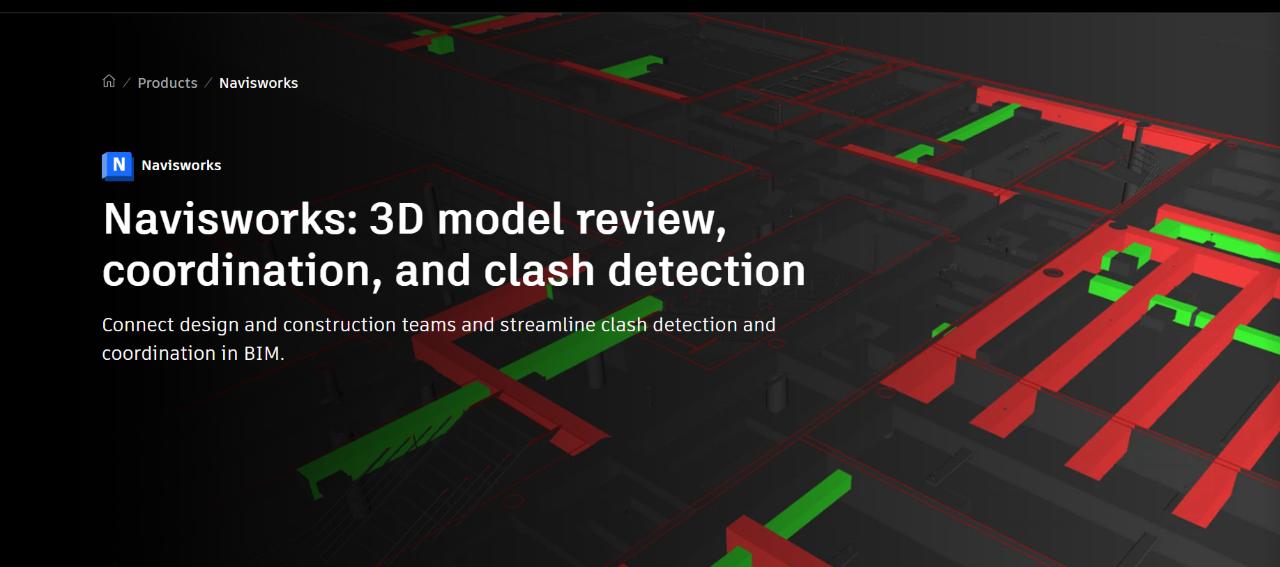
- Automated 3D Clash Detective & Issue Tracking: Identifies hard clashes, clearance tolerances, and duplicate geometry across trades automatically—grouping thousands of clashes by level or system and syncing issues directly with Autodesk Construction Cloud and Revit.
- 4D TimeLiner Construction Simulation & Quantification: Links 3D BIM elements to Primavera P6 or Microsoft Project schedules to animate construction sequencing and extract automated material takeoffs.
2. Key Features & Capabilities
- Clash Detective (Hard, Clearance & Duplicate Checks): Run rule-based clash tests between structural steel, HVAC ductwork, piping, and electrical conduits, assign clash statuses, and export HTML/XML/Viewpoint reports.
- 4D TimeLiner Schedule Simulation: Import schedules from Microsoft Project, Primavera P6, or CSV files and link tasks to 3D Selection Sets to simulate construction phases, planned-vs-actual progress, and site logistics.
- Integrated 2D & 3D Quantification Takeoff: Measure lengths, areas, volumes, and component counts directly from linked BIM models and 2D PDF sheets with live Excel workbook export.
- Broad 60+ CAD, BIM & Laser Scan Format Support: Open native Autodesk Revit (`.RVT`), AutoCAD (`.DWG`), Civil 3D, IFC, Bentley MicroStation (`.DGN`), Rhino, SOLIDWORKS, and ReCap (`.RCP`/`.RCS`) point clouds.
- Real-Time Walkthrough, Redlining & Sectioning: Navigate large buildings in first-person gravity mode, slice multi-plane sections, measure point-to-point clearances, and save annotated viewpoints.
- Autodesk Construction Cloud & BIM 360 Coordination: Synchronize clash results and model coordination issues directly with cloud project teams using the Navisworks Coordination Issues Add-in.
- Free Navisworks Freedom Viewer Ecosystem: Share compiled `.NWD` project models with clients and subcontractors who can inspect viewpoints, section cuts, and properties at zero cost using Navisworks Freedom.
3. How to Register & Access an Official Trial or License
To ensure software authenticity, project stability, and full compliance with licensing terms, always download and license Autodesk Navisworks Manage through Autodesk’s official portals:
- Visit the Official Autodesk Navisworks Product Page: Go to https://www.autodesk.com/products/navisworks/overview to compare Navisworks Manage, Navisworks Simulate, and the free Navisworks Freedom viewer.
Official Website Preview: www.autodesk.com
- Create or Sign In to an Autodesk Account: Register a free account at https://accounts.autodesk.com using your email address to manage product trials, downloads, and cloud entitlements.
- Choose Your Official Licensing Path:
- Official Free Trial (Navisworks Manage): Download the official 64-bit trial installer via https://www.autodesk.com/products/navisworks/free-trial to test Clash Detective, TimeLiner, and Quantification tools on your Windows workstation.
- Educational Access (Students & Educators): Accredited architecture, engineering, and construction students and faculty can unlock free educational access via https://www.autodesk.com/education/edu-software/overview.
- Commercial Subscription (Standalone or AEC Collection): BIM teams and contractors can subscribe to Navisworks Manage or the full Architecture, Engineering & Construction (AEC) Collection via https://www.autodesk.com/collections/architecture-engineering-construction/overview.

4. Step-by-Step Installation Guide
- Verify System & GPU Requirements: Confirm your PC runs 64-bit Windows 10 or Windows 11 with at least 16 GB RAM (32 GB–64 GB recommended for multi-discipline BIM federations), a multi-core Intel or AMD processor (3.0+ GHz), a DirectX 11 discrete GPU with 4 GB+ VRAM, and 15 GB+ free NVMe SSD space.
- Download the Official Installer: Sign in to https://accounts.autodesk.com, locate Navisworks Manage under All Products and Services, and download the official 64-bit Windows installer package.
- Run the Setup Wizard: Double-click the downloaded installer executable, accept the license agreement, select your destination SSD directory and Autodesk Navisworks Exporters (for Revit/AutoCAD), and click Install.
- Sign In & Activate License: Launch Autodesk Navisworks Manage from your Desktop shortcut and sign in with your Autodesk Account credentials to activate your trial, educational, or commercial subscription automatically.
5. How to Use Autodesk Navisworks Manage: Beginner Workflow
- Append Multi-Disciplinary 3D Models: Launch Navisworks Manage, go to the Home tab > Project panel > Append (`Ctrl+F1`), and select your architectural `.RVT`, structural `.IFC`, and MEP `.DWG` models to merge them in shared coordinates.
- Navigate & Inspect the Model Tree: Open the Selection Tree (`Ctrl+F12`) on the left dock to toggle visibility by discipline or floor level, and use Orbit (`Shift + Middle Mouse`) or Walk mode to inspect interior spaces.
- Run a 3D Clash Detection Test: Click Clash Detective on the Home ribbon tab, click Add Test, select Structural elements in Selection A and Mechanical/Piping in Selection B, set Tolerance (e.g., `0.01 m`), and click Run Test.
- Review Clashes & Save Annotated Viewpoints: Click through detected clashes in the Results tab, use the Review tab > Redline / Measure tools to mark clearance issues, and save named viewpoints in the Saved Viewpoints panel.
- Publish a Consolidated `.NWD` File: Go to File > Save As (or Output > Publish > NWD) to save a compressed, self-contained `.NWD` coordination file ready to share with project stakeholders.
6. Frequently Asked Questions (FAQ)
- What is the difference between Navisworks Manage, Navisworks Simulate, and Navisworks Freedom?Navisworks Manage includes all tools—3D Clash Detective, 4D TimeLiner simulation, and Quantification; Navisworks Simulate includes 4D simulation and quantification without Clash Detective; and Navisworks Freedom is a free read-only viewer for `.NWD` files.
- Does Autodesk Navisworks Manage run natively on macOS?No. Autodesk Navisworks Manage is developed natively for 64-bit Windows 10 and Windows 11 workstations.
- How does Navisworks Manage work with Autodesk Revit?Using the Autodesk Navisworks NWC Export Utility inside Revit, BIM coordinators can export lightweight `.NWC` cache files directly into Navisworks, run clash checks, and use the SwitchBack feature to jump directly to the clashing element inside Revit.