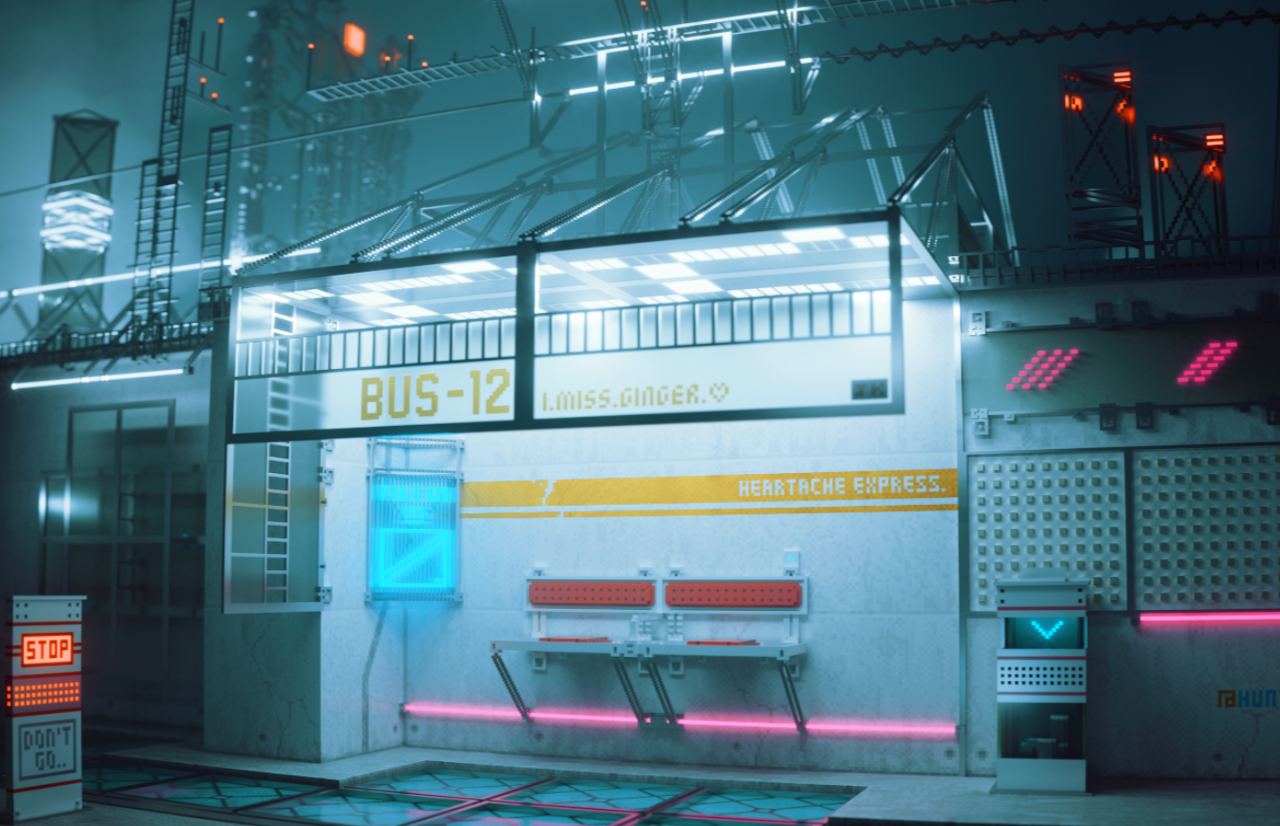
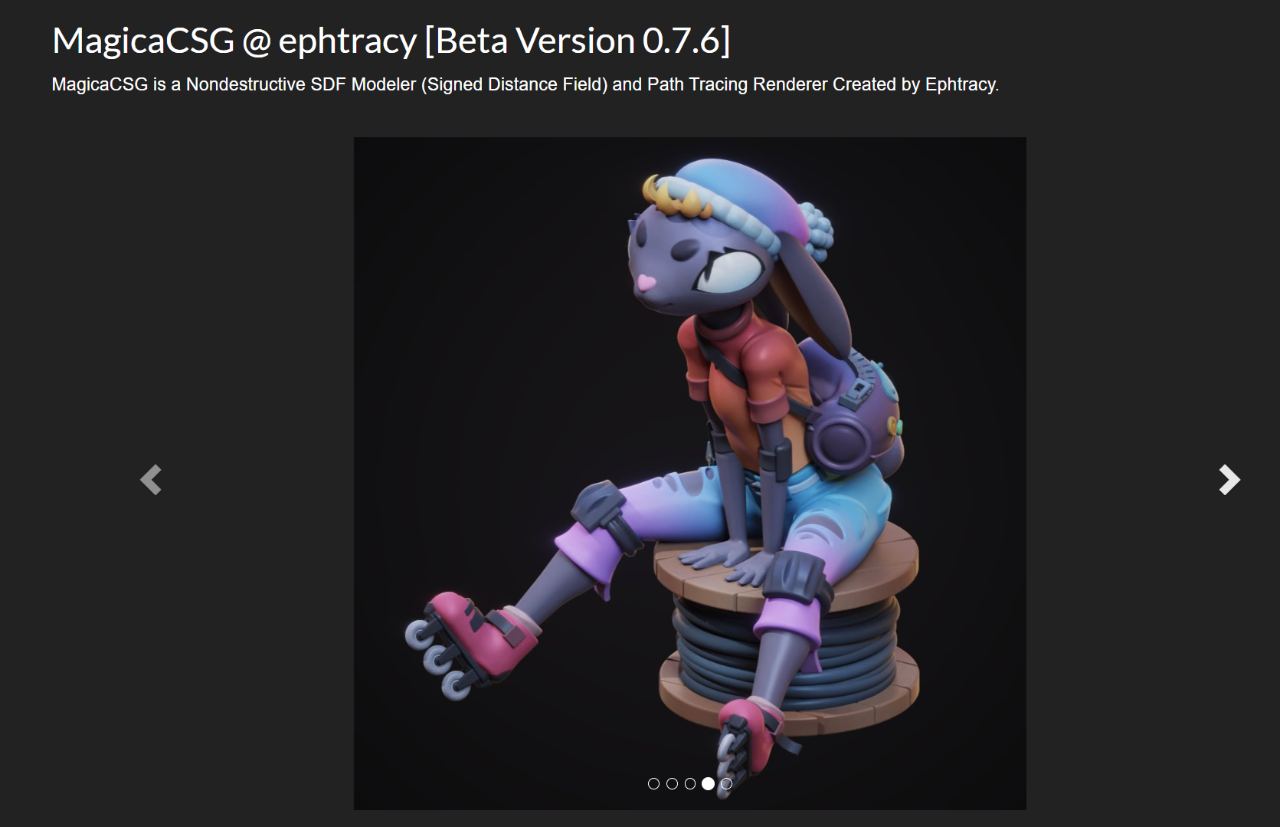
MagicaVoxel (created by independent developer @ephtracy) is a remarkably lightweight, free 8-bit 3D voxel art editor and interactive GPU path-tracing renderer for Windows and macOS. Distributed as a portable archive requiring zero installation wizards, MagicaVoxel combines intuitive block-based modeling brushes, multi-object world scenes, customizable 256-color material palettes, and real-time physical lighting—making it a favorite among indie game developers, 3D illustrators, and stylised environment artists.
1. In-Depth Review: Why Indie Game Developers & 3D Artists Use MagicaVoxel
- Ultra-Lightweight Portable Workflow with Built-In Path Tracing: Packs an intuitive voxel sculpt/paint workspace and a real-time GPU path-tracing renderer into an archive under 20 MB, delivering soft global illumination, glass refraction, emissive neon glow, and depth-of-field renders immediately.
- Multi-Object World Editor & Voxel Shader Scripting: Scales beyond single voxel blocks by letting artists arrange, group, instance, and transform multiple voxel objects in a unified World Editor while automating procedural terrain and patterns with voxel shader scripts.
- Game-Ready Mesh, Isometric & Point Cloud Exports: Exports clean `.obj` meshes (with vertex/palette textures), `.ply`, `.qb`, `.vox`, and isometric 2D sprites ready for Blender, Unity, Unreal Engine, or Godot.
2. Key Features & Capabilities
- Voxel Attach, Erase, Paint & Pattern rushes: Sculpt and recolor 3D voxel grids rapidly using box, face, line, voxel, center-circle, and pattern brushes alongside mirror and axis-lock modes.
- Multi-Object Scene & Layer Hierarchy: Combine and organize multiple voxel objects into larger architectural dioramas, characters, or game props inside the World Editor.
- Interactive GPU Path-Tracing Renderer: Switch to `Render` mode for real-time physical lighting, sun/sky simulation, bloom, depth of field, and emissive/metallic/glass materials.
- Customizable 256-Color & Material Palettes: Assign diffuse, metallic, glass, emission, and subsurface properties per palette slot and save reusable `.png` color palettes.
- Frame-Based Voxel Animation: Create multi-frame voxel character or prop animations with timeline playback and sprite/sequence rendering.
- 100% Freeware (Personal & Commercial Projects): Completely free to download and use with no subscriptions, watermarks, or account sign-ups required.
- Official Links: Free Trial, Free / Education & Pricing
Always download MagicaVoxel portable archives directly from @ephtracy's official website and GitHub repository:
- Official MagicaVoxel Website (ephtracy): https://ephtracy.github.io/
- Official MagicaVoxel GitHub Releases & Source Hosting: https://github.com/ephtracy/ephtracy.github.io
4. Step-by-Step Installation Guide
- Check Operating System & GPU Support: Confirm your computer runs 64-bit Windows (Windows 7/10/11) or macOS (10.12+) with a graphics card supporting OpenGL 3.3 or newer.
- Download the Official MagicaVoxel ZIP Archive: Visit https://ephtracy.github.io/ and click the official download link for your platform (`MagicaVoxel-0.99.7.2-win64.zip` for Windows or the macOS build).
- Extract the Portable Folder: Right-click the downloaded `.zip` archive and extract all files into a local folder on your SSD (no installer wizard or registry changes required).
- Launch MagicaVoxel Executable: Open the extracted folder and double-click `MagicaVoxel.exe` (Windows) or `MagicaVoxel.app` (macOS) to open the default 3D voxel modeling workspace.
5. How to Use MagicaVoxel: Beginner Workflow
- Set Your Voxel Grid Size & Clear or Start from the Default Cube: Enter your desired voxel dimensions (up to `256 × 256 × 256` per object) in the top size bar, or press `Ctrl+N` / clear the default block to start fresh.
- Sculpt Geometry with Attach & Erase Brushes: Select `Attach` (`T`) or `Erase` (`R`) in the `Brush` panel, pick a brush shape (`Box`, `Face`, `Voxel`, `Line`), and click-drag on the canvas to build 3D forms.
- Paint Colors & Assign Material Properties: Choose colors from the left `Palette` panel, switch to the `Paint` (`G`) brush to color surfaces, and switch to `Render` mode in the top-left corner to assign `Metal`, `Glass`, `Emit`, or `Diffuse` materials.
- Arrange Multiple Objects in World Mode: Press `Tab` to toggle between `Model` mode and `World` mode so you can duplicate, move, rotate, and compose larger multi-part scenes.
- Save `.vox` Project & Export Game-Ready `.obj` Mesh: Click the save icon (`Ctrl+S`) to store your `.vox` file inside the `/vox/` folder, or open the `Export` panel in the bottom-right corner to export `.obj`, `.ply`, or `.png` renders.
6. Frequently Asked Questions (FAQ)
- Is MagicaVoxel free for commercial game development and 3D art?Yes. MagicaVoxel is distributed as freeware by @ephtracy and can be used free of charge for both personal and commercial game assets, illustrations, and renders.
- Does MagicaVoxel require installation or an internet connection?No. MagicaVoxel is a self-contained portable application—once you extract the `.zip` archive, it runs completely offline without installation.
- Can I export MagicaVoxel models into Blender, Unity, or Unreal Engine?Yes. Use the `Export` panel in the bottom-right corner of MagicaVoxel to export `.obj` meshes (complete with `.mtl` and palette texture `.png` files) that import cleanly into Blender, Unity, and Unreal Engine.