MeshLab (developed by the Visual Computing Lab at ISTI-CNR) is a free, open-source system for processing, cleaning, healing, inspecting, and converting unstructured 3D triangular meshes. Built on the C++ VCGLib library, MeshLab is widely used by 3D scanning engineers, drone photogrammetry specialists, archaeologists, CAD/3D printing makers, and researchers to turn raw scan point clouds and dense meshes into clean, watertight 3D models.
1. In-Depth Review: Why 3D Scanning & Photogrammetry Teams Use MeshLab
- Specialized Cleanup, Healing & Surface Reconstruction for Raw Scans: Excels at fixing non-manifold edges, filling holes, removing isolated noise vertices, aligning overlapping range maps, and reconstructing watertight surfaces via Screened Poisson reconstruction.
- Automated Batch Processing via PyMeshLab: Pairs the interactive desktop GUI with PyMeshLab (`pip install pymeshlab`), allowing engineers to script repeatable mesh decimation, remeshing, and format conversion pipelines in Python.
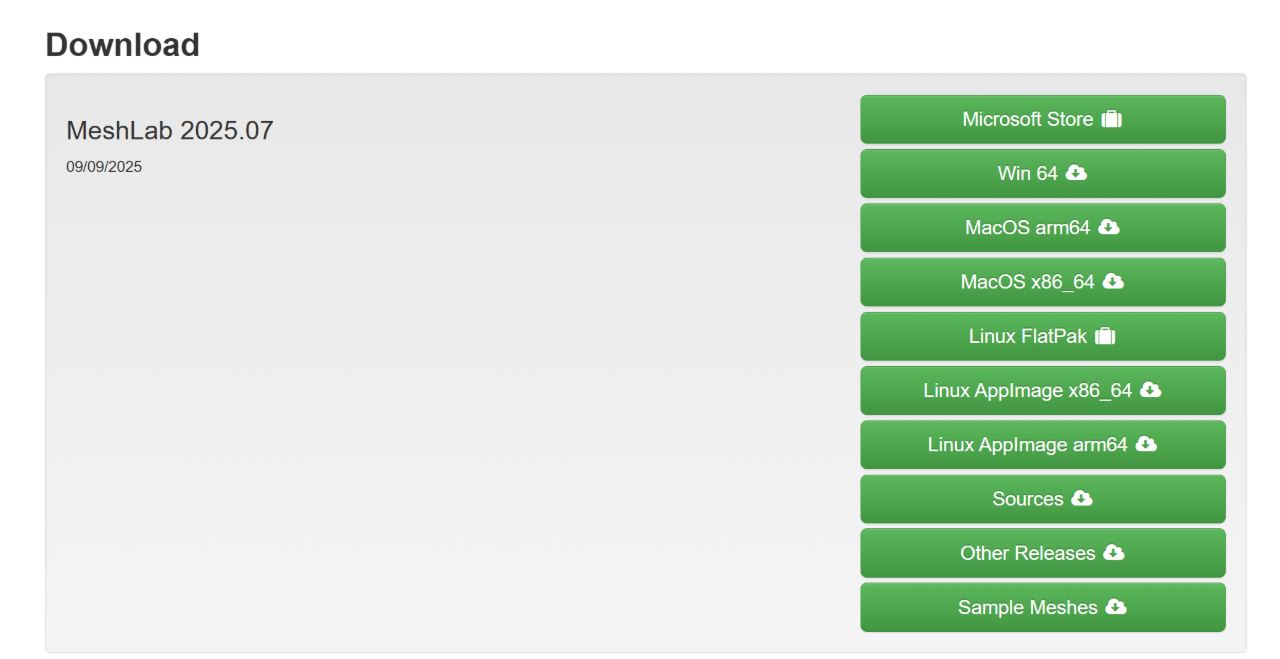
- 100% Free & Open-Source Across Windows, macOS & Linux (Including ARM64): Distributed under the GNU General Public License (GPL) with native installers, AppImages, Flatpaks, and Microsoft Store builds for x86_64 and ARM64 systems.
2. Key Features & Capabilities
- 3D Scan Alignment & Surface Reconstruction: Align multiple raw 3D scans using point-based or ICP registration and generate smooth surfaces with Screened Poisson, Ball Pivoting, and Marching Cubes filters.
- Mesh Cleaning, Healing & Topological Repair: Detect and remove duplicate faces, unreferenced vertices, zero-area faces, and non-manifold geometry, and close holes for watertight 3D printing.
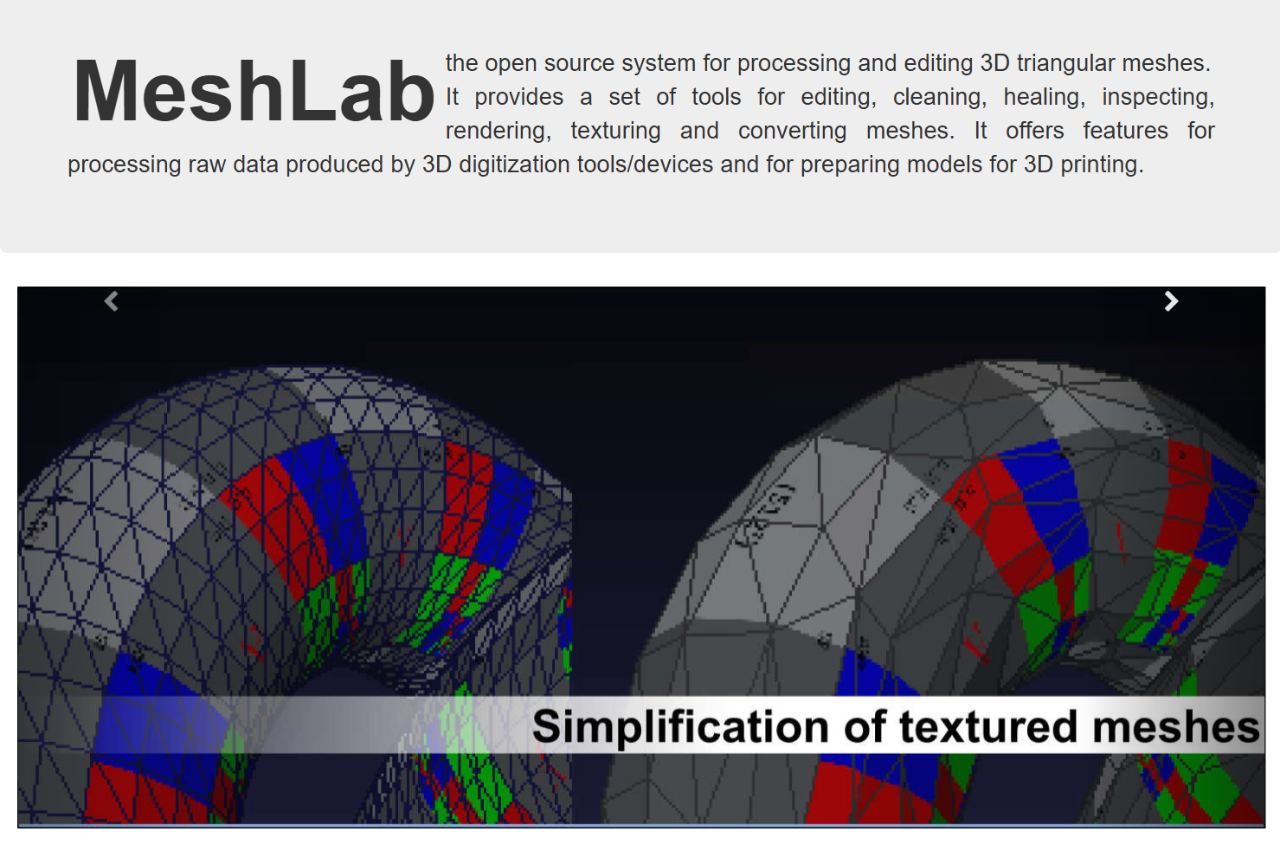
- Simplification, Remeshing & Subdivision: Reduce multi-million-triangle photogrammetry or LiDAR meshes using Quadric Edge Collapse Decimation while preserving UV textures and vertex colors.
- Color Mapping, Texturing & Raster Projection: Project calibrated photos onto 3D geometry, transfer vertex colors to texture atlases, and compute ambient occlusion or curvature shading.
- Inspection, Measurement & Hausdorff Distance Comparison: Measure distances, surface areas, and volumes, inspect wall thickness, and compare mesh deviations between two 3D models.
- Broad 3D & Point Cloud Format Support: Import and export `.OBJ`, `.STL`, `.PLY`, `.3MF`, `.GLTF`/`.GLB`, `.E57`, `.OFF`, `.XYZ`, and `.U3D` files.
- Official Links: Free Trial, Free / Education & Pricing
Always download MeshLab binaries, source code, and sample meshes from the official ISTI-CNR portals:
- Official MeshLab Website & Downloads: https://www.meshlab.net/
- Official GitHub Releases (Windows, macOS & Linux): https://github.com/cnr-isti-vclab/meshlab/releases
- Official Microsoft Store Listing (Windows): https://apps.microsoft.com/detail/9n4tl5dxc6c0
- Pricing & Licensing (100% Free & Open-Source under GNU GPL): https://www.meshlab.net/
4. Step-by-Step Installation Guide
- Verify Operating System & Hardware: Confirm your computer runs Windows 10/11 (64-bit), macOS (Apple Silicon ARM64 or Intel x86_64), or 64-bit Linux (x86_64 or ARM64) with at least 4 GB–8 GB RAM (16 GB+ recommended for dense 3D scans) and an OpenGL-compatible GPU.
- Download the Official Installer or Package: Visit https://www.meshlab.net/ or https://github.com/cnr-isti-vclab/meshlab/releases and download the official build for your platform (Windows 64-bit installer, Microsoft Store app, macOS `.dmg`, or Linux `.AppImage` / Flatpak).
- Run the Setup Wizard: Launch the downloaded installer (or drag MeshLab to Applications on macOS / make the AppImage executable on Linux) and follow the installation prompts.
- Launch & Verify OpenGL Rendering: Open MeshLab, import a sample mesh (such as `.OBJ`, `.PLY`, or `.STL`), and verify smooth viewport orbit, zoom, and shader display.
5. How to Use MeshLab: Beginner Workflow
- Import Raw Mesh or Point Cloud: Open MeshLab and select `File > Import Mesh` (`Ctrl+I` / `Cmd+I`) to load your `.PLY`, `.OBJ`, `.STL`, or `.E57` dataset.
- Clean Noise & Non-Manifold Geometry: Open `Filters > Cleaning and Repairing` to remove duplicate vertices/faces, isolated pieces, and non-manifold edges.
- Reconstruct or Simplify Mesh Resolution: Run `Filters > Remeshing, Simplification and Reconstruction`—using `Screened Poisson Surface Reconstruction` to mesh point clouds or `Quadric Edge Collapse Decimation` to reduce polygon counts.
- Inspect Dimensions & Wall Thickness: Use the `Measure` tool and `Filters > Quality Measure and Computations` to check scale, watertightness, and volume before 3D printing or CAD import.
- Export Cleaned 3D Model: Click `File > Export Mesh As` (`Ctrl+E` / `Cmd+E`) and save your finished model as `.OBJ`, `.STL`, `.3MF`, `.PLY`, or `.GLB`.
6. Frequently Asked Questions (FAQ)
- Is MeshLab completely free for commercial and academic projects?Yes. MeshLab is free and open-source software released under the GNU General Public License (GPL), allowing unrestricted personal, academic, and commercial use.
- Does MeshLab support macOS Apple Silicon and Linux ARM64?Yes. MeshLab 2025.07 and newer releases include native ARM64 builds for both macOS and Linux alongside x86_64 and Windows 64-bit versions.
- How can I automate MeshLab filters in Python?You can install `PyMeshLab` (`pip install pymeshlab`) to load meshes and execute MeshLab filter scripts programmatically in Python.