Onshape (developed by PTC Inc. across desktop web browsers, Windows/macOS, iOS, and Android) is a cloud-native parametric 3D CAD, assembly modeling, engineering drawing, and Product Data Management (PDM) platform. Built for mechanical engineers, product designers, robotics teams, and educators, Onshape eliminates local CAD installations, file locking, and version conflicts—enabling multi-user real-time CAD collaboration, branching/merging version control, FeatureScript custom parametric tools, and 2D technical drawings from any modern browser or mobile device.
1. In-Depth Review: Why Mechanical & Product Teams Use Onshape
- Zero-Install Browser & Mobile CAD with Instant Cloud Compute: Runs full parametric 3D part modeling, large assemblies, and sheet-metal design directly inside Chrome, Edge, Safari, or Firefox—offloading heavy geometry regeneration to cloud servers instead of requiring expensive workstation GPUs.
- Real-Time Multi-User Collaboration & Git-Style Branching PDM: Allows multiple engineers to edit the same 3D assembly simultaneously, inspect complete revision histories, and branch or merge design iterations without external PDM servers or checked-out file locks.
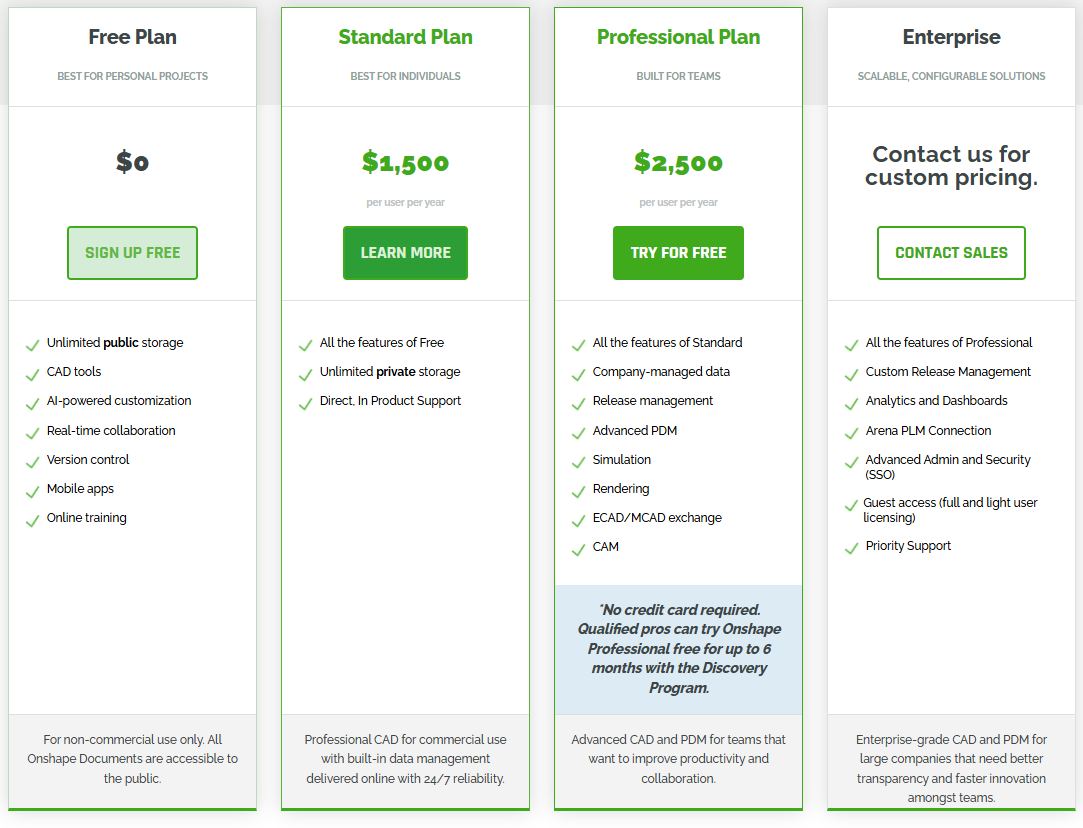
- Permanent Free Plan for Makers & Verified Students/Educators: Offers a full-featured Free plan for non-commercial open-source/hobbyist projects and free Education plans alongside Professional and Enterprise tiers.
2. Key Features & Capabilities
- Parametric Part & Multi-Part Studio Modeling: Model multiple interrelated parts inside a single Part Studio using sketches, extrudes, revolves, sweeps, lofts, fillets, and boolean operations.
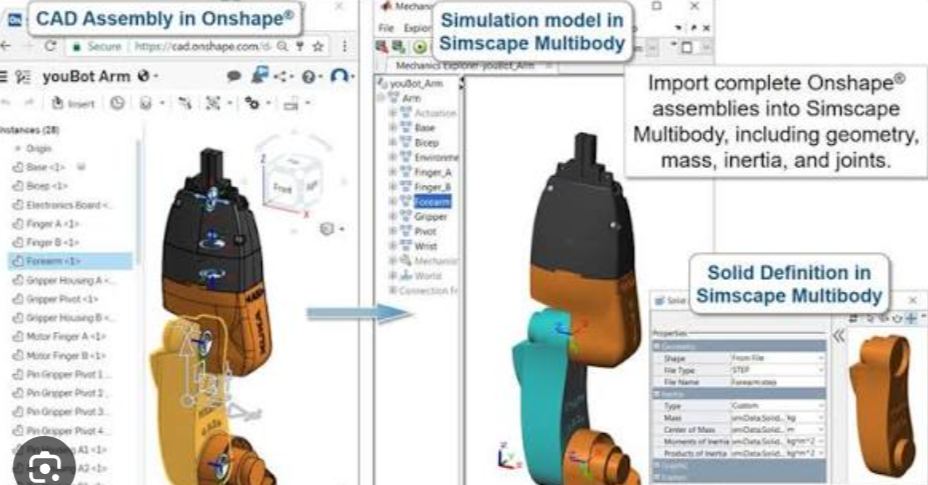
- Mate Connectors & Kinematic Assemblies: Assemble complex mechanisms rapidly using single-point Mate Connectors, motion limits, and collision/interference inspection.
- Built-In Version Control & Branching PDM: Track every design change automatically, restore any point in history, and merge parallel engineering branches safely.
- Associative 2D Engineering Drawings & BOMs: Generate standards-compliant orthographic/section views, GD&T annotations, and live Bills of Materials (BOMs) that update automatically when 3D models change.
- Custom FeatureScript Automation & CAD Interoperability: Write custom parametric features in FeatureScript and import/export STEP, IGES, Parasolid, SolidWorks, STL, and DXF/DWG files.
- Free Plan, Education Plan & Professional Free Trial: Accessible immediately via a free Onshape account for public projects or an official commercial trial for private business workspaces.
- Official Links: Free Trial, Free / Education & Pricing
Always create your Onshape account, access free plans, or launch the web app directly from official PTC / Onshape portals:
- Official Onshape Product & Sign-In Portal: https://www.onshape.com/en/
- Official Onshape Free Plan (Makers & Hobbyists): https://www.onshape.com/en/products/free
- Official Onshape Education Plan (Students & Educators): https://www.onshape.com/en/education/
- Official Onshape Learning Center & Documentation: https://learn.onshape.com/
- Step-by-Step Setup & Access Guide
- Check Browser & WebGL Compatibility: Confirm your Windows, macOS, Linux, or Chromebook computer runs an up-to-date 64-bit browser (Google Chrome, Microsoft Edge, Safari, or Firefox) with hardware WebGL enabled.
- Create Your Official Onshape Account: Visit https://www.onshape.com/en/products/free (for the free plan) or https://www.onshape.com/en/ (for a professional trial), enter your details, and verify your email address.
- Configure Default Units & Mouse Controls: Sign in at `cad.onshape.com`, open `My Account > Preferences`, and select your preferred measurement units (`Millimeter` or `Inch`) and CAD mouse orbit/pan preset (SolidWorks, Inventor, AutoCAD, or Onshape default).
- Optional Mobile App Setup: Install the official `Onshape 3D CAD` app on iOS/iPadOS or Android if you want to review, measure, or model parts on a tablet or phone.
5. How to Use Onshape: Beginner Workflow
- Create a New Document: On the Onshape `Documents` dashboard, click `Create > Document`, enter a project name, and open your default `Part Studio 1`.
- Start a 2D Sketch & Apply Geometric Constraints: Select a reference plane (`Top`, `Front`, or `Right`), click `Sketch` (`Shift+S`), draw circles, lines, or rectangles, and add exact dimensions (`D`) until lines turn black (fully constrained).
- Extrude or Revolve into 3D Geometry: Click the green checkmark to finish the sketch, select `Extrude` (`Shift+E`) or `Revolve`, set depth and boolean operation (`New` or `Add`), and confirm.
- Build an Assembly with Mate Connectors: Switch to the `Assembly 1` tab, click `Insert` to place parts, and connect components using `Fastened Mate` or `Revolute Mate` on Mate Connectors.
- Create a 2D Drawing & Export CAD/3D Print Files: Click `+ > Create Drawing` to generate dimensioned PDF/DWG engineering sheets, or right-click any part/assembly and choose `Export` (`STEP`, `STL`, or `Parasolid`).
6. Frequently Asked Questions (FAQ)
- Do I need to download or install software on Windows or Mac to use Onshape?No. Onshape runs completely inside a standard WebGL-enabled web browser on Windows, macOS, Linux, and Chromebooks, with optional companion apps for iOS and Android.
- Is Onshape really free to use?Yes. Onshape offers a permanent Free plan for hobbyists and makers (where documents are public to the Onshape community) as well as free Education plans for verified students and teachers, while private commercial workspaces require a paid Professional or Enterprise subscription.
- Can Onshape open SolidWorks, STEP, and AutoCAD files?Yes. Onshape imports and exports standard industry CAD formats including STEP, Parasolid, IGES, SolidWorks (`.sldprt`/`.sldasm`), STL, OBJ, and DWG/DXF.