Chaos V-Ray is an industry-standard photorealistic rendering engine developed by Chaos for major 3D modeling and CAD/BIM platforms—including Autodesk 3ds Max, SketchUp, Rhino, Revit, Cinema 4D, Maya, Houdini, and Unreal. Used extensively across architectural visualization (ArchViz), film and episodic VFX, automotive design, and product rendering, V-Ray combines physically accurate ray tracing, hybrid CPU and NVIDIA GPU rendering, interactive look development, and integrated post-processing inside the V-Ray Frame Buffer (VFB).
1. In-Depth Review: Why 3D, ArchViz & VFX Studios Use Chaos V-Ray
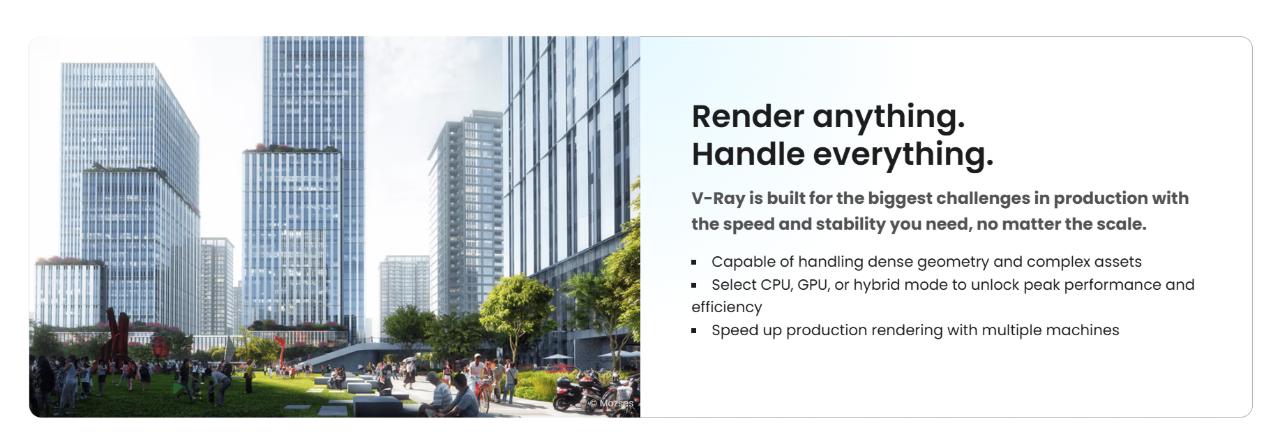
- Scalable Hybrid CPU & GPU Ray Tracing: Gives artists the flexibility to render on multi-core CPUs, accelerate interactive look development and final frames on NVIDIA RTX GPUs, or distribute heavy animation sequences across render farms and Chaos Cloud.
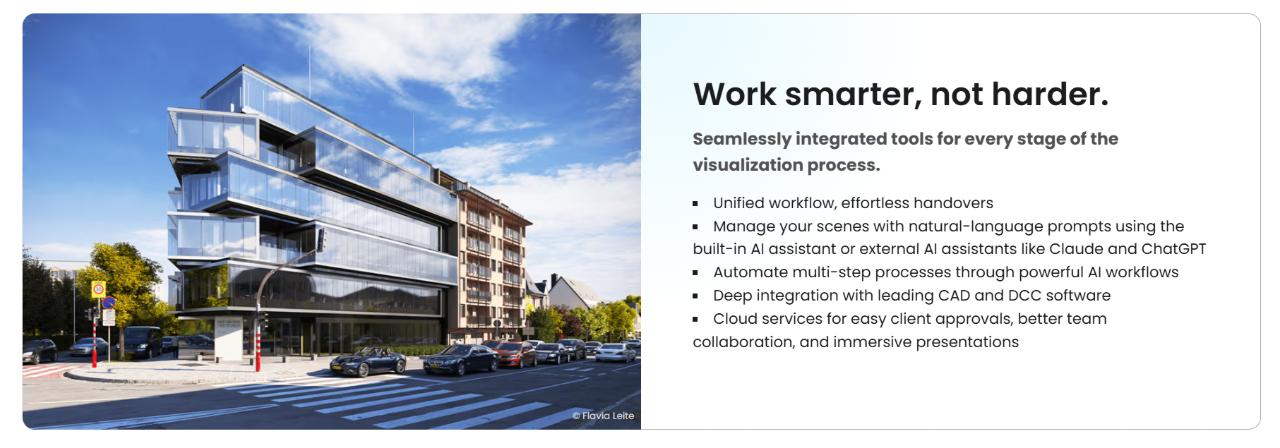
- Deep Multi-Host Ecosystem Integration: Supports a broad range of industry host applications—from SketchUp, Revit, and Rhino for architects to 3ds Max, Maya, and Cinema 4D for visualization and VFX specialists.
- Built-In Chaos Cosmos Library & VFB Post-Processing: Includes thousands of ready-to-render 3D models, materials, and HDRI skies alongside LightMix, Lens Effects, and color grading directly inside the V-Ray Frame Buffer without leaving the host application.
2. Key Features & Capabilities
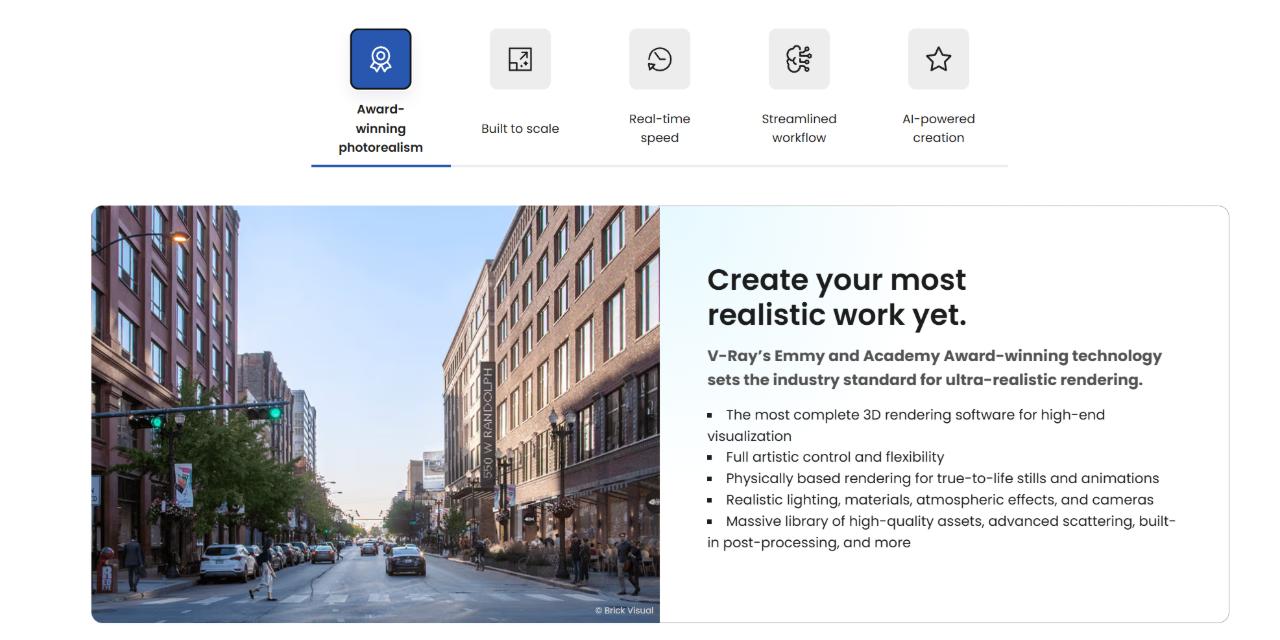
- Physically Based Path Tracing & Global Illumination: Simulate accurate light bounce, caustics, subsurface scattering, volumetric fog/atmosphere, and physical sun/sky lighting.
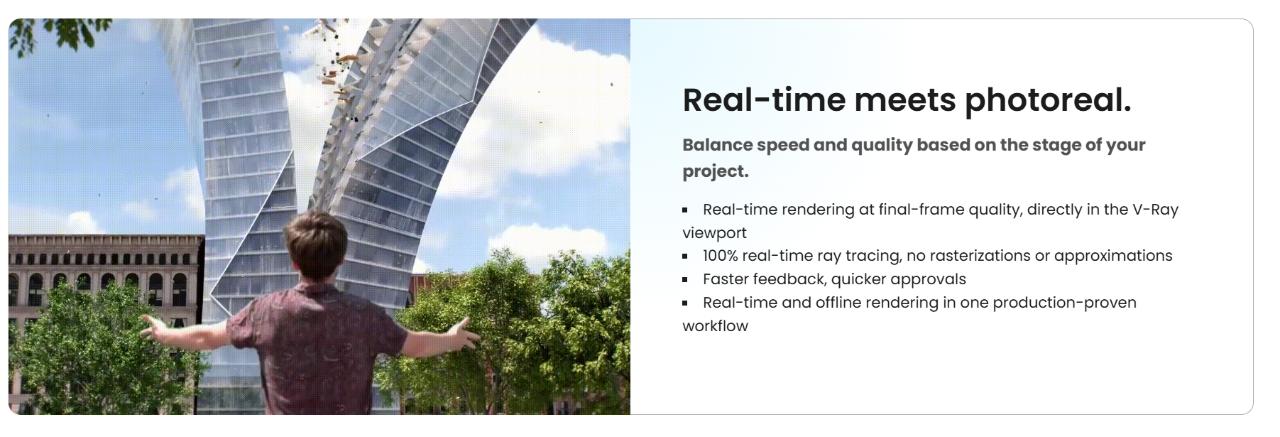
- Interactive Rendering & V-Ray Frame Buffer (VFB): Preview lighting and shader edits in real time, adjust individual light intensities and colors after rendering via LightMix, and apply Filmic tonemapping, bloom, and glare.
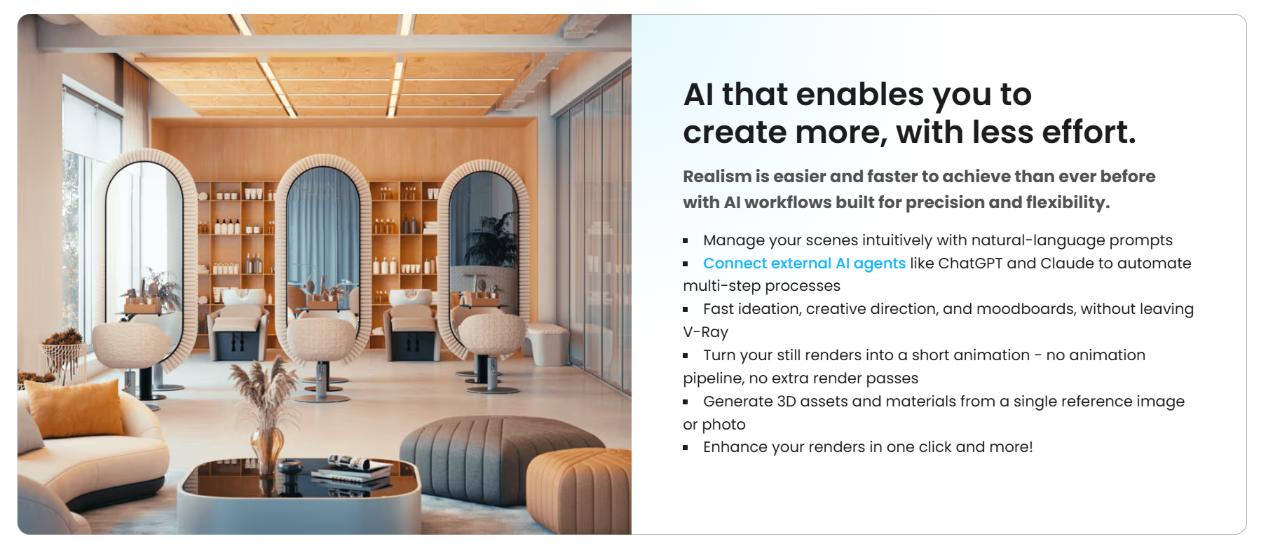
- Chaos Cosmos 3D Asset & Material Library: Browse and insert curated furniture, vegetation, people, vehicles, and PBR materials directly into 3D scenes.
- Adaptive Sampling & AI Denoising: Automatically concentrate samples on complex shadow/glossy regions and clear render noise rapidly using Chaos AI Denoiser, NVIDIA OptiX, or Intel Open Image Denoise.
- V-Ray Proxy, Scatter & Procedural Geometry: Render billions of polygons—such as dense forests, grass fields, and urban environments—efficiently using memory-optimized proxies and instancing.
- Chaos Cloud & Distributed Rendering: Offload high-resolution still renders or multi-frame animations to Chaos Cloud directly from the V-Ray interface.
- Official Links: Free Trial, Free / Education & Pricing
To ensure software authenticity, workstation security, and full compliance with licensing terms, always download and license Chaos V-Ray through Chaos’s official portals:
- Official Product Overview: https://www.chaos.com/vray
- Official Free Trial (30-Day Evaluation): https://www.chaos.com/free-trial
- Free / Education (Students & Educators): https://www.chaos.com/education
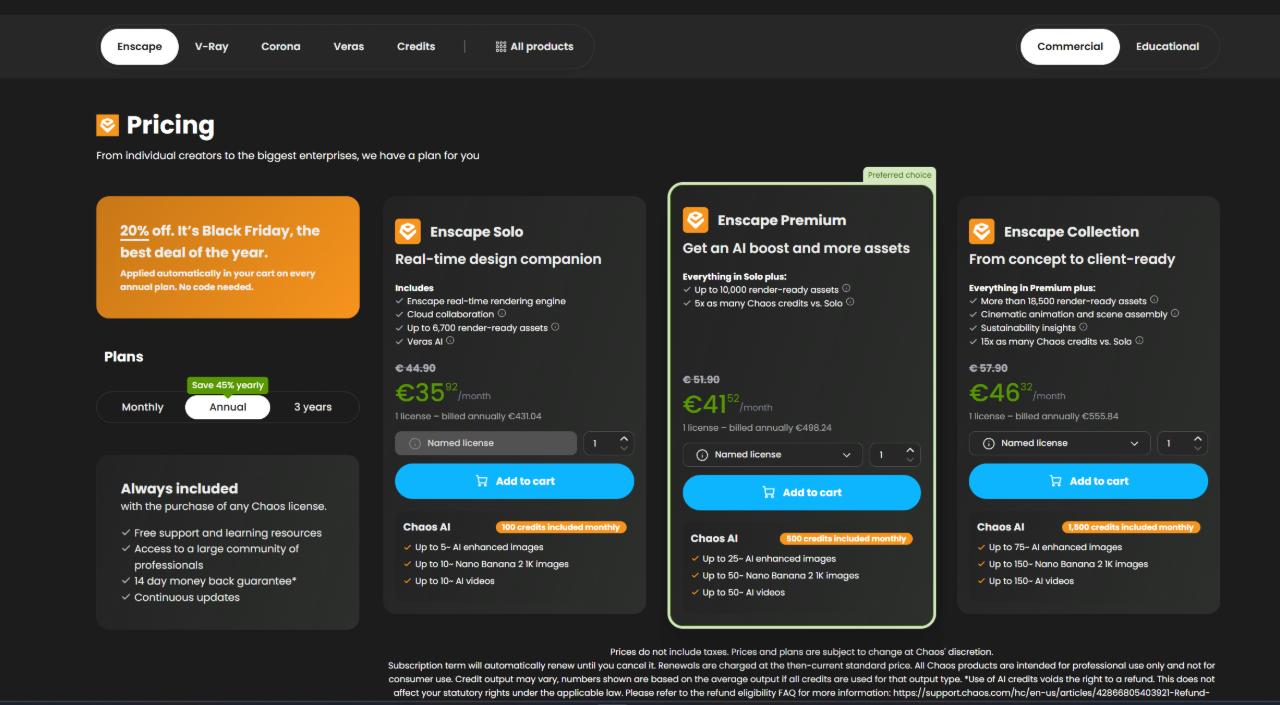
- Pricing & Licensing Plans: https://www.chaos.com/pricing
4. Step-by-Step Installation Guide
- Verify Host Application & Hardware Requirements: Confirm your workstation runs a supported 64-bit operating system (Windows 10/11 or supported macOS/Linux depending on host app), has a compatible version of your target 3D software installed (such as 3ds Max, SketchUp, Rhino, Revit, or Cinema 4D), at least 16 GB RAM (32 GB–64 GB recommended), and an NVIDIA RTX GPU if using V-Ray GPU acceleration.
- Download the Official V-Ray Installer: Visit https://www.chaos.com/free-trial (or sign in to your Chaos account at https://www.chaos.com), select V-Ray for your specific host application, and download the official installer package.
- Run the Setup Wizard: Double-click the downloaded installer executable (running as administrator on Windows), accept the end-user license agreement, verify the detected host application version, and click Install.
- Activate Your License with Chaos License Server: Launch your host 3D application, select V-Ray as the active renderer, and sign in with your Chaos account credentials when prompted to activate your 30-day trial, educational license, or commercial subscription.
5. How to Use Chaos V-Ray: Beginner Workflow
- Select V-Ray as the Active Render Engine: Open your 3D model in SketchUp, 3ds Max, Rhino, or Revit, open the Render Settings dialog, and choose V-Ray as your current renderer.
- Set Up Natural or Studio Lighting: Add a V-Ray Sun & Sky system for exterior daylight scenes or place V-Ray Rectangle/Dome Lights with an HDRI environment map for interior and studio lighting.
- Assign V-Ray Materials & Chaos Cosmos Assets: Open the V-Ray Asset Editor, apply physically based V-Ray materials (glass, brushed metal, wood, fabric) to surfaces, and place 3D furniture or trees from Chaos Cosmos.
- Preview with Interactive Rendering & LightMix: Start V-Ray Interactive Rendering to frame your camera and tune exposure, and add a LightMix render element to balance light colors and brightness live in the VFB.
- Configure Production Quality & Save Output: Switch off Interactive mode, choose Medium or High quality presets with Denoiser enabled, render your final frame, and save the image as `.PNG`, `.JPG`, or multi-channel `.EXR`.
6. Frequently Asked Questions (FAQ)
- Does Chaos V-Ray work as a standalone program or a plugin?Chaos V-Ray runs as a tightly integrated rendering plugin inside host 3D applications such as 3ds Max, SketchUp, Rhino, Revit, Cinema 4D, Maya, and Houdini, while also offering V-Ray Standalone for command-line and render-farm jobs.
- Can V-Ray render using both CPU and GPU?Yes. V-Ray supports CPU rendering on multi-core Intel/AMD/Apple Silicon processors as well as GPU-accelerated rendering on compatible NVIDIA CUDA/RTX graphics cards.
- How long is the official Chaos V-Ray free trial?Chaos provides a 30-day free trial for V-Ray through https://www.chaos.com/free-trial.