ZBrush (developed by Maxon) is an industry-standard digital sculpting and 3D painting software application widely used by character artists, creature designers, concept sculptors, game developers, toy/collectible makers, and VFX studios. Built around high-density polygon sculpting and real-time shading, ZBrush enables artists to shape organic forms, fine surface pores and fabric folds, hard-surface assets, and stylized models with responsive brush feedback.
1. In-Depth Review: Why 3D Artists & Studios Use ZBrush
- High-Polygon Sculpting & Detail Responsiveness: Allows artists to sculpt millions of polygons interactively with tactile brush engines, clay buildup, smooth/polish passes, and alpha-driven surface detailing.
- Fast Topology & Mesh Cleanup Tools: Streamlines production readiness using DynaMesh for rapid form blockouts, ZRemesher for cleaner quad retopology, and UV Master for straightforward UV layouts.
- Smooth Pipeline Handoff with 3D Suites & Renderers: Exports OBJ, FBX, STL, and Alembic assets and connects with Cinema 4D, Maya, Blender, Unreal Engine, and render engines for lookdev, rigging, and 3D printing.
2. Key Features & Capabilities
- Sculpting Brushes & Alpha Stencils: Shape organic anatomy, hard surfaces, creases, and micro-textures using customizable brushes, masking, and alpha/IMM (Insert Multi Mesh) libraries.
- DynaMesh, ZRemesher & Subdivision Levels: Combine or remesh geometry dynamically during concepting, build multi-resolution subdivision levels, and generate clean topology for animation or game engines.
- Polypaint & Surface Texture Maps: Paint vertex color directly onto high-resolution meshes without initial UVs and bake Normal, Displacement, and Color/Texture maps for lower-poly targets.
- ZModeler for Hard-Surface Modeling: Model and edit low-poly/mid-poly hard-surface geometry using context-sensitive polygon, edge, and point actions.
- 3D Printing & Measurement Tools: Check wall thickness, hollow/escape holes, scale, and mesh integrity before exporting `.STL` or `.OBJ` files for 3D printing.
- Cross-Platform Desktop & iPad Support: Available for Windows and macOS desktops, with ZBrush for iPad workflows for portable sketching and sculpting.
- Official Links: Free Trial, Free / Education & Pricing
Always download ZBrush installers and trials through Maxon's official portals:
- Official ZBrush Product Overview: https://www.maxon.net/en/zbrush
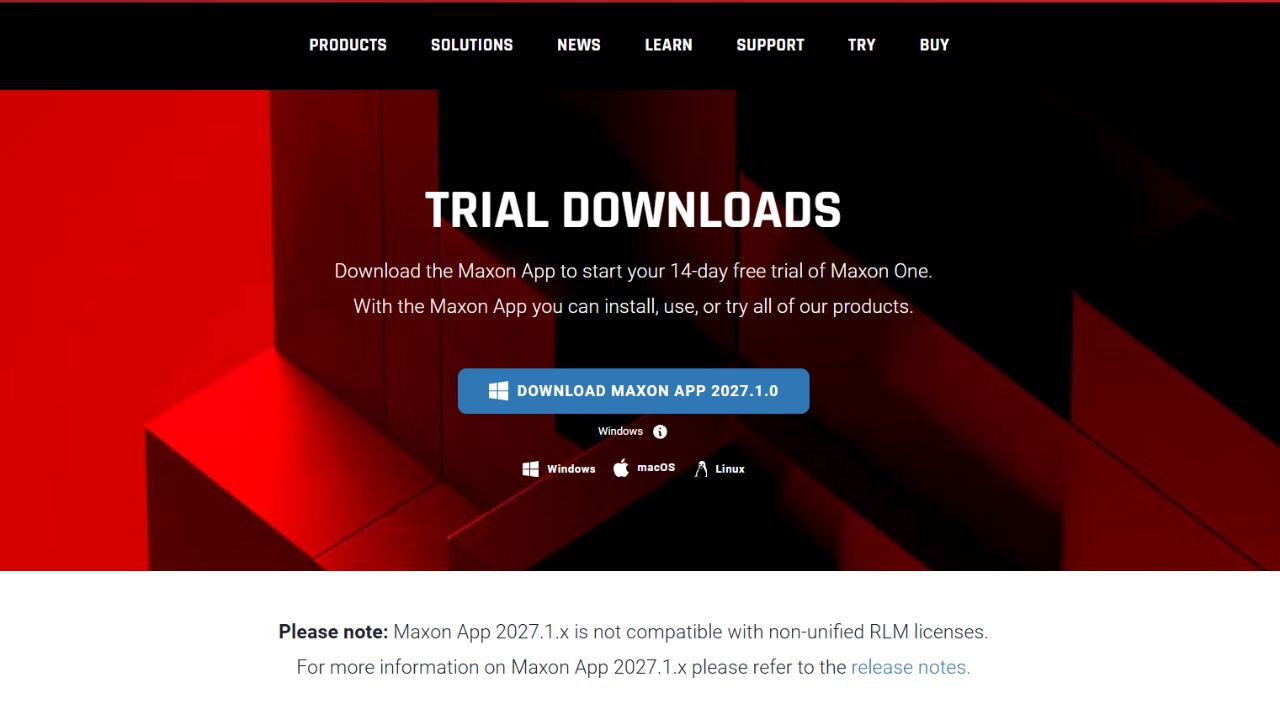
- Official Free Trial (14-Day Evaluation): https://www.maxon.net/en/try
- Free / Education (Students & Educators Licensing): https://www.maxon.net/en/education
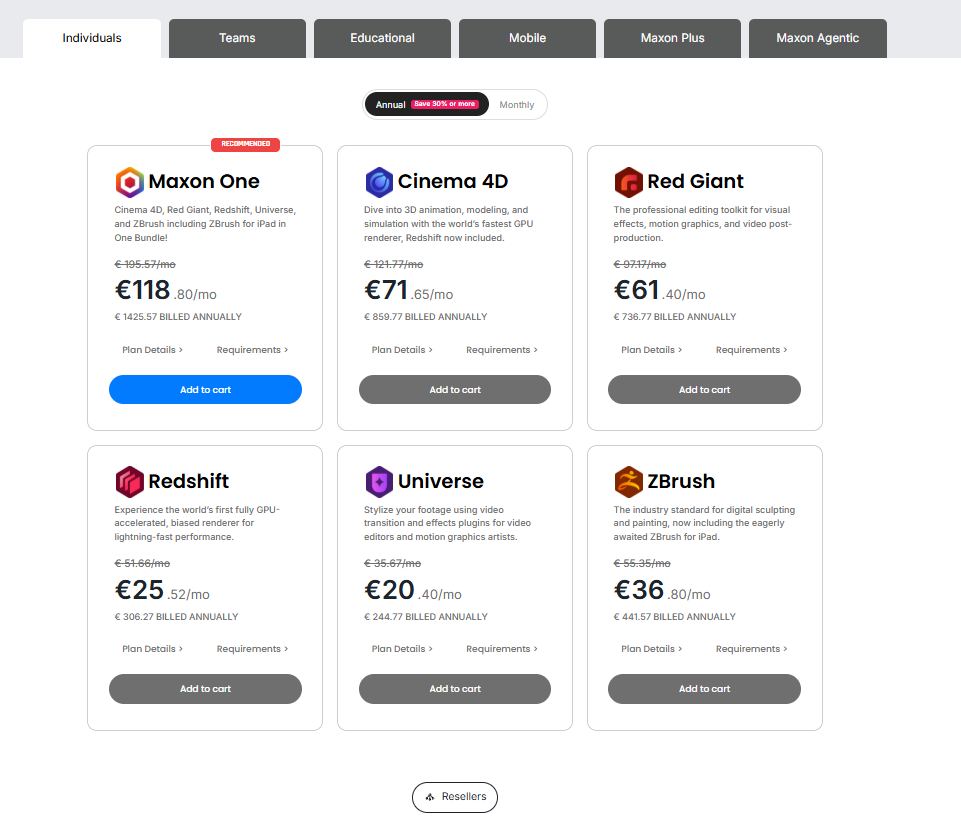
- Pricing & Subscription Plans: https://www.maxon.net/en/buy
4. Step-by-Step Installation Guide
- Verify Operating System & Hardware: Confirm your workstation runs a supported 64-bit OS (Windows 10/11 64-bit or supported macOS) with a multi-core 64-bit CPU (Intel/AMD with AVX2 or Apple Silicon), at least 8 GB RAM (16 GB–32 GB+ recommended for high-poly sculpting), an OpenGL 3.3+ capable GPU, and free SSD storage space.
- Start Trial or Sign In to Maxon: Visit https://www.maxon.net/en/try (or https://www.maxon.net/en/zbrush) and sign in with or create your Maxon account to start the 14-day free trial or manage a license.
- Download & Install via Maxon App: Download and run the Maxon installer/Maxon App, choose ZBrush, and complete the installation on your local drive.
- Launch & Activate License: Open ZBrush from your Start menu or Applications folder and sign in through the Maxon App to activate your trial or subscription.
5. How to Use ZBrush: Beginner Workflow
- Start from a Base Mesh or Sphere: Open ZBrush, select a primitive or base mesh (such as a `PolyMesh3D` sphere or imported `.OBJ`/`.FBX`), and click `Make PolyMesh3D` to begin sculpting.
- Block Out Primary Forms: Use `Move`, `ClayBuildup`, and `Smooth` (`Shift`) brushes at lower resolution to establish overall proportions and silhouette.
- Refine Details & Subdivide: Increase subdivision levels (`Ctrl+D`) or use `DynaMesh` and `Standard` / `DamStandard` / `Alpha` brushes to add secondary forms and surface detail.
- Clean Topology or Polypaint: Run `ZRemesher` when clean quad topology is needed, or use `Polypaint` to colorize your sculpt directly on the mesh.
- Export Mesh or Texture Maps: Export `.OBJ`, `.FBX`, or `.STL` files (or bake Normal/Displacement maps) for rendering in Cinema 4D/Blender or for 3D printing.
6. Frequently Asked Questions (FAQ)
- How long is the official ZBrush free trial?Maxon provides a 14-day free trial via https://www.maxon.net/en/try.
- Does ZBrush run on both Windows and macOS?Yes. ZBrush is available for 64-bit Windows and macOS (including Apple Silicon support).
- Can ZBrush export files for 3D printing and game engines?Yes. ZBrush exports `.STL`, `.OBJ`, and `.FBX` formats along with Normal and Displacement maps for 3D printing, rendering, and game pipelines.