Adobe Audition is a digital audio workstation (DAW) and sound restoration suite developed by Adobe. Designed for video editors, podcast producers, broadcast engineers, and sound designers, Adobe Audition combines non-destructive multitrack mixing with sample-accurate waveform and spectral frequency editing to clean dialogue, master podcasts, and finish audio for film and web video.
1. In-Depth Review: Why Video Editors & Audio Producers Use Adobe Audition
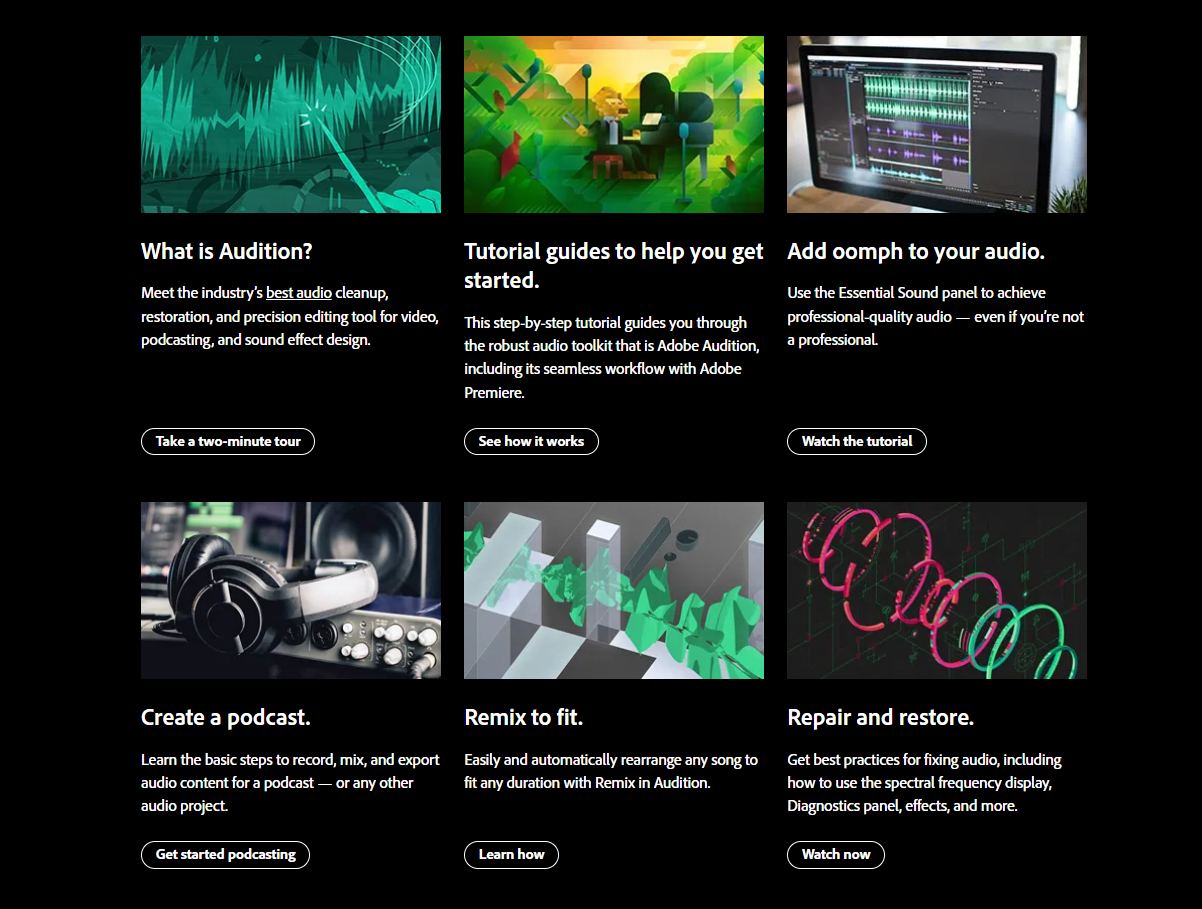
- Surgical Spectral Frequency Display & Noise Restoration: Visualizes audio frequencies as a color-coded spectrogram, allowing engineers to isolate and erase hums, mic bumps, clicks, and background hiss without harming vocal clarity.
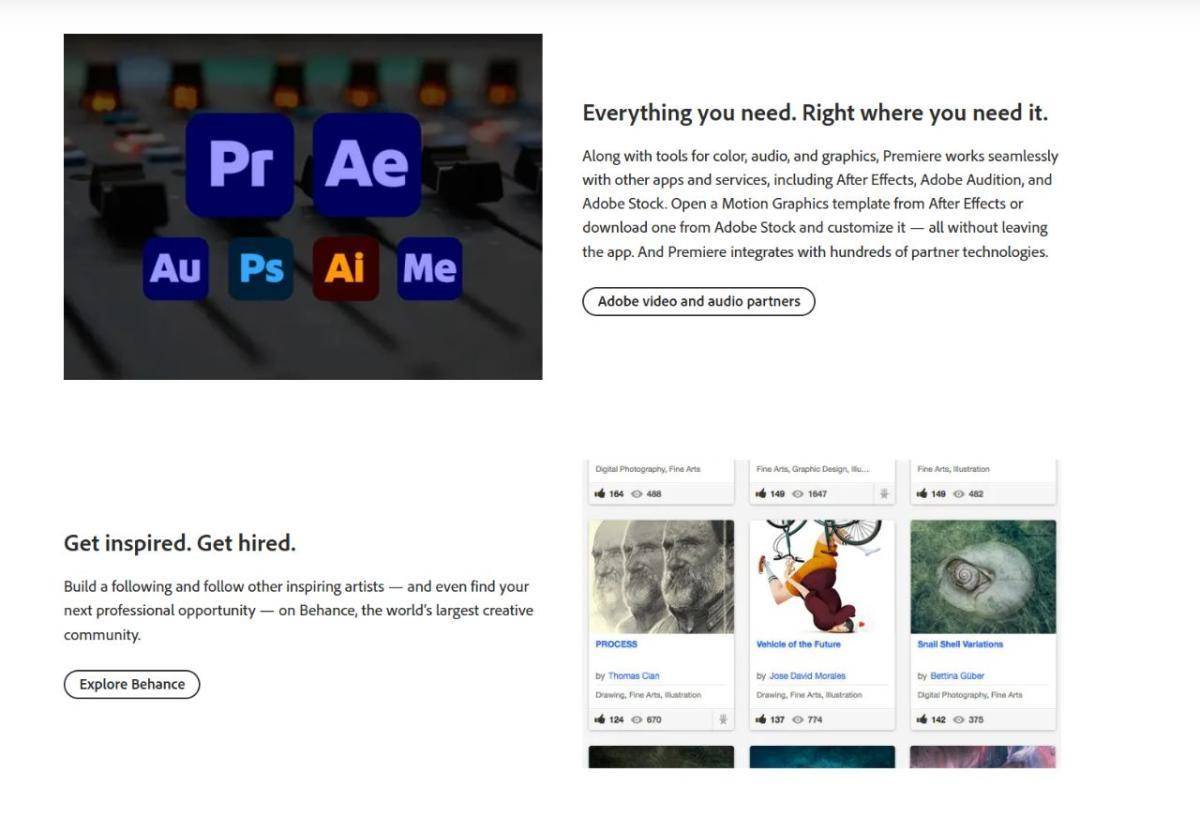
- Seamless Round-Trip Workflow with Adobe Premiere Pro: Sends video timelines and audio stems back and forth with Premiere Pro, automatically ducking music under dialogue and conforming mixes for broadcast loudness standards.
- Native Support for Windows (x64 & ARM) and macOS Apple Silicon: Runs natively on modern Windows 11 PCs, Windows on Arm devices, and Apple Silicon Macs with low-latency ASIO/CoreAudio hardware routing.
2. Key Features & Capabilities
- Multitrack Mixing & Non-Destructive Audio Editing: Record, arrange, crossfade, and automate volume, pan, and effects across unlimited audio tracks with clip-based and track-based routing.
- Spectral Frequency Display & Spot Healing Brush: Visually select unwanted ambient noises, sirens, or plosives directly in the frequency spectrum and remove them cleanly.
- Essential Sound Panel & Auto-Ducking: Balance dialogue loudness, repair echo/reverb, match clip EQ, and automatically lower background music whenever speech occurs.
- Batch Audio Processing & Broadcast Loudness Compliance: Convert file formats, normalize loudness to ITU/EBU broadcast targets, and apply favorite effect chains across dozens of recordings simultaneously.
- Built-In Effects & VST3 / AU Plugin Support: Includes Parametric EQ, Multiband Compressor, DeEsser, Adaptive Noise Reduction, Convolution Reverb, and third-party VST3/Audio Unit plugin support.
- Royalty-Free Adobe Sound Effects Library: Access thousands of uncompressed sound effects directly from Adobe's official creative resources.
- Official Links: Free Trial, Free / Education & Pricing
Always download Creative Cloud and Adobe Audition installers, documentation, and trial builds through Adobe's official portals:
- Official Adobe Audition Product Page: https://www.adobe.com/products/audition.html
- Official Adobe Audition Free Trial & Download: https://www.adobe.com/products/audition/free-trial-download.html
- Official System Requirements Documentation: https://helpx.adobe.com/audition/desktop/introduction/system-requirements.html
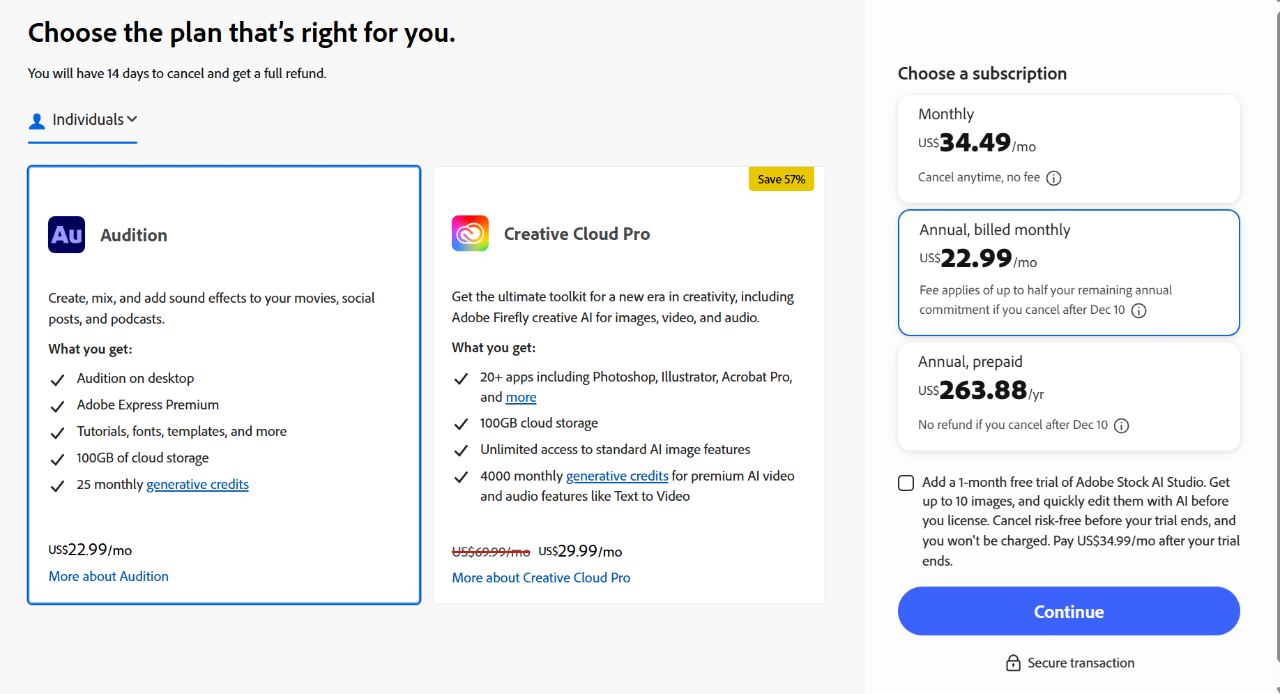
- Pricing & Plans (Single App & Creative Cloud Pro): https://www.adobe.com/products/audition.html
4. Step-by-Step Installation Guide
- Verify Operating System & Hardware: Confirm your workstation runs Windows 11 64-bit (v24H2 or newer, including Windows on Arm) or macOS 15 Sequoia / macOS 26 Tahoe or newer (Apple Silicon), with at least 8 GB RAM (16 GB–32 GB recommended for video/4K workflows) and 8 GB free internal SSD space.
- Start Your Official 7-Day Free Trial: Visit https://www.adobe.com/products/audition/free-trial-download.html, sign in with your Adobe account, and select the 7-day free trial option.
- Install via Creative Cloud Desktop: Open the Creative Cloud Desktop installer and install `Adobe Audition` to your internal SSD.
- Configure Audio Hardware & Sample Rate: Launch Adobe Audition, open `Edit > Preferences > Audio Hardware` (`Audition > Settings > Audio Hardware` on macOS), select your ASIO or CoreAudio interface, and verify input/output routing.
5. How to Use Adobe Audition: Beginner Workflow
- Import Audio or Video Files: Open Adobe Audition and drag `.WAV`, `.MP3`, `.AIFF`, or `.MP4` video files into the `Files` panel (`Ctrl+I` / `Cmd+I`).
- Clean Noise in the Waveform Editor: Double-click an audio clip to open the `Waveform` editor, highlight a section of pure background noise, choose `Effects > Noise Reduction / Restoration > Capture Noise Print`, and apply `Noise Reduction (process)`.
- Create a Multitrack Session for Mixing: Click `File > New > Multitrack Session` (`Ctrl+N` / `Cmd+N`), choose a sample rate (such as `48000 Hz` for video or `44100 Hz` for podcasts), and drag voice, music, and SFX tracks onto the timeline.
- Balance Dialogue & Music with Essential Sound: Open `Window > Essential Sound`, tag tracks as `Dialogue`, `Music`, or `SFX`, apply automatic loudness matching, and enable `Ducking` on the music track against dialogue.
- Export Final Master Mix: Select `File > Export > Multitrack Mixdown > Entire Session`, choose `.WAV` (uncompressed master) or `.MP3` (podcast/web delivery), and click `OK`.
6. Frequently Asked Questions (FAQ)
- How long is the official Adobe Audition free trial?Adobe offers a 7-day free trial of the full desktop version of Adobe Audition, plus a 14-day full-refund window if canceled after trial billing begins.
- Does Adobe Audition work natively on Apple Silicon Macs and Windows on Arm?Yes. Adobe Audition runs natively on Apple Silicon (M1 and newer) Macs as well as 64-bit Windows 11 and Windows on Arm processors.
- Is Adobe Audition included in Creative Cloud student discounts?Yes. Eligible students and teachers receive discounted pricing on the Creative Cloud Pro plan, which includes Adobe Audition alongside Premiere Pro, Photoshop, and 20+ creative apps.