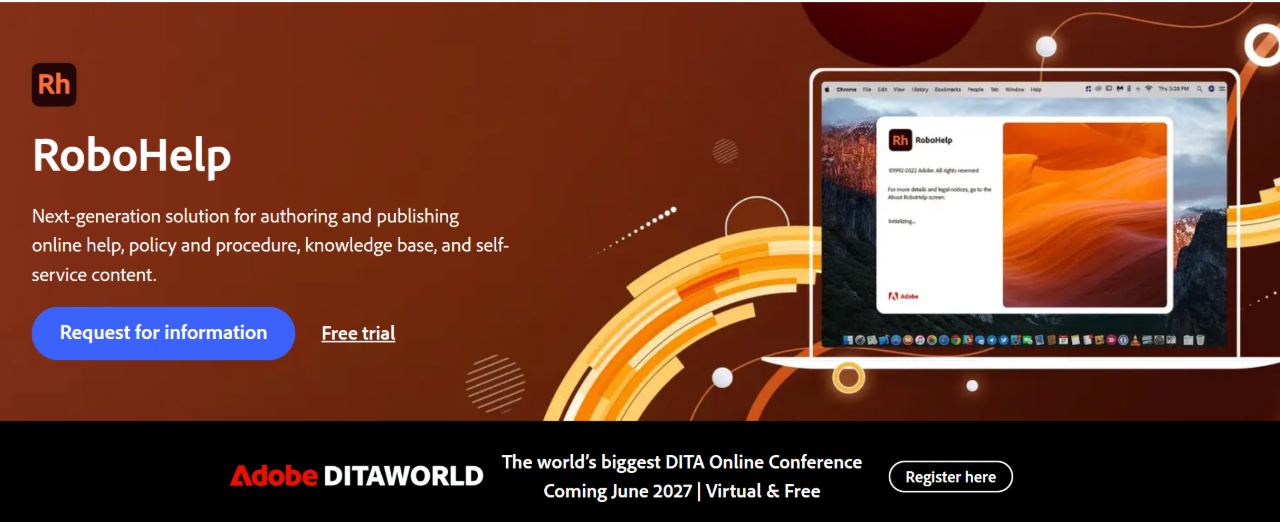
Adobe RoboHelp (developed by Adobe Inc. as part of the Adobe Technical Communication Suite) is an enterprise help authoring and multi-channel knowledge base publishing application for Windows and macOS. Built for technical writers, software documentation teams, and customer support organizations, RoboHelp turns HTML5, Markdown, DITA, and Word topics into searchable frameless web help portals, AI-ready Microcontent snippets, PDF manuals, EPUB eBooks, and mobile apps—complete with Git/SharePoint version control and dynamic content filtering.
1. In-Depth Review: Why Documentation & Support Teams Use Adobe RoboHelp
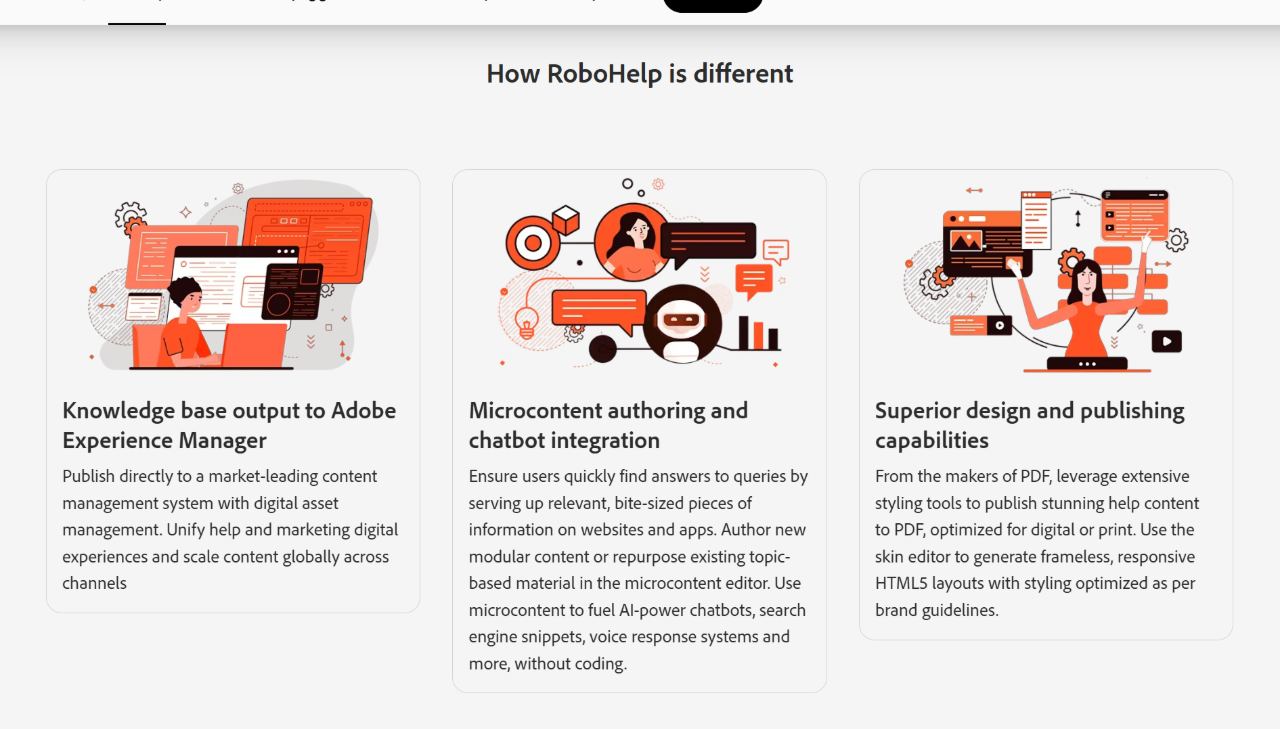
- Single-Source Multi-Channel Help & Knowledge Base Publishing: Authors modular topics once in HTML5 or Markdown and publishes simultaneously to Frameless Responsive HTML5 portals, PDF, EPUB, eBook, and major knowledge base platforms (Salesforce, ServiceNow, Zendesk, Confluence).
- Microcontent Authoring for Chatbots & Featured Search Snippets: Structures concise question-and-answer microcontent blocks directly inside the editor so help centers, search engines, and support chatbots deliver instant answers.
- Cross-Platform Windows & macOS Authoring with Git Integration: Runs natively on both Windows and macOS with built-in Git, SharePoint, and Azure DevOps connectors, conditional build tags, and XLIFF translation workflows.
2. Key Features & Capabilities
- HTML5, CSS3 & Markdown Topic Editor: Author clean documentation with visual WYSIWYG editing, full source-code view, reusable snippets, variables, and Master Pages.
- Frameless & Responsive HTML5 Skin Designer: Customize modern, fast-loading web help portals with predictive search, dynamic content filters, and mobile-friendly layouts.
- Microcontent & AI-Ready FAQ Structuring: Create intent-driven Q&A blocks designed for featured search snippets, conversational chatbots, and in-app help.
- Direct Knowledge Base & CRM Publishing: Publish documentation straight to Salesforce Knowledge, ServiceNow, Zendesk, Confluence, Adobe Experience Manager, and static web hosts.
- Git, SharePoint & Multi-Language XLIFF Support: Collaborate across distributed writing teams using Git version control and export XLIFF packages for global localization.
- Official Free Trial & Flexible Licensing: Available via an official Adobe free trial as a standalone subscription or bundled inside the Adobe Technical Communication Suite.
- Official Links: Free Trial, Free / Education & Pricing
Always download Adobe RoboHelp installers and start your official trial directly from Adobe portals:
- Official Adobe RoboHelp Product Page: https://www.adobe.com/products/robohelp.html
- Official Adobe RoboHelp Free Trial Download: https://www.adobe.com/products/robohelp/free-trial-download.html
- Official Adobe Technical Communication Suite: https://www.adobe.com/products/technicalcommunicationsuite.html
- Official Adobe RoboHelp User Guide & Tutorials: https://helpx.adobe.com/robohelp/user-guide.html
4. Step-by-Step Installation Guide
- Check Operating System & Hardware Requirements: Confirm your Windows 10/11 (64-bit) or macOS computer has at least 4 GB RAM (8 GB–16 GB+ recommended) and 3 GB+ of free internal disk space.
- Start Your Official Trial or Sign In to Adobe: Visit https://www.adobe.com/products/robohelp/free-trial-download.html, click `Start free trial` or `Buy now`, and sign in with your Adobe ID.
- Download & Run the Official RoboHelp Installer: Download the Windows or macOS installer onto a standard internal drive (avoid removable flash drives or case-sensitive file systems) and follow the installation prompts.
- Activate & Launch Adobe RoboHelp: Open Adobe RoboHelp over an active internet connection and sign in with your Adobe ID to validate your trial or subscription.
5. How to Use Adobe RoboHelp: Beginner Workflow
- Create a New Help Project: Launch Adobe RoboHelp, click `New Project`, enter a project title and location on your local drive, and click `Create`.
- Structure Table of Contents & Author Topics: Use the `Contents` panel to create folders and HTML5/Markdown topics, then write and format structured headings, callouts, tables, and screenshots in the topic editor.
- Add Variables, Snippets & Conditional Tags: Define reusable product names in `Variables`, shared warnings/footers in `Snippets`, and audience-specific `Condition Tags` for multi-edition manuals.
- Configure Output Preset & Skin: Open the `Output` tab, select `Frameless` or `Responsive HTML5` (or `PDF`), choose a clean portal skin, and assign your Table of Contents and condition filters.
- Generate & Preview Your Help Portal: Click `Generate` (`Ctrl+G` / `Cmd+G`) to compile the site and click `View` to test live search, navigation, and mobile responsiveness in your browser.
6. Frequently Asked Questions (FAQ)
- Is Adobe RoboHelp available for macOS as well as Windows?Yes. Modern releases of Adobe RoboHelp run natively on both 64-bit Windows and macOS.
- What is the difference between Adobe RoboHelp and Adobe FrameMaker?Adobe RoboHelp is specialized for online help systems, Frameless HTML5 knowledge bases, Microcontent, and CRM/helpdesk publishing, whereas Adobe FrameMaker is focused on long, complex structured XML/DITA engineering manuals and print-heavy technical books.
- Can Adobe RoboHelp import existing Microsoft Word or FrameMaker documents?Yes. RoboHelp can import and link Microsoft Word (`.docx`), FrameMaker (`.fm`/`.book`), DITA, Markdown, and HTML files directly into your help project.