Adobe FrameMaker (developed by Adobe Inc. as part of the Adobe Technical Communication Suite) is an enterprise-grade technical authoring and long-document publishing application for 64-bit Windows. Built for technical writers, engineering documentation teams, aerospace/manufacturing publishers, and content architects, FrameMaker handles massive multi-chapter manuals, structured XML/DITA topics, complex tables, math equations, and cross-references—publishing simultaneously to accessible PDF, Responsive HTML5, EPUB, and mobile help portals.
1. In-Depth Review: Why Technical Writers & Engineering Teams Use FrameMaker
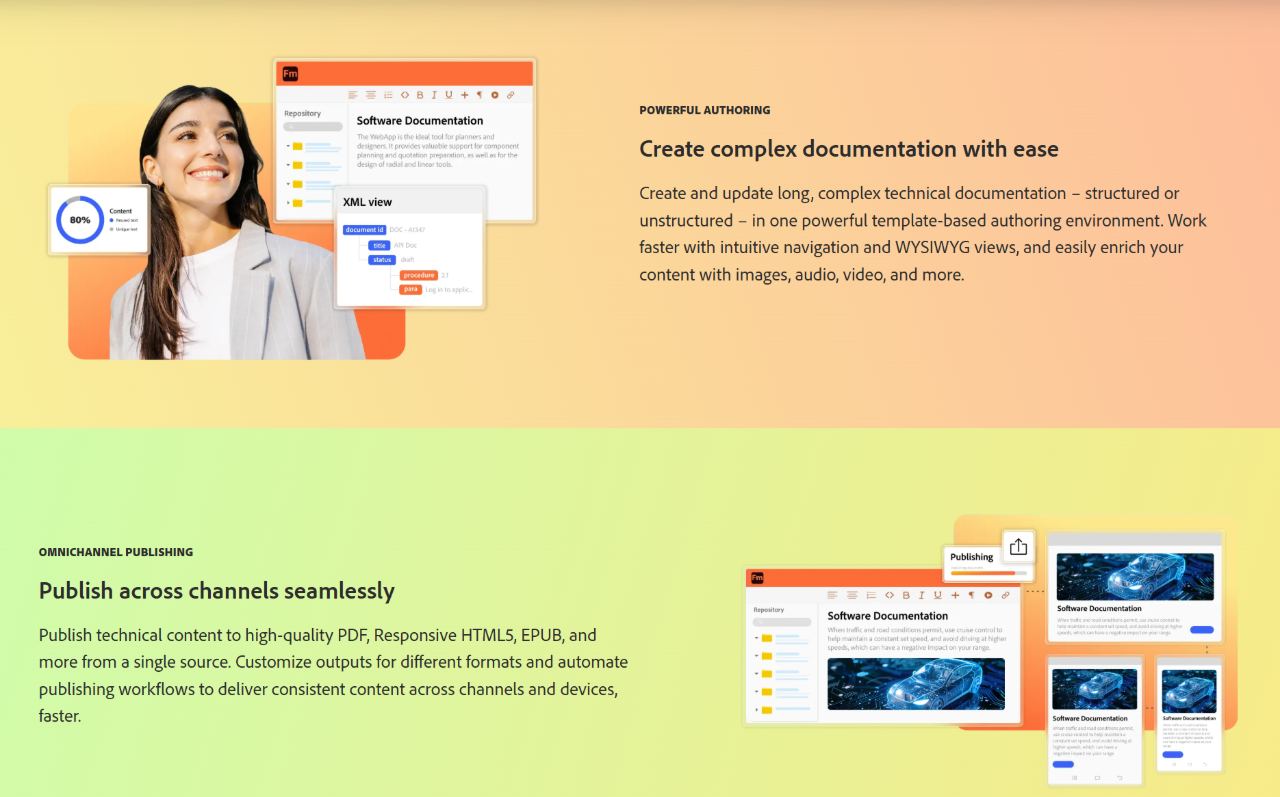
- Built for Long, Complex & Structured Technical Manuals: Manages thousand-page books, automated tables of contents, indexes, conditional text tags, and live cross-references effortlessly without layout slowdowns.
- Native XML & DITA Structured Authoring Environment: Provides a dual WYSIWYG and structured XML/DITA tree view with schema validation, reusable content components, and CMS connectors (Adobe Experience Manager Guides, SharePoint).
- Single-Source Multi-Channel Publishing: Exports one master book or DITA map directly to print-ready PDF, Responsive HTML5, EPUB, Kindle, and WebHelp outputs.
2. Key Features & Capabilities
- Structured XML & DITA 1.3 Authoring: Author, validate, and reuse modular DITA maps and topics with visual structure views and smart element insertion.
- Unstructured Long-Document Book Layout: Format multi-chapter engineering manuals, catalogs, and SOPs with master pages, paragraph/character styles, and automatic numbering.
- Conditional Text & Variables for Multi-Product Manuals: Maintain multiple product variants, languages, or audience editions inside a single source document using conditional filters.
- Multi-Format Output Engine: Publish directly to Tagged/Accessible PDF, Responsive HTML5, EPUB, and custom stylesheets.
- Translation & XLIFF Localization Workflows: Export XLIFF packages and support right-to-left (RTL) and multi-language technical publishing cleanly.
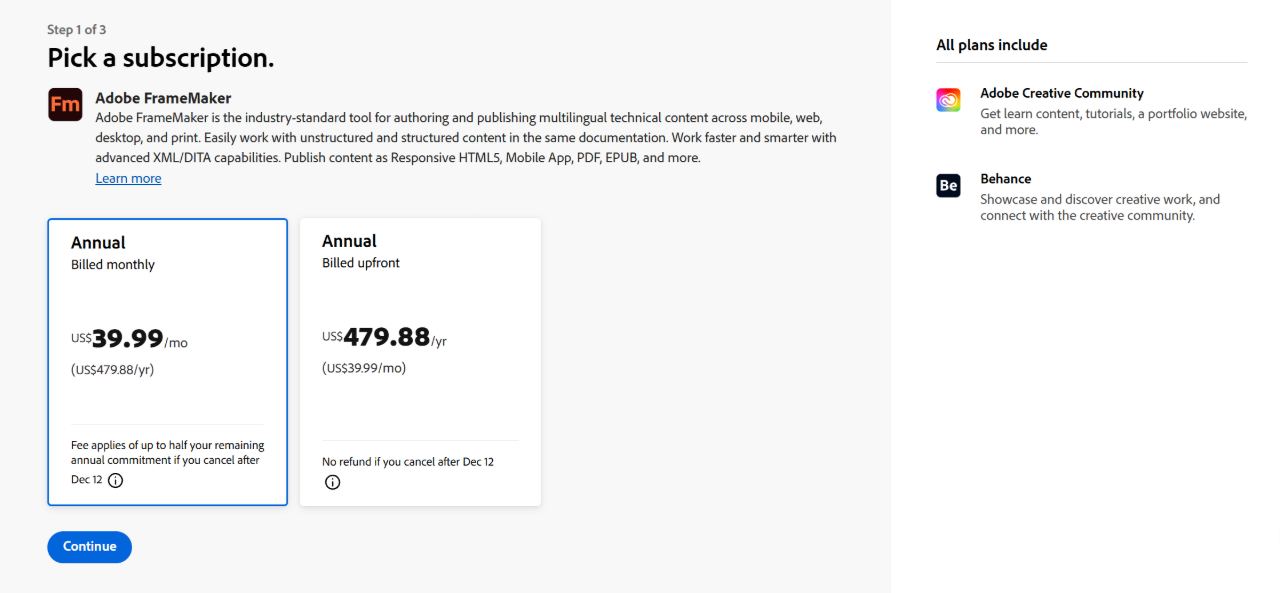
- Official 30-Day Free Trial & Flexible Licensing: Available via an official free trial from Adobe as a standalone subscription or inside the Adobe Technical Communication Suite.
- Official Links: Free Trial, Free / Education & Pricing
Always download Adobe FrameMaker installers and access official trials directly from Adobe portals:
- Official Adobe FrameMaker Product Page: https://www.adobe.com/products/framemaker.html
- Official Adobe FrameMaker Downloads & Release Notes: https://helpx.adobe.com/framemaker/kb/framemaker-downloads.html
- Official Adobe Technical Communication Suite: https://www.adobe.com/products/technicalcommunicationsuite.html
- Official Adobe FrameMaker User Guide & Tutorials: https://helpx.adobe.com/framemaker/user-guide.html
4. Step-by-Step Installation Guide
- Check Operating System & Hardware Requirements: Confirm your workstation runs a 64-bit version of Microsoft Windows 11 with an Intel Core i5 (or faster) processor, at least 4 GB RAM (8 GB–16 GB+ recommended), and 5 GB+ free disk space.
- Download the Official FrameMaker Installer: Visit https://www.adobe.com/products/framemaker.html or https://helpx.adobe.com/framemaker/kb/framemaker-downloads.html to download the official Windows 64-bit installer (`~3.2 GB` for the March 2026 release).
- Extract & Run `Set-up.exe`: Extract the downloaded installer archive to a standard NTFS folder (do not install onto a case-sensitive volume or removable flash drive) and run `Set-up.exe`.
- Sign In with Your Adobe ID & Activate: Launch Adobe FrameMaker, sign in with your registered Adobe ID over an active internet connection to validate your trial or subscription, and select your preferred UI language.
5. How to Use Adobe FrameMaker: Beginner Workflow
- Choose Unstructured or Structured Workspace: Launch FrameMaker, go to `Edit > Preferences > General`, select either `FrameMaker` (for classic style-based manuals) or `Structured FrameMaker` (for XML/DITA), and restart if prompted.
- Create a New Document or Book (`*.book`): Click `File > New > Document` to start a single chapter using a built-in template, or `File > New > Book` to assemble multiple chapters into a unified manual.
- Apply Paragraph & Character Styles Consistently: Open the `Paragraph Designer` (`Ctrl+M`) and `Character Designer` (`Ctrl+D`) to format headings, numbered procedures, cautions, and tables consistently across chapters.
- Insert Cross-References, Tables & Variables: Use `Insert > Cross-Reference` for live section/page links and `Insert > Variables` for reusable product names or version numbers.
- Publish to PDF or Responsive HTML5: Open `File > Publish`, choose `PDF` or `Responsive HTML5`, configure your output folder and style mapping, and click `Publish Selected Output`.
6. Frequently Asked Questions (FAQ)
- Is Adobe FrameMaker available for macOS?No. Adobe FrameMaker is a native 64-bit Windows application (supported on 64-bit Windows 11 for the 2026 release).
- What is the difference between Adobe FrameMaker and Adobe InDesign?Adobe InDesign is built for visual graphic design, magazines, brochures, and creative page layouts, whereas Adobe FrameMaker is engineered for long technical manuals, automated numbering/cross-references, conditional text, and structured XML/DITA publishing.
- Does Adobe FrameMaker require an internet connection to activate?Yes. An internet connection and Adobe ID registration are required for software activation, subscription validation, and online services (phone activation is not supported).