GIMP 3.2 (GNU Image Manipulation Program) is a free, open-source raster image editing and graphic design software application distributed under the GNU General Public License (GPLv3+). Used by photographers, digital illustrators, web designers, and GIS/remote sensing analysts who need quick raster retouching without subscription fees, GIMP 3.2 expands upon the GIMP 3.0 GTK3 architecture with non-destructive filter workflows, Link Layers, Vector Layers, and expanded PSD, SVG, and PDF export support.
1. In-Depth Review: Why Designers & Creators Use GIMP 3.2
- Non-Destructive Filters, Link Layers & Vector Layers: Lets editors adjust GEGL filters non-destructively with live on-canvas previews, place external images as scalable Link Layers, and create editable Vector Layers with customizable fills and strokes.
- 100% Free & Open-Source Across Windows, macOS & Linux: Runs natively on Windows 10/11, macOS (Intel and Apple Silicon), and GNU/Linux (AppImage, Flatpak, Snap, and native packages) with zero subscriptions, trials, or account sign-ins.
- Broad File Format & RAW Workflow Compatibility: Opens and exports PSD/PSB, XCF, PNG, JPEG, WebP, TIFF, JPEG 2000, SVG, and PDF files while integrating with darktable, RawTherapee, and ART for Camera RAW editing.
2. Key Features & Capabilities
- Non-Destructive GEGL Filter Stack: Apply, reorder, toggle, and re-edit commonly used blur, color, sharpen, and artistic filters without permanently altering underlying pixel layers.
- Link Layers & Vector Layers: Reference external image assets that update automatically when modified on disk, and draw scalable vector paths with adjustable stroke and fill styles.
- Multi-Layer Selection & Layer Masks: Select, move, align, and transform multiple layers simultaneously while refining composites with non-destructive layer masks and blend modes.
- MyPaint Brush Engine & Retouching Tools: Paint with upgraded MyPaint brushes that respond to canvas zoom and rotation, alongside Clone, Heal, Dodge/Burn, and Warp Transform tools.
- Color Management & Soft-Proofing: Work in 8-bit, 16-bit, or 32-bit integer/floating-point precision with ICC color profiles and CMYK soft-proofing with Total Ink Coverage readouts.
- Extensible Python & Script-Fu Automation: Automate batch image processing and custom plugins using Python 3, Script-Fu, and the built-in GEGL Filter Browser.
- Official Links: Free Trial, Free / Education & Pricing
Always download GIMP installers, AppImages, and documentation directly from the official project portals:
- Official GIMP Website: https://www.gimp.org/
- Official GIMP Downloads (Windows, macOS & Linux): https://www.gimp.org/downloads/
- Free / Education & Official User Documentation: https://docs.gimp.org/
- Pricing & Licensing (100% Free & Open-Source under GNU GPLv3+): https://www.gimp.org/
4. Step-by-Step Installation Guide
- Verify Operating System & Hardware: Confirm your computer runs Windows 10 (1903 or newer) / Windows 11 (x86_64 or ARM64), macOS 11 Big Sur or newer (Intel or Apple Silicon), or 64-bit GNU/Linux with at least 4 GB–8 GB RAM and free SSD storage.
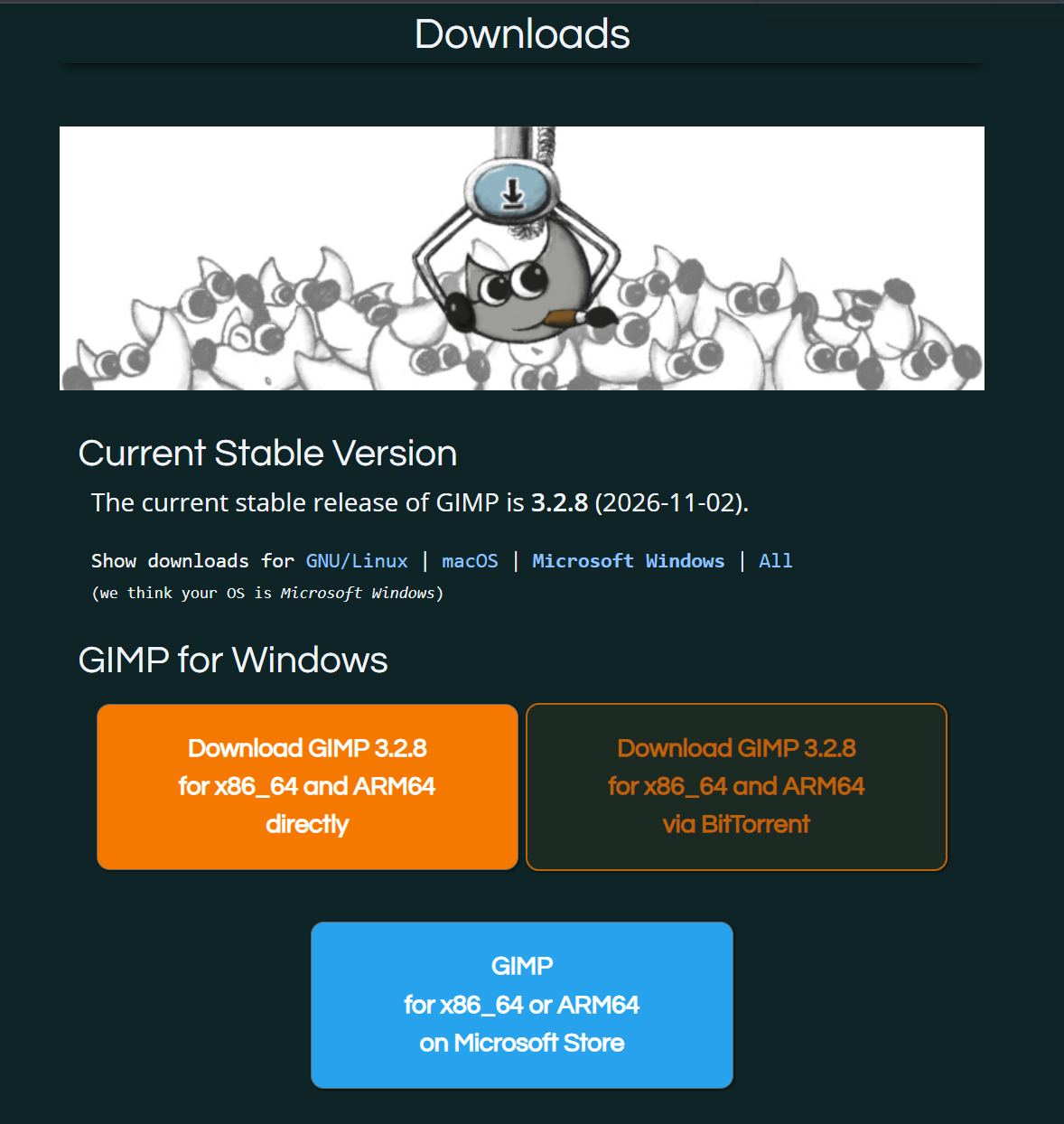
- Download the Official Installer or Package: Visit https://www.gimp.org/downloads/ and download the official Windows installer (`gimp-3.2.8-setup.exe`), macOS DMG (`gimp-3.2.8-arm64.dmg` or `x86_64.dmg`), or Linux AppImage/Flatpak/Snap package.
- Run the Setup Wizard: Launch the downloaded installer (or drag GIMP to Applications on macOS / install via Flatpak or Snap on Linux) and follow the installation prompts.
- Launch & Customize Interface Theme: Open GIMP 3.2, go to `Edit > Preferences > Interface / Theme` to match your system light or dark theme and icon size, and start editing.
5. How to Use GIMP 3.2: Beginner Workflow
- Create a Canvas or Open an Image: Launch GIMP 3.2, choose `File > New` (setting dimensions, DPI, and RGB color precision) or `File > Open` to load a photo or multi-layer `.PSD`/`.XCF` file.
- Work Non-Destructively with Layers & Masks: Duplicate or add layers in the `Layers` dock (`Ctrl+Shift+N`), use `Add Layer Mask` to blend elements cleanly, or insert `Vector Layers` and `Link Layers` for scalable graphics.
- Apply Non-Destructive Filters & Adjustments: Use `Colors` (`Levels`, `Curves`, `Exposure`, `Hue-Saturation`) or `Filters` to adjust tone and sharpness non-destructively with real-time on-canvas preview.
- Retouch & Add Styled Text: Clean blemishes with the `Heal` or `Clone` tool and add editable on-canvas typography with customizable outlines and drop shadows.
- Save Master XCF & Export Final Deliverables: Save your editable multi-layer project as `.XCF` (`File > Save`) and use `File > Export As` to output web or print files in `.PNG`, `.JPG`, `.WEBP`, `.TIFF`, `.SVG`, or `.PDF`.
6. Frequently Asked Questions (FAQ)
- Is GIMP 3.2 completely free for commercial and educational use?Yes. GIMP is 100% free and open-source software released under the GNU General Public License, allowing unrestricted personal, educational, and commercial use.
- Does GIMP 3.2 support non-destructive editing and Photoshop PSD files?Yes. GIMP 3.2 supports non-destructive GEGL filters, Link Layers, and Vector Layers, and can open and export Photoshop `.PSD` and `.PSB` files.
- Is there an official GIMP download on the Apple App Store?No. According to the official GIMP downloads page, the GIMP team does not publish packages on the Apple App Store; macOS users should download directly from https://www.gimp.org/downloads/.