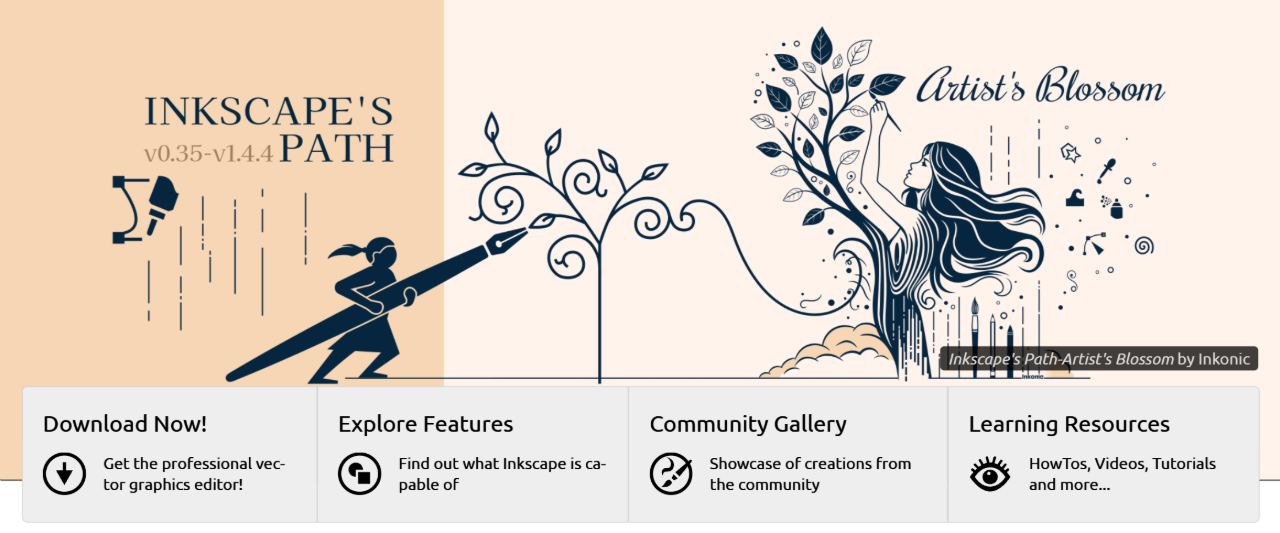
Inkscape is a free, open-source vector graphics editor widely used by graphic designers, illustrators, web developers, cartographers, and technical makers to create scalable artwork without subscription fees. Built around the open Scalable Vector Graphics (SVG) standard, Inkscape runs across Windows, macOS, and Linux and provides tools for logos, icons, illustrations, diagrams, typography, and print or web exports.
1. In-Depth Review: Why Designers & Mappers Use Inkscape
- Native SVG Standard & Zero Subscription Cost: Uses SVG as its native file format while remaining free and open-source under GPL licensing, giving teams full ownership of scalable vector files without recurring license costs.
- Capable Path, Node & Shape Editing Tools: Supports Bezier and Spiro curves, live path effects, boolean shape operations, cloning, alignment grids, and snapping for clean geometric and artistic vector work.
- Useful Vector & Raster Format Exchange for Design & Map Polish: Imports and exports SVG, PDF, EPS, DXF, and raster images such as PNG, JPEG, and TIFF for icons, diagrams, and map layout touch-ups.
2. Key Features & Capabilities
- Bezier, Pen, Pencil & Calligraphy Tools: Draw custom curves, freehand paths, and calligraphic strokes with pressure and angle controls.
- Precision Node Editing & Live Path Effects: Adjust control handles, add or delete nodes, and apply non-destructive path effects and transformations.
- Rich Typography & Text-on-Path Tools: Format multi-line text, kerning, spacing, and text flowed along paths or shapes.
- Layers, Objects, Grids & Snapping: Organize complex compositions with layers, z-order stacking, guides, grids, and object snapping.
- Bitmap Tracing & Extensions: Trace raster bitmaps into vector paths and expand functionality using community extensions.
- Cross-Platform Desktop Support: Official builds are available for Windows, macOS (Intel and ARM64), and Linux.
- Official Links: Free Trial, Free / Education & Pricing
Always download Inkscape installers and documentation from the official project portals:
- Official Inkscape Website & Download: https://inkscape.org/
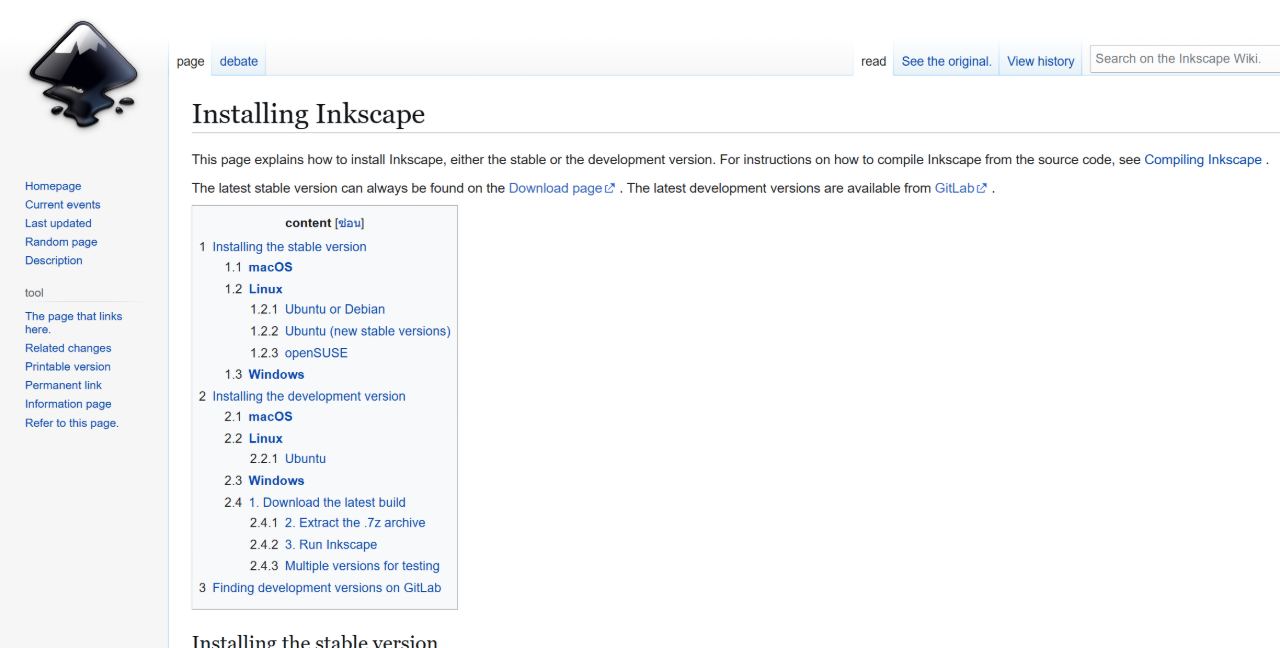
- Official Installation Guide (Inkscape Wiki): https://wiki.inkscape.org/wiki/Installing_Inkscape
- Official Inkscape Manuals & Documentation: https://inkscape-manuals.readthedocs.io/
- Pricing & Licensing (Free & Open-Source): https://inkscape.org/
4. Step-by-Step Installation Guide
- Verify Operating System & Hardware: Confirm your workstation runs a supported 64-bit Windows system, macOS (Intel or Apple Silicon), or Linux with a multi-core processor, sufficient RAM for your document size, and free disk space.
- Download the Official Installer: Visit https://inkscape.org/ and download the official installer or package for your operating system and architecture (such as 64-bit Windows MSI/EXE, macOS DMG for Intel or ARM64, or Linux package).
- Run the Setup Wizard: Launch the downloaded installer (or mount the DMG / use your Linux package manager) and follow the setup steps to complete installation.
- Launch & Choose Canvas Preset: Open Inkscape, choose your preferred page size or document template, and start creating vector artwork.
5. How to Use Inkscape: Beginner Workflow
- Create a New Document & Set Page Size: Open Inkscape, start a new document, and set your page dimensions and units in `File > Document Properties`.
- Draw Base Shapes & Vector Paths: Use shape tools (`Rectangle`, `Circle`, `Star/Polygon`) or the `Bezier` / `Pencil` tools to build your core geometry.
- Refine Nodes, Fill & Stroke: Select the `Node` tool (`F2` / `N`) to reshape paths and open `Object > Fill and Stroke` to set colors, gradients, and stroke widths.
- Add Text, Alignment & Layers: Insert labels with the `Text` tool, align objects using `Align and Distribute`, and group or layer elements for clean editing.
- Save SVG & Export Deliverables: Save your editable master file as `.SVG` and export final outputs to `.PNG`, `.PDF`, `.EPS`, or `.DXF` via `File > Save As` or `File > Export`.
6. Frequently Asked Questions (FAQ)
- Is Inkscape free for commercial and educational use?Yes. Inkscape is a free, open-source vector graphics editor designed for personal, educational, and commercial design work.
- What is Inkscape's native file format?Inkscape uses Scalable Vector Graphics (`.SVG`) as its primary native format and supports exporting to formats such as `.PNG`, `.PDF`, `.EPS`, and `.DXF`.
- Does Inkscape run on Windows, macOS, and Linux?Yes. Inkscape provides official builds for Windows, macOS (Intel and Apple Silicon), and Linux.