Shotcut (developed by Meltytech, LLC under the GNU General Public License v3) is a free, open-source, cross-platform non-linear video editor built on the MLT Multimedia Framework and FFmpeg. Supporting native timeline editing across hundreds of audio, video, and image formats without forced transcoding, Shotcut 26.11 delivers multi-track 4K and 8K editing, keyframed filters, automatic audio ducking, and hardware-accelerated encoding across Windows, macOS, and Linux with zero watermarks or subscription fees.
1. In-Depth Review: Why Video Creators & Editors Use Shotcut
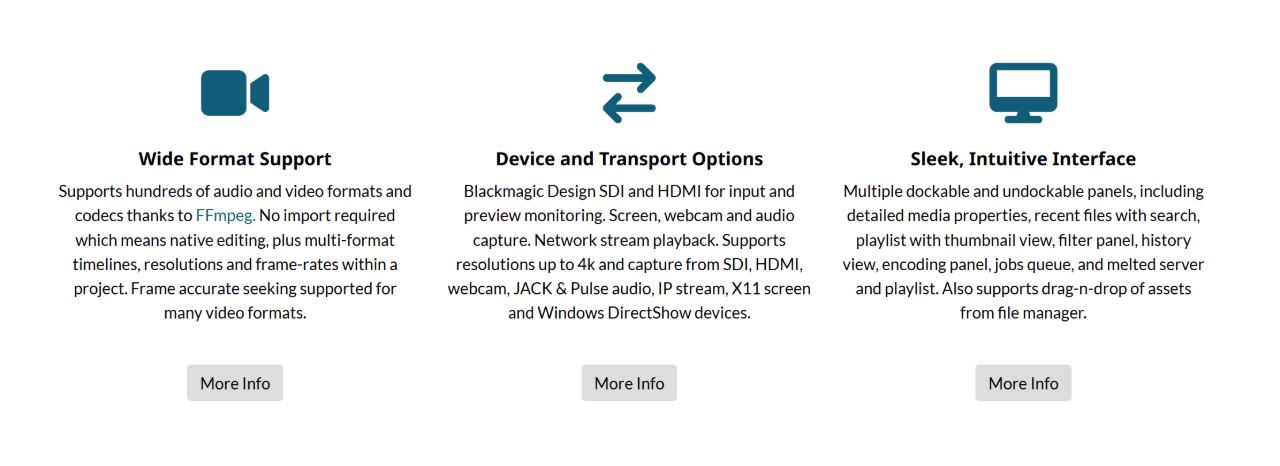
- Native Multi-Format Timeline Without Mandatory Importing: Edits mixed resolutions, frame rates, and codecs directly on the timeline via FFmpeg, eliminating slow media-import conversions before cutting begins.
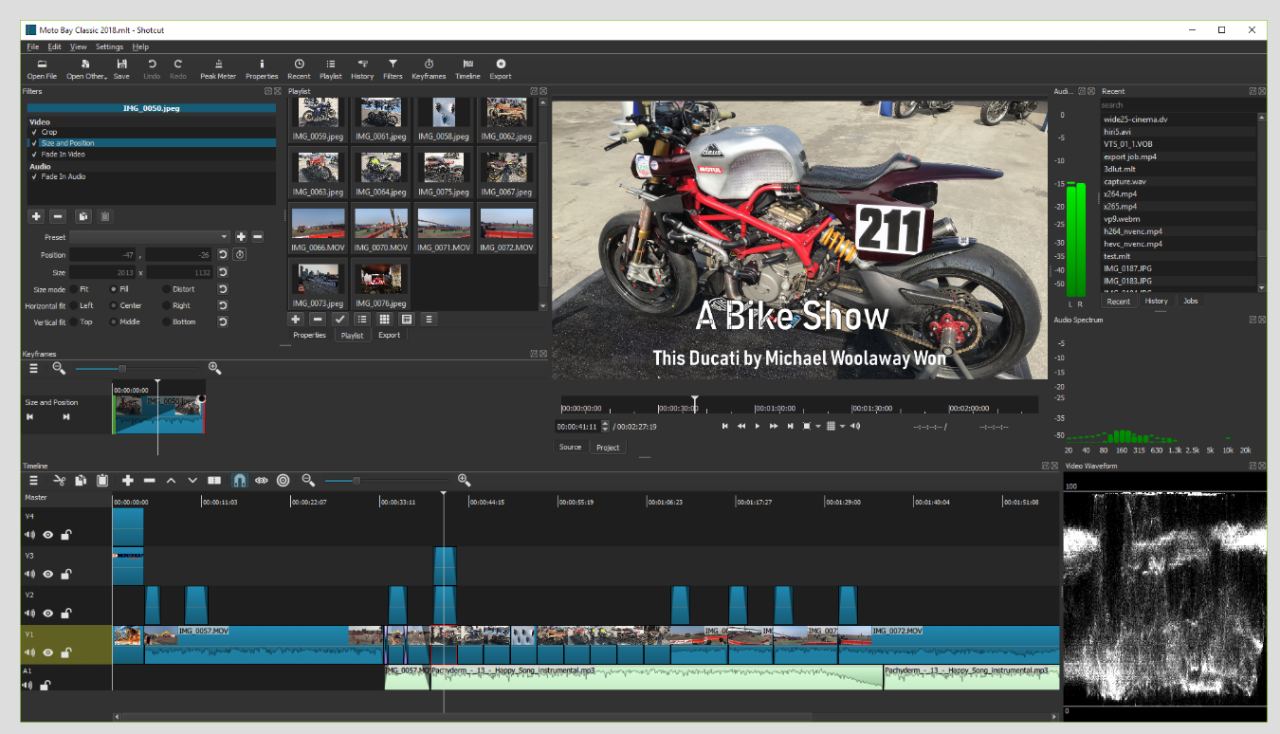
- Rich Video, Color & Audio Toolset (Including v26.11 Audio Mixing Assistant): Bundles keyframed video filters, chroma keying, color wheels, scopes, adjustment clips, automatic audio ducking, and an Audio Mixing Assistant for clean dialogue balance.
- Hardware-Accelerated Encoding & Portable Zero-Install Option: Leverages NVIDIA NVENC, Intel Quick Sync, AMD AMF, and Apple VideoToolbox hardware encoding while offering both standard installers and portable ZIP/AppImage builds.
2. Key Features & Capabilities
- Multi-Track Video & Audio Timeline: Layer unlimited video and audio tracks with ripple editing, track-header volume controls, adjustment clips, and non-destructive transitions.
- Wide Format & Codec Compatibility via FFmpeg: Open and export MP4 (H.264/HEVC), WebM (VP9/AV1), ProRes, DNxHR, MKV, WAV, FLAC, PNG/EXR image sequences, and high-resolution footage up to 8K.
- Keyframed Video Filters & Color Grading: Apply 3-way color wheels, LUTs (3D `.cube`), chroma key, stabilization, speed ramping, crop/scale/rotate, and animated filter keyframes.
- Audio Scopes, Ducking & Mixing Assistant: Monitor loudness (LUFS), peak meters, waveforms, and spectrum analyzers while automatically ducking background music under speech.
- Device Capture & Monitoring: Record webcam, screen, and audio feeds or output preview monitoring via Blackmagic Design SDI and HDMI hardware.
- Cross-Platform & Offline Privacy: Runs natively on 64-bit Windows (Intel/AMD & ARM), macOS (Intel & Apple Silicon), and Linux without requiring internet activation or user accounts.
- Official Links: Free Trial, Free / Education & Pricing
Always download Shotcut installers, portable archives, checksums, and tutorials directly from Shotcut's official portals:
- Official Shotcut Website: https://www.shotcut.org/
- Official Shotcut Downloads (Windows, macOS & Linux): https://www.shotcut.org/download/
- Official Shotcut FAQ & System Requirements: https://www.shotcut.org/FAQ/
- Official GitHub Repository & Release Notes: https://github.com/mltframework/shotcut/releases
4. Step-by-Step Installation Guide
- Verify Operating System & Hardware: Confirm your computer runs 64-bit Windows 10 (build 1809+) or Windows 11 (x64 or ARM), macOS 12 or newer (Intel or Apple Silicon), or 64-bit Linux (glibc 2.35+), with at least 4 GB–8 GB RAM (16 GB recommended for 4K).
- Download the Official Shotcut Build: Visit https://www.shotcut.org/download/ and select the installer or portable archive for your OS (`shotcut-win64-*.exe` or `.zip` on Windows, universal `.dmg` on macOS, or `.AppImage` / portable `.tar.xz` / Snap on Linux).
- Run the Setup Wizard or Extract Portable Archive: On Windows, run the `.exe` installer (or extract the portable `.zip` directly to a local folder); on macOS, open the `.dmg` and drag `Shotcut.app` into `/Applications`.
- Launch & Configure Display / Hardware Encoder: Open Shotcut, enable `Settings > GPU Effects` or hardware encoding in the `Export` panel if supported by your GPU, and create your first project.
5. How to Use Shotcut: Beginner Workflow
- Create a New Project & Set Video Mode: Open Shotcut, enter a `Project Name` and folder in the `New Project` panel, choose a `Video Mode` (such as `HD 1080p 30 fps` or `4K UHD 60 fps`), and click `Start`.
- Open & Trim Clips in the Source Viewer: Click `Open File` (or drag video/audio files into the `Playlist`), set In (`I`) and Out (`O`) trim points, and append clips onto the `Timeline` (`A` or `+`).
- Split, Arrange & Add Tracks: Press `S` to split clips at the playhead, add extra video (`Ctrl+I`) or audio (`Ctrl+U`) tracks, and overlap clips to create smooth crossfade transitions.
- Apply Video Filters, Text & Audio Ducking: Select a clip, open the `Filters` panel (`+`), and add `Text: Simple`, `Color Grading`, or `Audio Ducking` / `Normalize: Two Pass`.
- Export Final Video: Click `Export` (`Ctrl+E`), select a preset such as `H.264 High Profile` or `YouTube`, verify hardware encoder settings if desired, and click `Export File`.
6. Frequently Asked Questions (FAQ)
- Is Shotcut completely free with no watermarks or resolution limits?Yes. Shotcut is 100% free and open-source software licensed under GNU GPLv3, supporting up to 8K exports and commercial video production with zero watermarks or paywalls.
- Does Shotcut run natively on Apple Silicon Macs and Windows on Arm?Yes. Shotcut provides universal macOS builds for both Apple Silicon and Intel Macs, as well as native Windows on Arm installers and portable ZIPs.
- Does Shotcut require an internet connection or account login?No. Shotcut works completely offline with no activation, subscription check, or account registration required.